Formula Quick Question and Answer Reference
This is a compilation of common scenarios that use formula to achieve the goal.
This is a quick reference in a Q&A layout.
For more detailed explanations and practical examples, kindly consult our Recipes section.
Q: How do I move Fields between pages
A: You can move fields between Pages when you place the designer into "Continuous" mode. To do this, click the View Mode: link on the bottom right corner of the designer. When the double arrows are vertical you will be able to easily move the fields from one page to another.
Another way is to export your design to Excel, using the Export button on the top right of the designer page. Open the Excel file that downloads and move fields around as needed. Then use the Import button to pull your design back into the platform.
The Excel Import/Export option is a much faster way to build forms generally.
Scenario:
I have a multiple choice Choices field with options 'Apple', 'Banana', 'Orange', and 'Mango'. How do I access the selected options of the Choices field?
A: Use the SELECTED() function to get a true/false result for each option in your choices field. For example: If you want to control the visibility of other fields in your form based on whether 'Apple' was selected, it would look like this:
SELECTED({{mychoicesfield}}, 'Apple')
Scenario:
I have a set of Choices fields with data names of q1, q2, q3, q4. All have fixed answer options - 'Y', 'N', 'N/A'
How do I join the answers from these fields into one single test string?
A: Use the CONCAT() function to create the desired result, much like you would with Microsoft Excel CONCATENATE function. You can mix dynamic answers with static bits of text as needed.
CONCAT('Question 1 Answer: ', {{q1}}, '; Question 2 Answer:', {{q2}}, '; Question 3 Answer:', {{q3}})
Q: How do I count how many questions were answered as 'Yes'?
A: You could use the IF() function to check whether the answer for each question = 'Yes' and assign either a 1 or 0 based on a true/false result of the = 'Yes' answer.
IF({{q1}} = 'Yes', 1, 0) + IF({{q2}} = 'Yes', 1, 0) + IF({{q3}} = 'Yes', 1, 0) + IF({{q4}} = 'Yes', 1, 0)
Q: How do I assign a score to each answer option, and total up the score for all questions? e.g. 'Yes' = 3, 'No' = 1, and 'N/A' = 0
A1: Make your options have a value of the score in the question instead of 'Yes', 'No', 'N/A'. You can still have the display text of each option be 'Yes', 'No', 'N/A' so that the app users know what they are choosing. But the Value will be 3 and the display value Yes and so on:
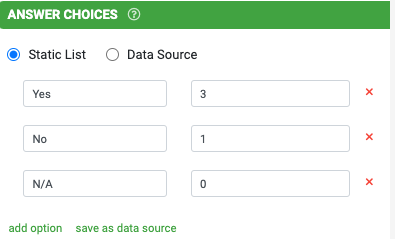
This is the simplest approach since then all you need to do for a total formula is:
{{q1}} + {{q2}} + {{q2}} + {{q3}}
A2: Another option would be to use the IF() function to check the value of each answer and assign the value of each answer and assign the relevant score based on a. true/false result.
IF({{q1}} = 'Yes', 3, IF({{q1}} = 'No', 1, 0)) +
IF({{q2}} = 'Yes', 3, IF({{q2}} = 'N0', 1, 0)) +
IF({{q3}} = 'Yes', 3, IF({{q3}} = 'No', 1, 0)) +
IF({{q4}} = 'Yes', 3, IF({{q4}} = 'N0', 1, 0))
A3: One more way would be to add a hidden field for each question, with the hidden field containing just the IF() function for it's associated question. For example: Hidden field named q1Score would have a Dynamic Value formula of IF({{q1}} = 'Yes', 3, IF({{q1}} = 'No', 1, 0))
Related Articles
Formula FAQs
Below is a list of common scenarios that involve using a formula. This is purely a quick reference guide in a Q&A format. For more comprehensive explanations, including worked examples, please refer to our Recipes. Question 1 How do I move fields ...Common Formula Q&A
Below is a list of common scenarios that involve the use of a formula to achieve. This is purely a quick reference guide in a Q & A format. Q: How do I move fields between Pages in the Form Designer? A: There are a few ways to do this: You can use ...Formula Cheat Sheet
Below is a comprehensive list of Appenate’s formula functions that can be used in various field properties throughout the platform, wherever the hammer icon is present. CONTEXTUAL USEREMAIL() User’s Email Address. USERFIRSTNAME() User’s First Name. ...Formula Cheat Sheet
Below are a list of most of the platform formula builder functions that can be used in formulae. 1. CONTEXTUAL FORMULAS TODAY() Current Date The current local date reported by the device. NOTE: Device dates can be inaccurate if the local time is not ...User Interactions Reference Guide
User interactions are actions triggered when a user taps a button or icon. While these can be used on screens and forms, this guide focuses on the Action Button Field, which allows up to 5 custom buttons per field. Reference App: Search for “User ...