Google Drive
A Google Drive data source connector will sync a data source with a spreadsheet or CSV file hosted on Google Drive. Any changes made to the data source on Google Drive will be reflected on the data source. Synchronization can occur up to every 15 minutes.
To set up a Google Drive connection, you will first need a Google connection established in Connected Data > Connections. Please see this article for details.
To set up a Google Drive connection to your data source, create a data source or navigate to an existing data source. (Bear in mind that any new data pulled into an existing data source by the connection will overwrite the existing data in the table.) Go to the data source settings page and, under Connector, click + Add Connector and then choose Google Drive.

Within the connector section that will now show, enter the data into the associated fields.
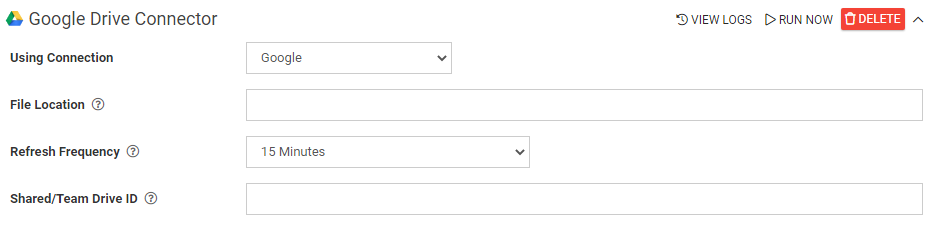
- Using Connection: Choose the connection to use. This is relevant if multiple Google connections are set up in Connections.
- File Location: Type the folder path and filename/extension of the file containing the data to be synced. Omit the top-level Shared Drive directory and include only subfolders (if any), plus the file name and extension (if applicable). This is only relevant if your spreadsheet is located in a sub-folder of your Google Drive. Use the following format: "FolderName/Folder2/SpreadsheetFolder"
- Refresh Frequency: Choose the frequency at which the data in the data source will be synced with the data in the hosted file on Google Drive. The maximum frequency is 15 minutes.
- Shared/Team Drive ID: Enter the unique identifier of the Shared Drive on Google if the file being synced exists in a Shared Drive. To retrieve the ID, go to your Google Drive in a web browser and navigate to the top-level Shared Drive folder (even if the destination folder is a subfolder within the Shared Drive). Next, check the address bar of your web browser and copy the characters which follow the “/folders/” part of the URL. E.g., if the URL is https://drive.google.com/drive/folders/1234567890ABCDEFGHI, then the drive ID of 1234567890ABCDEFGHI.
Note that this applies only to an entire Google Shared Drive, not just a single file or folder. Shared Drives are currently available to G Suite Business accounts.
Once all the above details have been entered, click "SAVE" in the upper-right corner of the page. Once the page has refreshed, on the Google Drive Connector click "Run Now." Wait a moment and then click "View Logs" to verify a successful sync. Once the initial sync has completed, the connector will operate at the specified frequency.
Sync Interruption
If at any point the hosted file is removed or anything else should interrupt a scheduled sync, the dashboard will try several times to sync again before eventually reporting an error. At this point, the automatic sync will end. A connection must be re-established by again clicking "Sync Now"; if this manual sync is successful, automatic syncing will resume.
Related Articles
Form Connector – Google Drive
After adding and authenticating a Google connection, your forms can push output files like PDF, TXT, Word, JSON, XML, CSV, or XLSX to your Google Drive account. Adding the Connector Follow these steps to add the connector to your specific form: ...Connecting to Google Drive & Spreadsheets
Adding and authenticating a Connection to your Google Drive and Spreadsheets allows data to be pushed and pulled between the two platforms. Form Connectors can then be added to send files to your Google account or add rows to a spreadsheet when a ...Google Apps Script Overview
Google Apps Script (GAS) is a cloud-based scripting language that acts as the “glue” for the Google Workspace ecosystem (Sheets, Docs, Gmail, Drive). It uses JavaScript to let you write small programs that automate tasks and connect Google apps with ...Google Spreadsheet - Data Source Connector
A Google Drive data source connector synchronizes a data source with a Google Drive spreadsheet. Any changes made to the Google Spreadsheet will be updated on the data source on the platform. Synchronization can occur in as little as 15 minutes. Your ...Connecting to Google BigQuery
Our platform enables you to connect quickly and easily to Google BigQuery.This article covers the basic requirements that will be needed to run BigQuery connectors. Before continuing with a step-by-step guide on setting up a Google Cloud Platform ...