How do I check and/or install .NET Framework for my Windows app?
In order to run our Windows app on your device, you must ensure that .NET Framework version 4.7.2 or higher is installed. If you have kept your machine up to date with Microsoft's Windows Update service, then you likely already have the latest .NET Framework installed, and you have nothing further to do.
However, should you find that your app is failing to start, or if you're unsure as to whether you have a high enough .NET version installed, then follow the steps below to download and install the latest .NET Framework version.
At the time of writing, the latest .NET Framework is 4.8, so our screenshots below portray installation of that version.
Step 1: Download the latest .NET Framework
On your Windows device, open your web browser (e.g., Chrome) and head to the link below:
https://dotnet.microsoft.com/download/dotnet-framework/thank-you/net48-web-installer
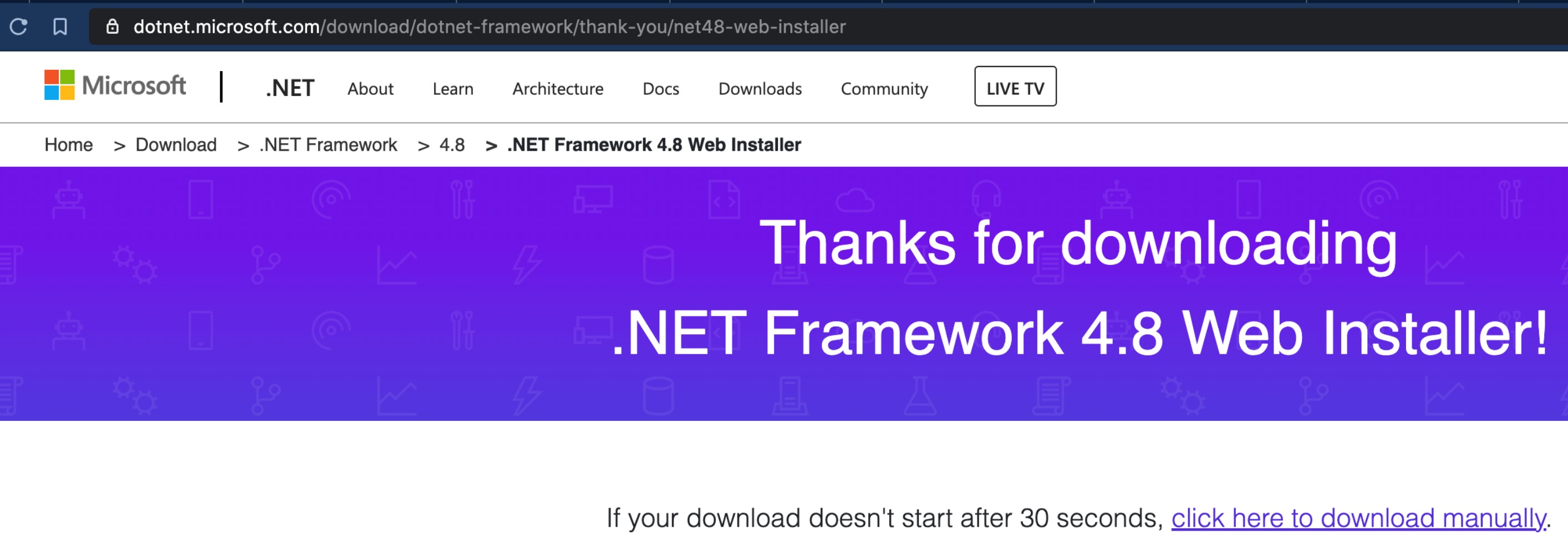
You should see a page similar to the picture below, and the download should start immediately.
Step 2: Start the Installer
When using Chrome as your web browser, your download should appear in the bottom-left corner of your screen, and you can click on it to open it. If you are using a different browser, you may need to go to Windows Explorer and navigate to your Downloads folder. Look for the file that starts with "NDP" (e.g., ndp48-web.exe) and click it to start the installer.
Should you see a prompt like the picture below, click "Yes" to allow the installer to run on your machine: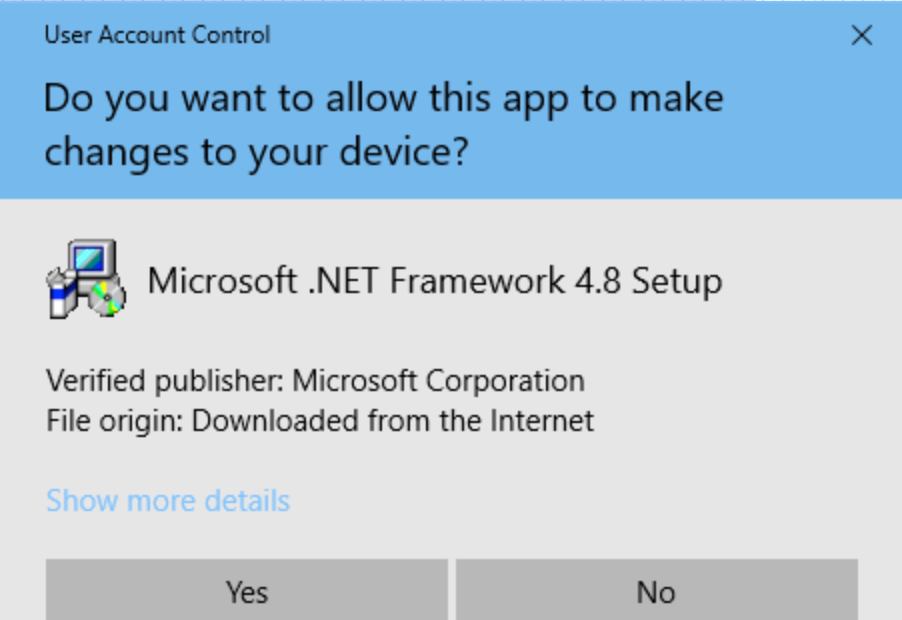
Step 3: Follow the Prompts
When the installer starts, you may see a message like this:
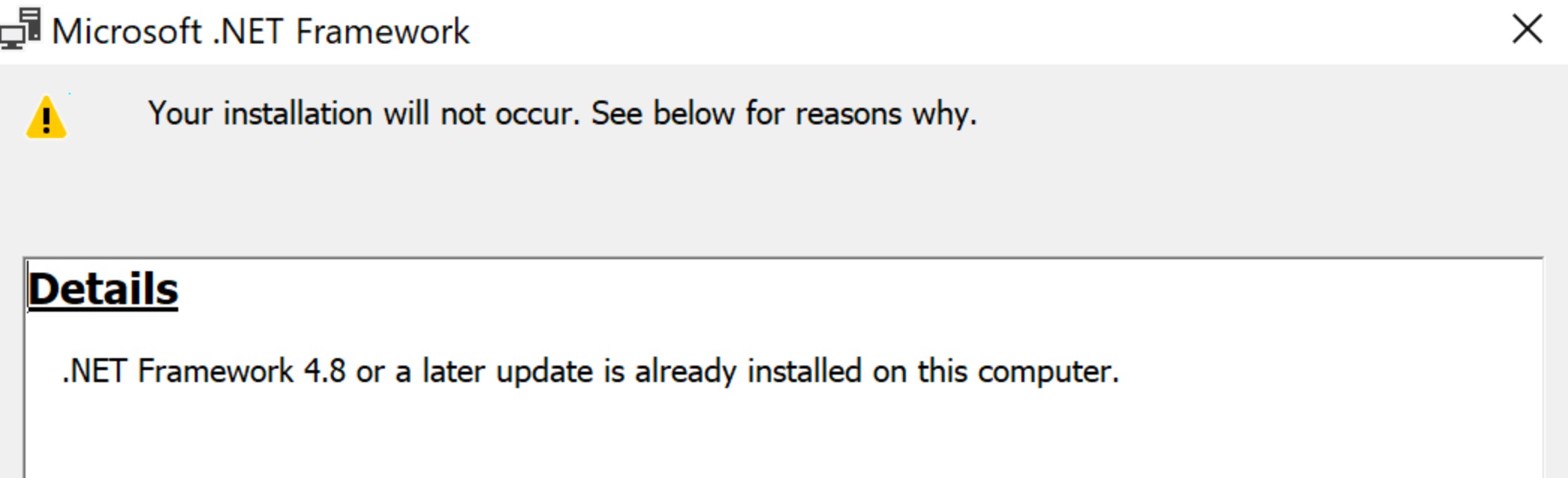
The above message is good news - you already have the latest .NET Framework installed! You can just quit the installer and proceed to run your Windows app.
If you do not see the above message, that's all good, too - just follow all the prompts of the installer to get .NET Framework installed. When the job is done, head over to your Windows app and start it up!
Having trouble or need more detailed information?
Head to the Microsoft .NET Framework site for detailed instructions for your specific Windows version, along with troubleshooting help.
Related Articles
What are the Windows app installation requirements? (e.g., for enterprise deployments)
The Windows app requires Windows 7 (ideally running the latest Service Pack update), Windows 8 or Windows 10. We recommend using Windows 10 with the latest operating system updates installed. The app requires a minimum of .NET Framework 4.5.2, which ...Enabling Location/GPS on Windows devices
GPS/location functionality is provided using Windows Location services, which must be enabled in order the app to access these services. The link below describes how to configure Location Services on Windows 10: ...How do I Install the Windows App in a Custom Location
A customized Windows installed is available on request. This is usually necessary when an installation at machine level is required, instead of per user account on the machine. The main differences between the custom installer and the default ...What devices / operating systems are supported?
TABLE OF CONTENTS Android Version Support Android Device Support iOS Support Windows Support FAQ Q: Does the Forms On Fire app automatically update? Q: How do I get past the "Windows protected your PC" screen when installing the Windows app? Q: Can I ...When does the app synchronize/check for updates?
Screens and all other content are updated on the device at predefined synchronization intervals that occur in the background when the app is running. These intervals are: At user login on the app (or auto-login if using the "Remember Logins" option). ...