Inject Attached PDFs into Template Outputs
It's now possible to inject PDF attachments as text into Word/Excel template outputs in conjunction with field-captured data.
Upload an 'industry-standard' A4 PDF document using our Attach Field and embed it within a custom data template. This feature will significantly improve processes requiring uploaded documents to be injected within your custom output.
By default, attached documents remain accessible view links after upload. How To
Our EMBEDPDF() function uses a fieldName or full URL link for use in Word and Excel Data Templates and can be injected in one of two ways:
- Reference the Attach field's data name
{( EMBEDPDF({{fieldName}}) )} - Reference a full URL link to a PDF
{( EMBEDPDF(‘http://full-url-link’) )}
Note
- When creating your Word/Excel data template, the EMBEDPDF() function should be placed separately on its own blank page. The PDF's content will replace the blank page.
- If the EMBEDPDF() function isn't placed on a separate page, the data template engine will presume that a new page must be created, and our data template engine will place a page break before and after.
- Instead of a page break being added, it will remove the page the placeholder is on, so any other data on the placeholder page will be removed, and insert the PDF there
- {( )} and {{( )}} are supported
- If it is not exported to a PDF document, the placeholder will remain in the template export (in Word or Excel format; these can be manually removed.
Embedding Multiple PDF's
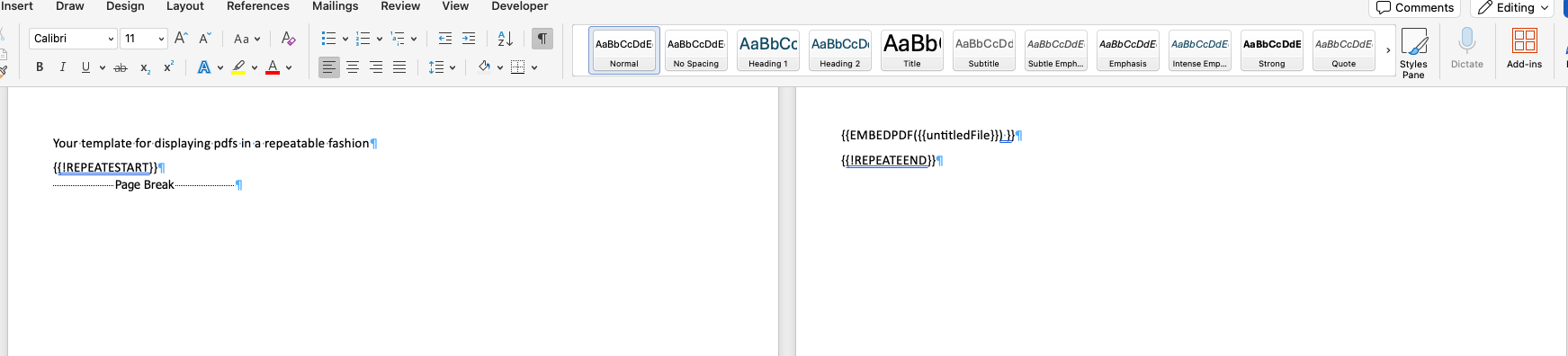
It is possible to embed multiple PDFs into a document output using the {{!REPEATSTART}} function, adding a "Page Break" into the document and then having the EMBEDPDF() function output the PDF. Each EMBEDPDF() statement must exist on its own line and its own page for this to work. The screenshot below shows how to do this in MS Word.
Limited To
- PDF documents that can be embedded.
- "Output to PDF" cases (i.e., Export as PDF, Output File Format set to PDF).
Related Articles
Hiding Rows / Sections of Your Template
TABLE OF CONTENTS Dynamically Hiding Sections in Templates Dynamically Hiding Rows in Templates Hiding Rows from a Repeating Table There are sometimes situations where you'd like to show or hide sections of your data template based on outcome of each ...Using Word/Excel Comments To Preserve Template Formatting
TABLE OF CONTENTS Using Excel's Built-In Formulas Outputting Multiple Choice Fields Using Word/Excel Comments to Preserve Template Formatting The platform has the ability to evaluate formulas just like those you would use in your Forms. You can read ...Word Templates
TABLE OF CONTENTS Adding a Template to a Form Testing Your Templates Troubleshooting / Common Issues Generated Output File Does Not Open "Kitchen Sink" Example Template Our platform allows you to export Data in the layouts you want by using Microsoft ...Egnyte Connector
Governance and collaboration for a content critical age — Egnyte's secure enterprise cloud storage. Our built-in connectors allow for seamless integration with your Egnyte Connect account, ensuring efficient workflows across your organization with ...Excel Templates
TABLE OF CONTENTS Adding a Template to a Form Testing Your Templates Tips and Tricks For Great PDF Output "Kitchen Sink" Example Template Our platform allows you to export Data in the layouts you want by using Microsoft Excel templates. If you ...