Manually Downloading Data
Our platform provides a number of ways for you to manually download your captured data.
If you are looking for options to export Form data (e.g., via email etc.), you should check out our Data Entries area. To manually download Form entry data, follow these steps:
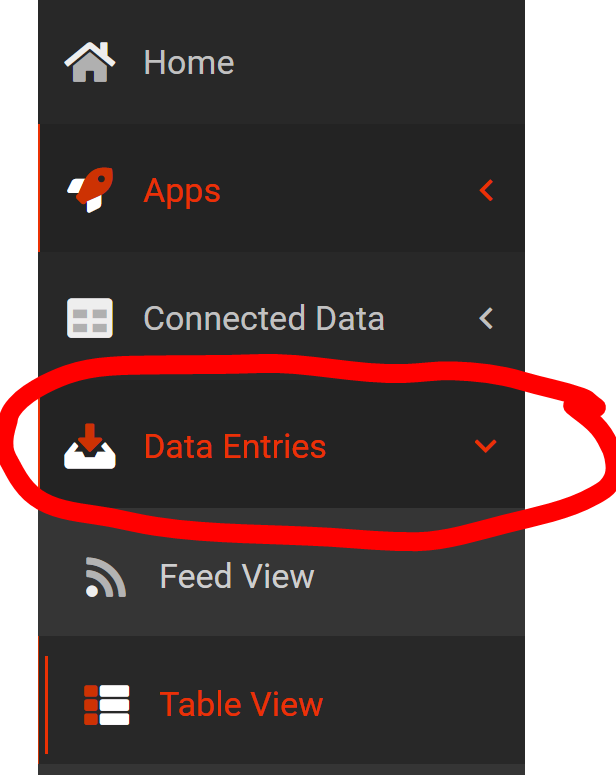
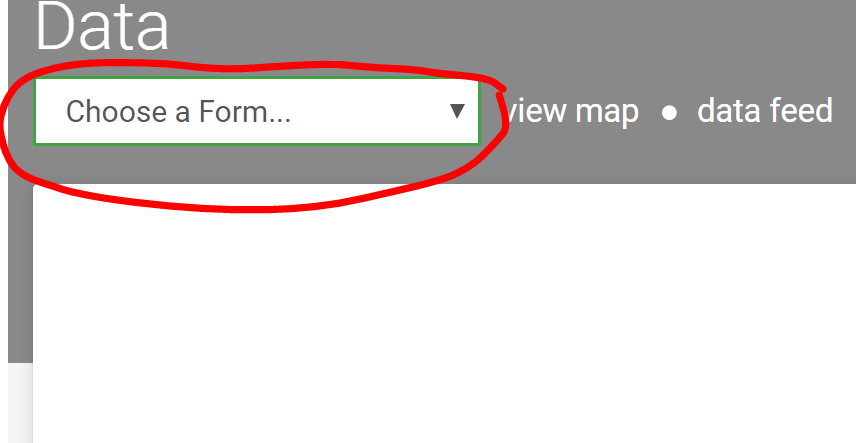
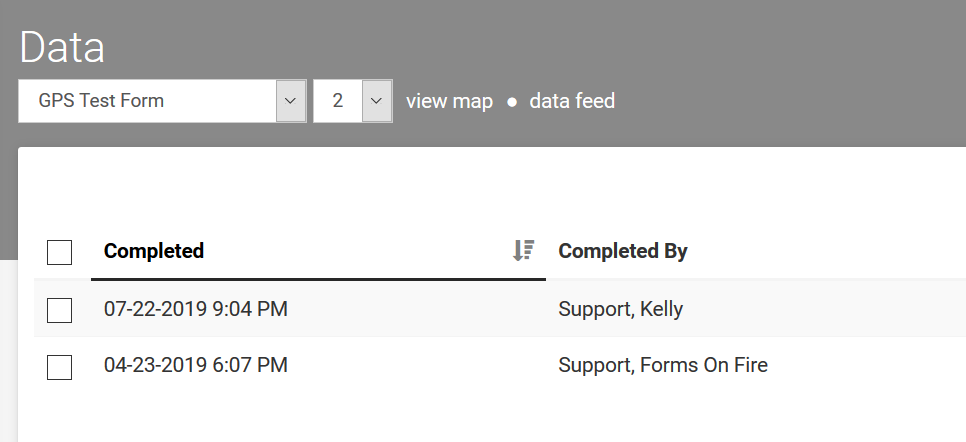
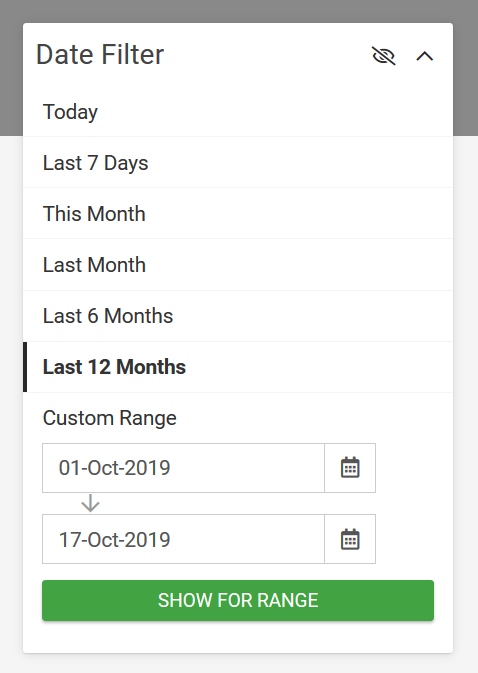
1. Go to the left-hand side of the Navigation bar on the dashboard and select Data Entries and then Table View. | 2. Select a form from the drop-down menu. You may then select which entries you would like to export by checking the box next to each one. Then select "Manage Data." | 3. By default, entries are shown for the current month only. Use the filters on the right-hand side to customize the date range as desired. You can also use the search box to find specific entries. |
 |   |   |
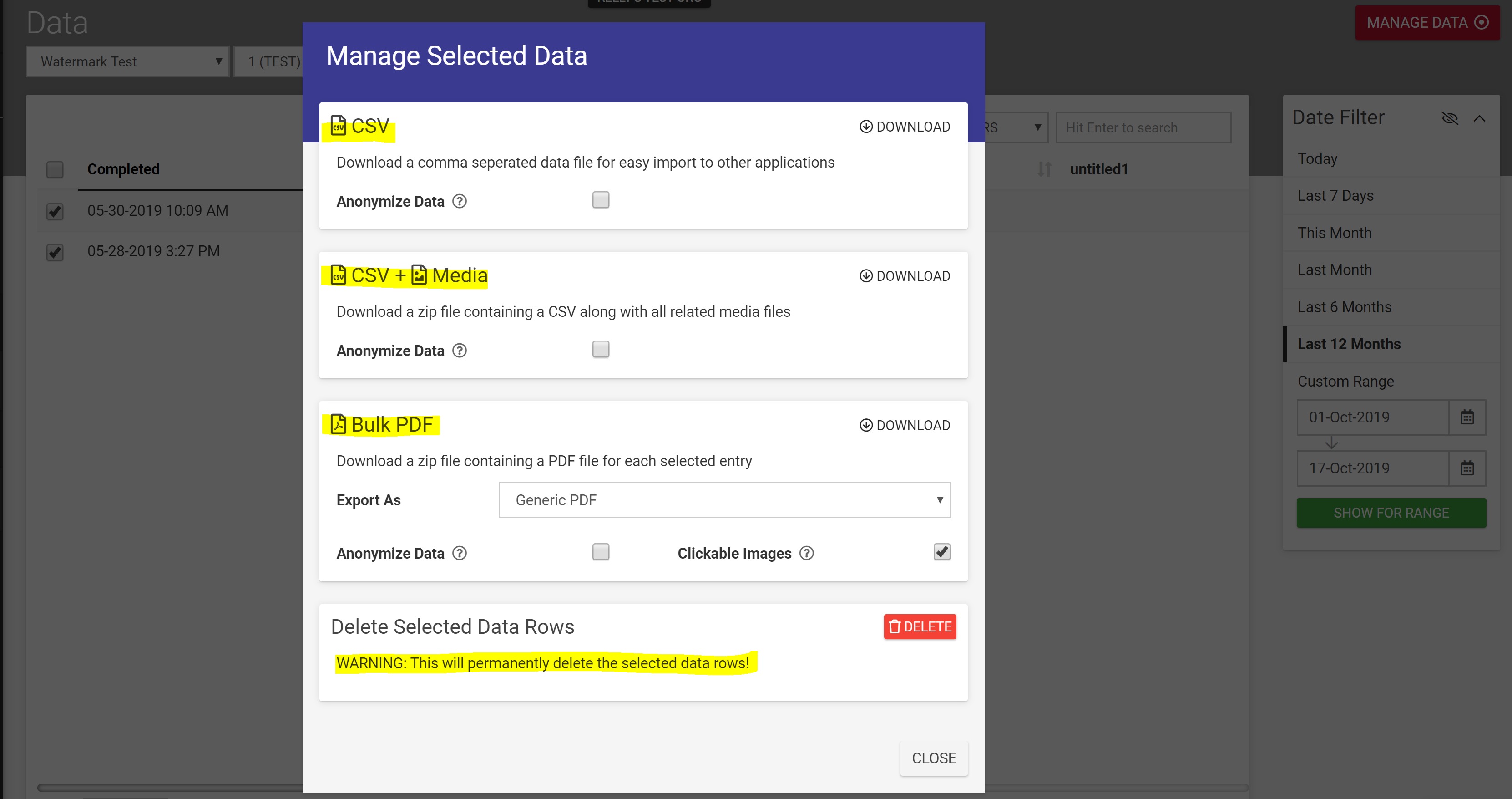
Once you have your chosen data set, click the "Manage Data" button. This will pop up a list of download options from which to choose:
- CSV
Lets you download your Data as a comma-separated file for easy import to other applications - CSV + Media
Downloads a zip file containing a CSV of your Data along with all related media files (photos, video and audio captured in the form entry) - Bulk PDF
Downloads a zip file containing a generic PDF file for each of your selected Data entries
Choose your desired option by clicking the relevant Download button. Depending on the number of entries and any media files involved, your export may take a minute or two to begin and complete. Check the bell in the left navigation bar for the status of your export and to download it once it's ready.
Related Articles
Data Source Connector – Platform Replicate
Platform Replicate (previously Platform Sync) lets you set up a data source connector for any external database on any external system for which we do not have a live connector. While it is a bit more technical to configure, it allows you to get ...Exporting Form Data Manually
While you can automate data delivery via Form Connectors, you can also manually export records directly from the platform. There are two ways to do this, depending on your needs: Single Entry Export (for detailed, templated PDFs/Docs) and Bulk Export ...Data Source Connector – FTP
Connecting a data source to a file on an FTP server is a quick and easy process on our platform. This creates a one-way synchronization, automatically updating your data source whenever the FTP file changes. Your data will be kept up to date until ...Data Source Connector – QuickBooks
Our platform lets you easily add and quickly configure a one-way synchronization with QuickBooks data for use in the screens you create. After adding and authenticating a QuickBooks Connection, a QuickBooks Data Source Connector can be added to a ...QuickBooks - Data Source Connector
Our platform allows for simple integration and rapid setup of a one-way synchronization with QuickBooks data for the screens you design. Once you have added and authenticated a QuickBooks Connection, you can include a QuickBooks Data Source Connector ...