Viewing a Data Source on a Map
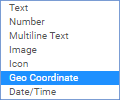
To view a data source on a map, the data source must have at least one column with a type of Geo "Coordinate."
When the data source is saved, a new menu option will appear at the top of the page, as well as in the menu options when moving the cursor over a data source on the "Data Sources" page.

Clicking on one of these links will take you to the "Map" page of the data source. If you have rows in your data source with valid data in the Geo Coordinate column, they will show up as pins on the map.
Adding Geo Coordinate Data to a Data Source
- Add a new column to the data source with type of "Geo Coordinate".
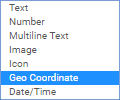
- Insert coordinates in the Lat Long format. The following website offers tools to get addresses in the Lat Long format: http://www.latlong.net/.
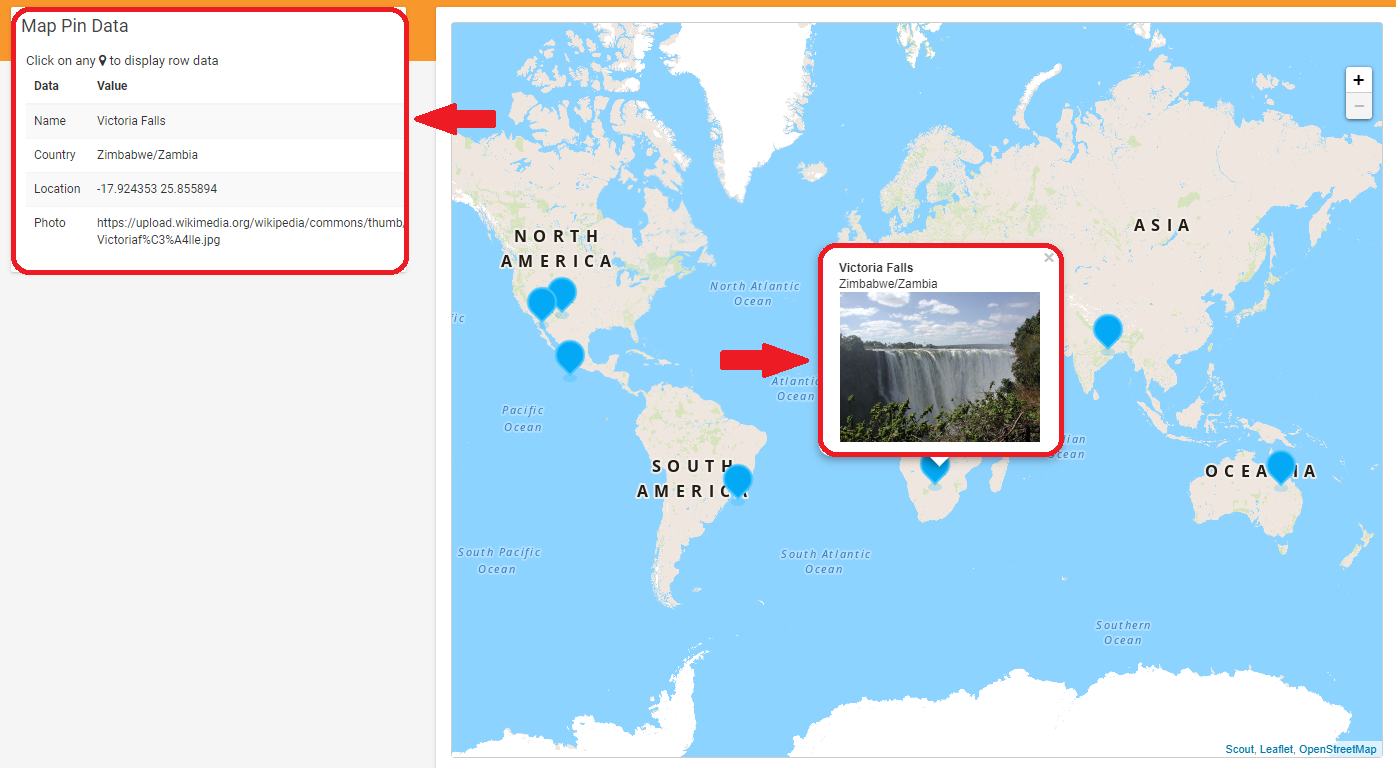
- (Optional - Display images when clicking on a pin) Add a new column to the data source with the type of "Image." Add links or upload images for something to represent the data in the row. This can be set to display when clicking on the pin that is displayed on the map. Click on "settings" on the top of the page. Next to "Default Row Display" is a drop-down box with the text "Choose Thumbnail." Click on this box and select the column with the image you want to display.
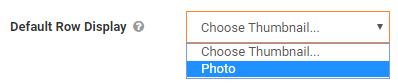
- (Optional - Display Title and Subtitle when clicking on a pin) Click on "settings" on the top of the page. Next to "Default Row Display" are two drop-down boxes to the right of the image drop down. Click on these drop down boxes and select the column with the Title and Subtitle you want to display.

- Below is a screenshot of a data source containing the seven natural world wonders according to http://sevennaturalwonders.org/ containing their locations in the Lat Long format.
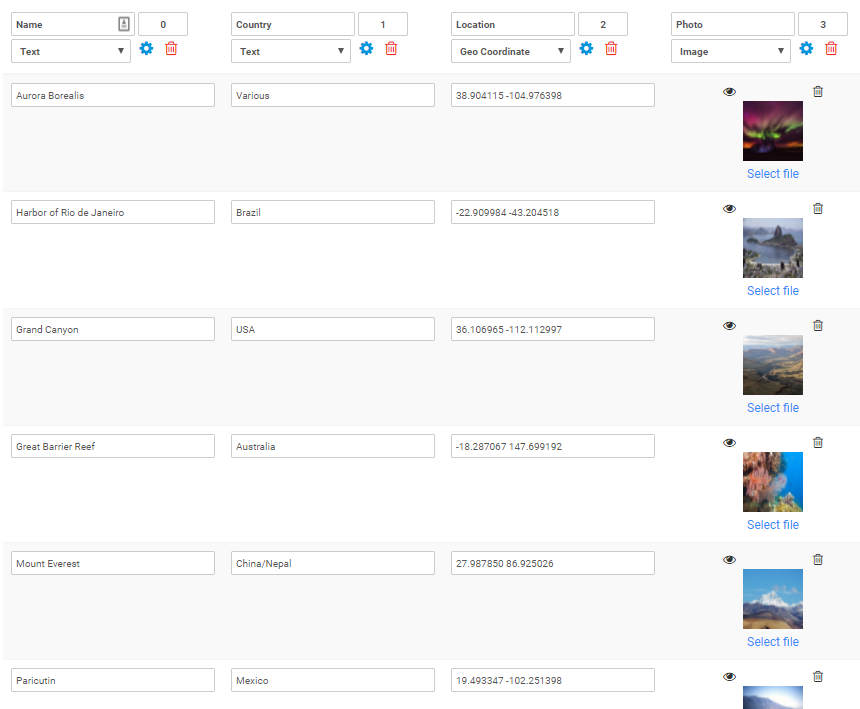
- When viewing the following data source on the map page, the following output is generated:
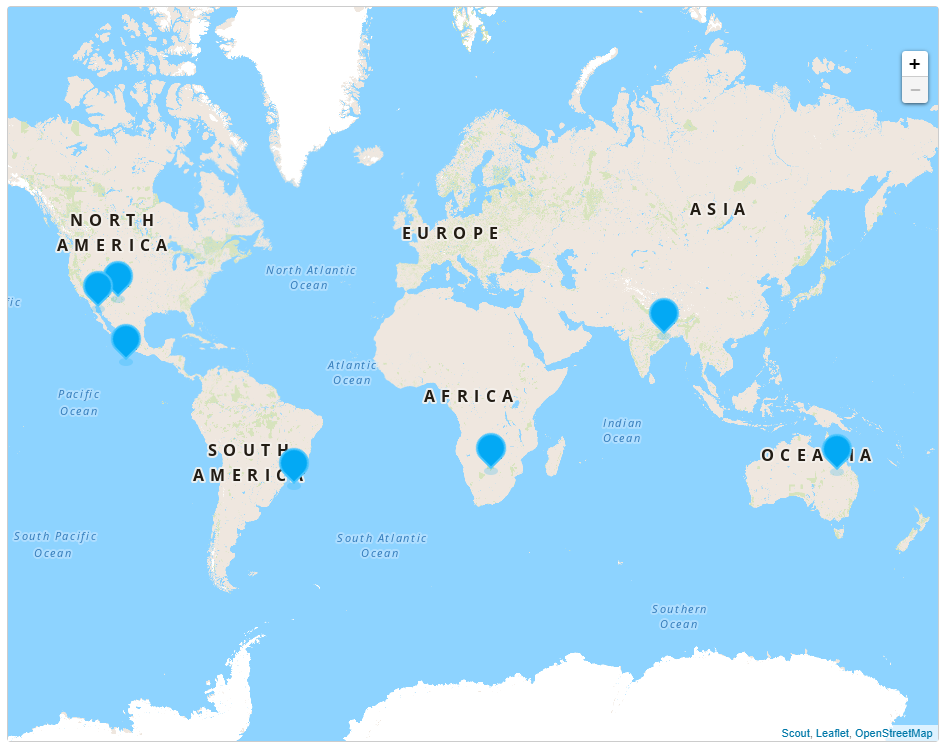
- If one of the pins are clicked and an Image (Step 3), Title (Step 4) or Description (Step 4) is set, these details will be shown.


Related Articles
Data Source Settings
Basic, App Functionality, Advanced, and Connector options can be configured on the Data Source Settings page. Accessed by clicking on the Settings link when hovering over a data source on the Data Source page, or when viewing the rows of a data ...Data Source Settings
Basic, App Functionality, Advanced, and Connector options can be configured on the Data Source Settings page. Accessed by clicking on the Settings link when hovering over a data source on the Data Source page, or when viewing the rows of a data ...Data Source Connector – ArcGIS
Our platform lets you easily pull data from ArcGIS on a timed refresh. After adding and authenticating an ArcGIS connection, an ArcGIS Data Source Connector can be added to a data source to pull data in from ArcGIS on a regular basis. Your data ...Data Source Connector – REST
The REST Data Source Connector allows you to pull data from an external API into a data source and populate its rows/columns for use in screens. This connector functions similarly to our REST Field (in-app REST requests) that can push or pull data ...Repeatable Data in Templates
After capturing repeatable data, you might want to customize how it displays in a PDF output using Word or Excel templates. There are two ways to output the answers for these repeatable fields in your template: Repeat rows in a Word table or Excel ...