XML and JSON Output
Form data connectors can output directly into XML or JSON format with the use of a text file template. Like any other template, this text file will contain data name placeholders placed inside either XML or JSON syntax.
The connector must be set to send data as a Text File in the associated drop-down property. Then a data template can be added under "Format Data With Template," accessible by clicking "ADD DATA TEMPLATE" in the top-right of the connector. The Attachment Name property should also be adjusted to specifically rename the file as either .xml or .json.
This does not work using export, but only works using a connector, such as email, Google Drive, or FTP.
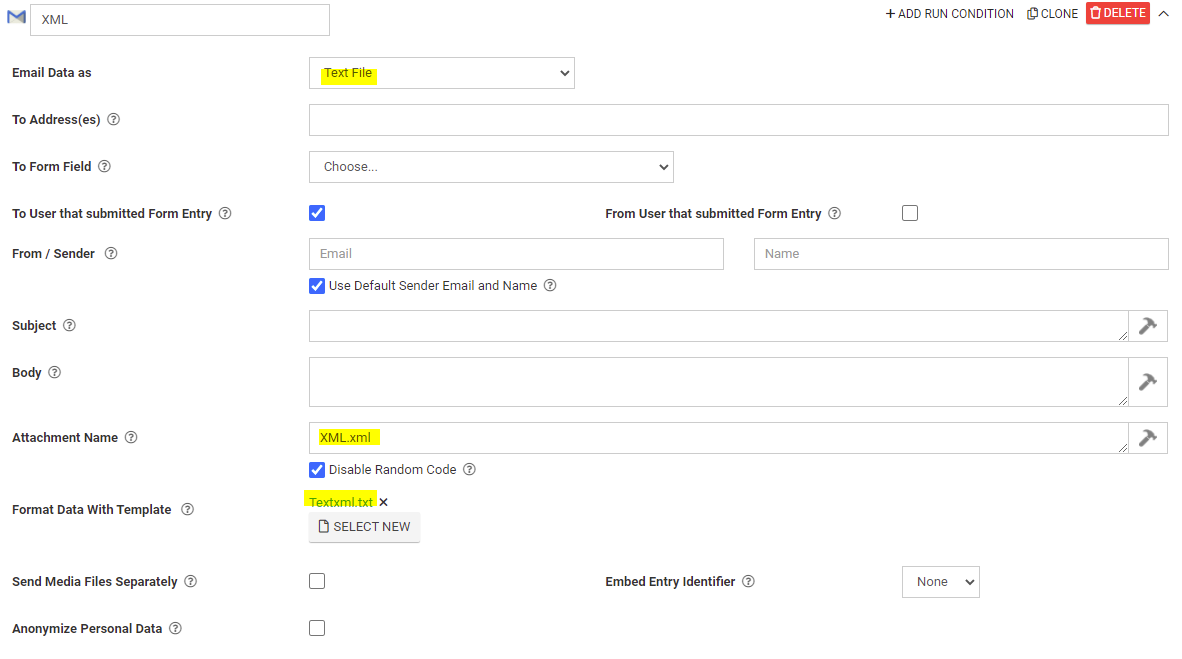
The text file used as the template should be formatted as either XML or JSON. No validation will be performed to ensure proper formatting of either, so we recommend validating the file for proper syntax outside the dashboard before attaching it here.
Within the template, data names can be referenced, with any REPEAT syntax placed at the end of the line before the repeating content begins. Please see below for examples of both.
XML template:
<?xml version="1.0" encoding="UTF-8"?>
<note>
<to>{{name}}</to>
<from>{{connectorName}}</from>
<heading>{{Q1}}</heading>
<body>{{message}}</body>{{!REPEATSTART}}
<date>{{date}}</date>
<table1>{{table1}}</table1>
<table2>{{table2}}</table2>{{!REPEATEND}}
</note>
The resulting output:
<?xml version="1.0" encoding="UTF-8"?>
<note>
<to>Recipient</to>
<from>Sender</from>
<heading>Subject here</heading>
<body>Test here</body>
<date>04-09-2021</date>
<table1>Alpha</table1>
<table2>Beta</table2>
<date>04-09-2021</date>
<table1>Gamma</table1>
<table2>Delta</table2>
</note>
JSON template:
{ "text": {
    "to": "{{name}}",
    "from": "{{connectorName}}",
    "heading": "{{Q1}}",
    "body": "{{message}}",
  }{{!REPEATSTART}}
  {
    "Date": "{{obstime1}}"
    "Table 1": "{{table1}}"
    "Table 2": "{{table2}}"
  }{{!REPEATEND}}
}
The resulting output:
{ "text": {
    "to": "Recipient",
    "from": "Sender",
    "heading": "Subject here",
    "body": "Content here",
  }
  {
    "Date": "04-09-2021"
    "Table 1": "Alpha"
    "Table 2": "Beta"
  }
  {
    "Date": "04-10-2021"
    "Table 1": "Gamma"
    "Table 2": "Delta"
  }
}
Related Articles
FAQ- Output Templates
Q: I have received the following error: "START and END must be at the same level in your template." What does this mean? A: In the repeating data or logic in your output template, there is an error occurring because there is an uneven amount of ...Dynamic Output using Form Formula
TABLE OF CONTENTS Using Excel's Built-In Formulas Outputting Multiple Choice Fields Outputting Hyperlinks Using Word/Excel Comments to Preserve Template Formatting The platform has the ability to evaluate formulae just like those you would use in ...PDF Output Tips and Tricks
TABLE OF CONTENTS General Avoid floating textboxes Always have page margins Positioning images for best PDF output Stay within page margins whenever possible What if I need to place an image flush against the page edges in Word? Don't use page level ...Box - Form Connector
Box is a highly Secure Cloud Storage Platform that is widely utilized for storing various data files. This robust platform not only allows users to store their files safely but also facilitates the easy sharing of these files with others, functioning ...Google Drive - Form Connector
Form Connector – Google Drive automatically sends completed form files and data to Google Drive for secure storage, organization, and easy team access. After adding and authenticating a Google connection, your forms can push output files like PDF, ...