Amazon S3

Our platform enables you to quickly and easily connect your data sources to data from a File Key/Location in Amazon S3 Storage. This enables a one-way synchronization to occur - where any changes in the Amazon S3 Storage File Key/Location are downloaded into your data source on a regular basis. Your data source will be automatically updated in this way until you remove the connector or an error occurs (such as losing authorization to access the file).
To Set up an Amazon S3 Storage Connector to your Data Source, follow these simple steps.
Note: You need to have configured a Connection to your Amazon S3 Storage account.
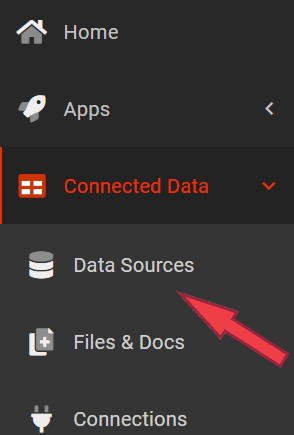
- Go to Connected Data -> Data Sources
- In the list of available data sources, hover your mouse over the listing of the data source you wish to connect.
A set of options will show, click on the settings link.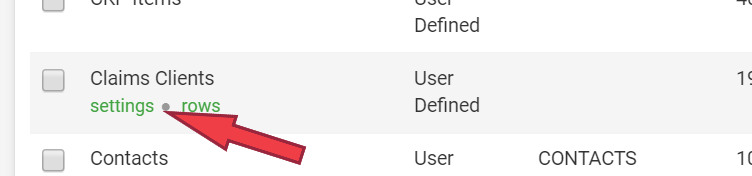
- In the Settings page, mid-way down you should see a Connector heading.

- Click
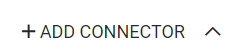
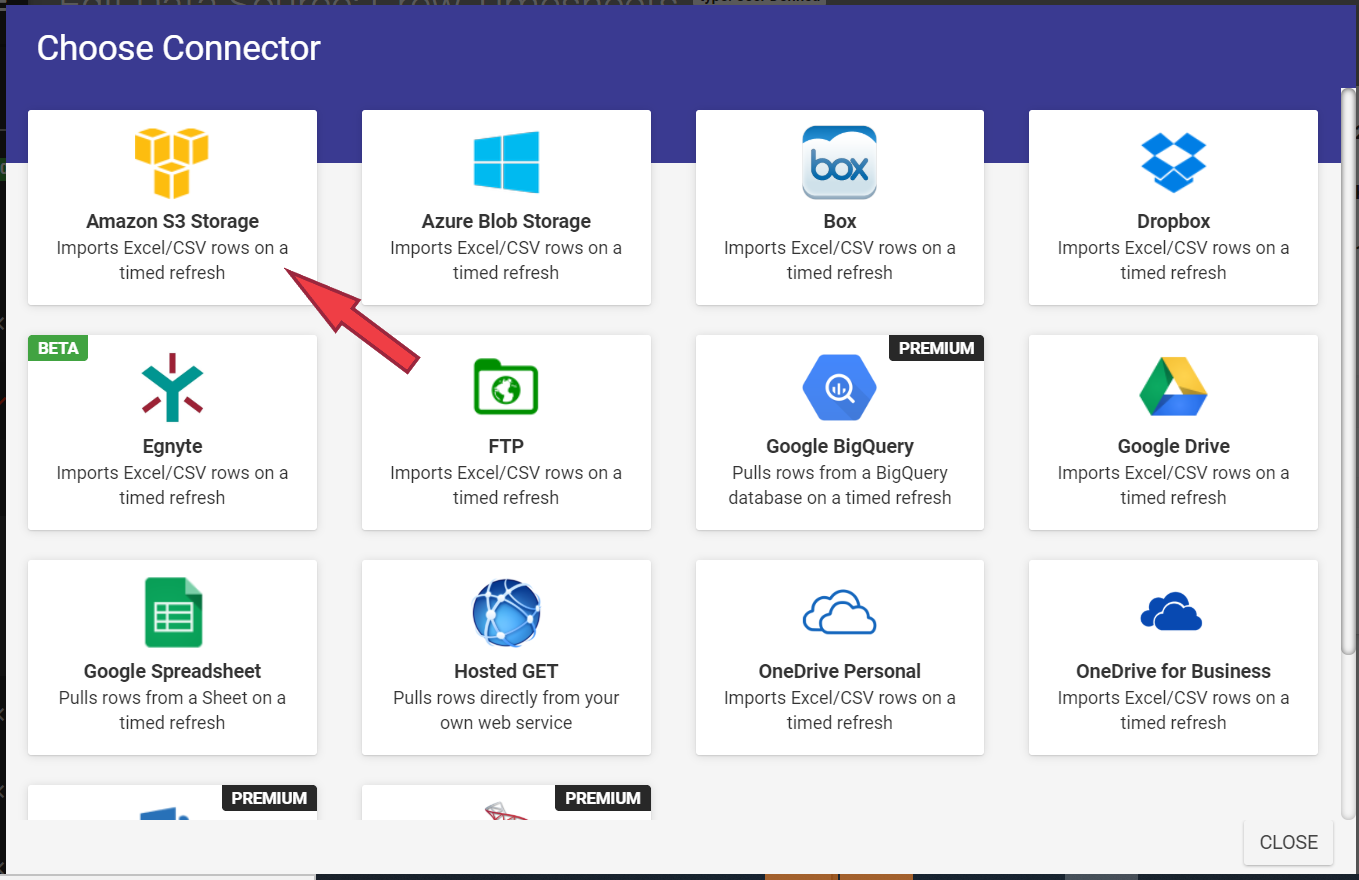
- A new window with the selection of connectors to choose from.
- Click on the Amazon S3 Storage option.
- The page should refresh with your newly added connector.
- Enter the Bucket Name. This is the Bucket where the file is stored in.
- Enter the File Key/Location. Specify the location which uniquely identifies the file within the S3 bucket.
- For example:
Development/Projects1.xls
Finance/statement1.csv - Select the Refresh Frequency that this connector will pull data.
Note: Data must be in .csv or .xlsx format and cannot contain formulae. The spreadsheet must exist in your connected Amazon S3 Storage account.
When you save your changes, the connector will be fired for the first time and after that will run at the interval you specified in the connector settings. Wait a minute or so and then check the Rows page for your data source. You should see the rows have been downloaded from the Amazon S3 Storage file. If rows are not downloaded, then there may be an error with the file's data or in permissions to access the file. You can check this by clicking on the Error Logs button shown next to your connector on the Settings page.
Related Articles
Connecting to Amazon S3
In order to push/pull data from your Amazon S3 storage buckets or S3 API-compliant third-party services, you must first configure an S3 Connection. Adding a Connection When logged into your Appenate web portal, navigate to Data Hub > Connections > ...Data Source Connector – Amazon S3
Our platform enables you to quickly and easily connect your data sources to data from a File Key/Location in Amazon S3 Storage. This enables a one-way synchronization, where any changes in the Amazon S3 Storage File Key/Location are regularly ...Amazon S3 - Data Source Connector
Our platform enables you to quickly and easily connect your data sources to data from a File Key/Location in Amazon S3 Storage. This enables a one-way synchronization to occur - where any changes in the Amazon S3 Storage File Key/Location are ...Form Connector – Amazon S3 Storage
Amazon S3, or Amazon Simple Storage Service, is a service offered by Amazon Web Services that provides object storage through a web service interface. Our platform lets you quickly and easily connect your Form Entries to Amazon S3. This enables you ...Organization Setup
Manage organization-wide settings by navigating the side menu to Organization & Users > Organization Setup. The Organization Setup page allows you to view and control company details such as name & logo and regional date, time & measurement settings, ...