ArcGIS Form Connector
After adding and authenticating an ArcGIS Connection, you can easily send form entry data to the ArcGIS API by configuring the ArcGIS form connector, as shown in this article.
Adding an ArcGIS Connector
Form Connectors can be added to push data to other systems in the Form Connector’s area of any Data Entry Form. Navigate the side menu to Design Tools > Forms and hover over the Connect option of the desired form.

Or when viewing the Forms in the designer.
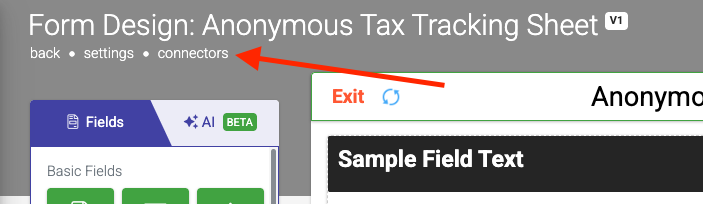
Once on the Form Connectors page:
- Click the Add Connector button on the top right to bring up a list of connectors.
- Then click on the ArcGIS option.
Configuring
After adding the form connector, the following configuration options are available.
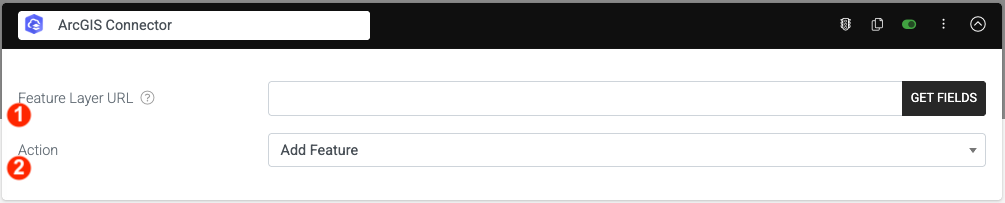
- Feature Layer URL
This is where you enter the feature layer URL to which you would like to send data. This article provides instructions on how to find your feature layer URL. - Action
This is where you specify the action you would like to perform on the feature layer specified. Options are: Add Feature, Delete Feature, or Update Feature.
Getting the Feature Layer URL
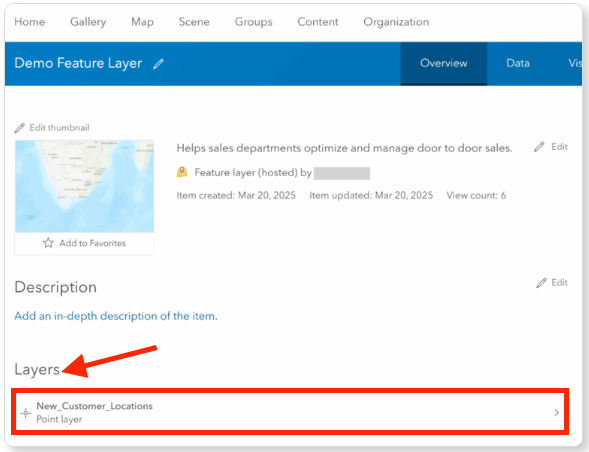
On the ArcGIS portal, access your content and add a new item (feature layer). When the feature layer is added, click on the “Layers” section, as shown in the screenshot below:
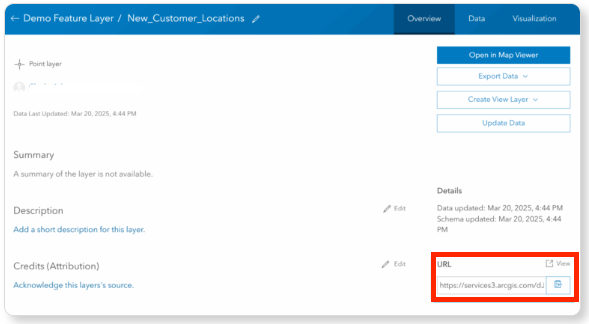
When the layer details page loads, look on the right-hand side for the URL property. The URL specified here is the URL you need to use as your Feature Layer URL in order to configure the form connector, as shown in the screenshot below.
To complete the configuration of your form connector, paste the feature layer URL from the ArcGIS portal into our platform and click the Get Fields button.
All the data columns associated with your feature layer will be imported, and you will be able to map the ArcGIS data to a field on your form.
When your form connector successfully pulls in the fields from the ArcGIS layer, you can specify which field to use to specify a single X and Y coordinate.
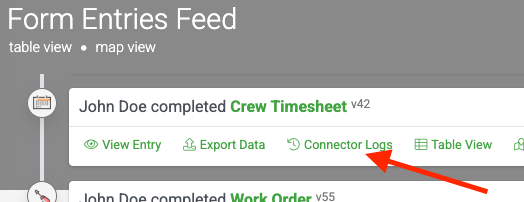
Connector Logs
Related Articles
ArcGIS Data Source Connector
Our platform enables you to easily retrieve data from ArcGIS on a timed refresh. After adding and authenticating an ArcGIS connection, an ArcGIS Data Source Connector can be added to a data source to pull data in from ArcGIS on a regular basis. Your ...Connecting to ArcGIS
ArcGIS is a Geographic Information System (GIS) software developed by Esri (Environmental Systems Research Institute). It is used for mapping, spatial analysis, and data visualization to help users understand geographic relationships and patterns. ...Google Drive - Form Connector
Form Connector – Google Drive automatically sends completed form files and data to Google Drive for secure storage, organization, and easy team access. After adding and authenticating a Google connection, your forms can push output files like PDF, ...NetSuite - Form Connector
Our Premium connector for NetSuite allows you to easily push data and files captured from your forms directly into your NetSuite account. This creates a seamless, one-way synchronization, ensuring all your data is automatically updated in your ...Google Spreadsheet- Form Connector
TABLE OF CONTENTS Adding a Google Connection Adding a Google Connector to your Form Add a Run Condition Update Column Headers Google Spreadsheets is a popular, free platform for creating and maintaining spreadsheets. Its popularity has also resulted ...