Dropbox - Data Source Connector
TABLE OF CONTENTS
Our platform enables you to quickly and easily connect your data sources to data from a file in both Dropbox Personal as well as Dropbox for Business.
This enables a one-way synchronization to occur - where any changes in the Dropbox file are downloaded into your data source regularly.
Your data source will be automatically updated in this way until you remove the connector or an error occurs (such as losing authorization to access the file).
Adding a Dropbox Data Source Connector
To Set up a Dropbox Connector to your Data Source by following these simple steps.
Note: You need to have configured a Connection to your Dropbox Account before adding a Connector.
- Go to Connected Data -> Data Sources
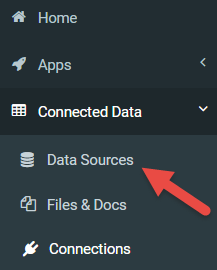
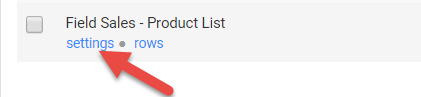
- In the list of available data sources, hover your mouse over the listing of the data source you wish to connect. A set of options will show; click on the settings link.
In the Settings page, mid-way down you should see a Connector heading. Click "ADD CONNECTOR."
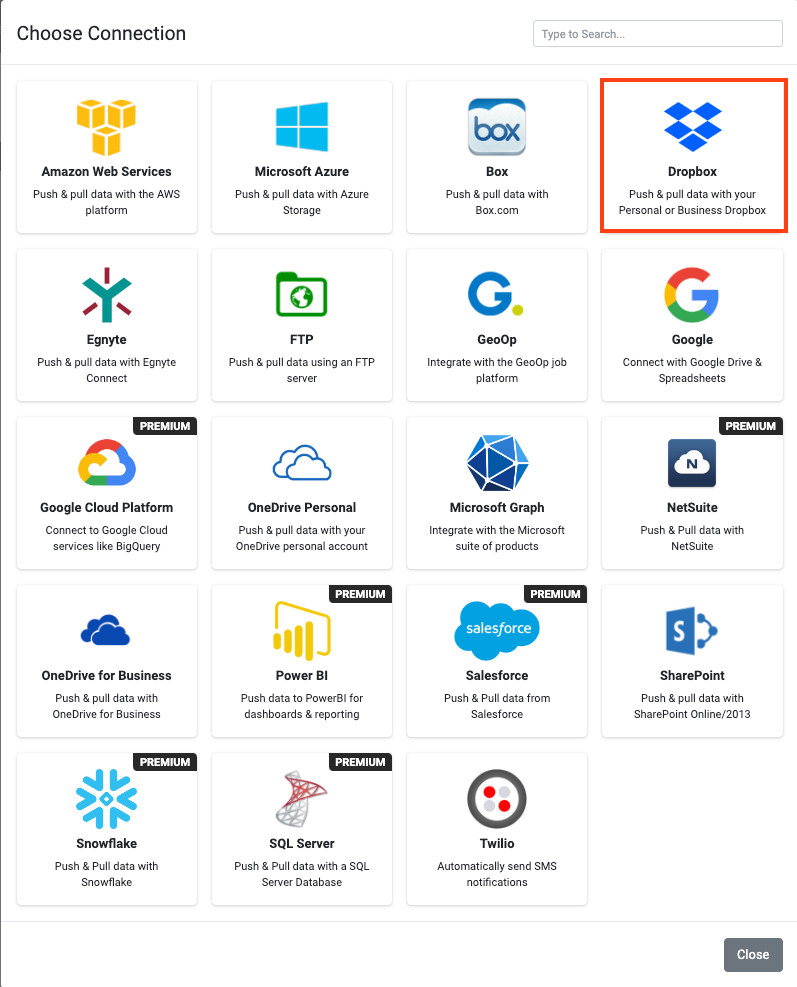
- A new window will appear with the selection of connectors to choose from. Click on the Dropbox option.
- The page should refresh with your newly added connector.
Configuring a Dropbox Data Source Connector
- File Location
Enter the file location on Dropbox to import data from. The location should be entered in the following format: 'FolderName/Folder2/FileName.csv'. The following file types can be imported as a Data Source: Comma Separate Values (.csv), Microsoft Excel (.xlsx). - Refresh Frequency
The frequency that data is pulled by this connector
Note: Data must be in CSV or Excel format and cannot contain formulae. The spreadsheet must exist in your connected Dropbox account.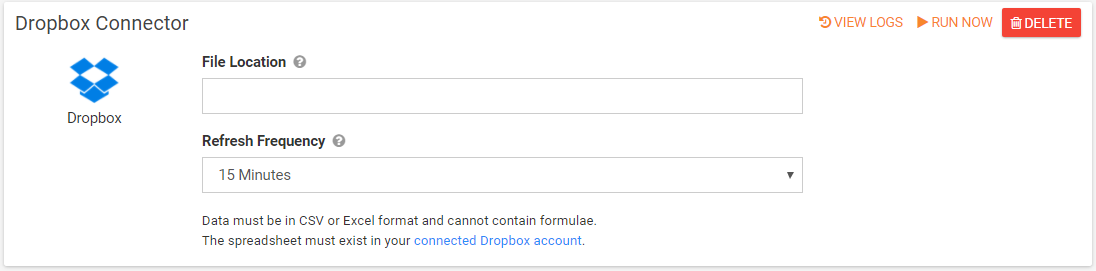 When you save your changes, the connector will be fired for the first time and after that will run at the interval you specified in the connector settings. Wait a minute or so and then check the Rows page for your data source.
You should see the rows have been downloaded from the DropBox file. If rows are not downloaded, then there may be an error with the Spreadsheet's data or in accessing the spreadsheet. You can check this by clicking on the View Logs button shown next to your connector on the Settings page.
Related Articles
Data Source Connector – Dropbox
Our platform enables you to quickly and easily connect your data sources to data from a file in both Dropbox Personal as well as Dropbox for Business. This enables a one-way synchronization to occur – where any changes in the DropBox file are ...Dropbox
Our platform enables you to quickly and easily connect your data sources to data from a file in both Dropbox Personal as well as Dropbox for Business. This enables a one-way synchronization to occur - where any changes in the Dropbox file are ...Connecting to Dropbox
Dropbox is a cloud storage service that lets you save and sync files online to your devices. You can use Dropbox links to share files and folders with other people without sending large attachments. Our Dropbox Connectors will allow you to push and ...Form Connector – Dropbox
Before you can add a Dropbox Form Connector, you’ll need to authenticate a Dropbox connection. Then add a Connector to the desired Form’s Connector page to configure. Adding the Connector Follow these steps to add the connector to your specific form: ...Form Connector – Dropbox
Before you can add a Dropbox Form Connector, you’ll need to authenticate a Dropbox connection. Then add a Connector to the desired Form’s Connector page to configure. Adding the Connector Follow these steps to add the connector to your specific form: ...