Dynamically Displaying Images from Data Source, Web or Map sources
TABLE OF CONTENTS
The "Dynamic Image" property allows you to load images dynamically into Media, Sketch and Section fields, usually through a data source column or a formula result. The dynamic image property allows you to, with the use of formulae, dynamically change the image displayed in a Media, Sketch or Section field. The property accepts URLs to images stored on the web as well as references to data source cells that contain image URLs.
Data Source-hosted Images
Displaying an Image in a Media Field via a Choices Field
In some scenarios, you may want to link a choices field with a Data Source containing image URLs and then, based on the selected item in the choices field, have an image field dynamically update to show the image located at the selected column value.
- Add a Choices field to your form and assign it a dataname, e.g., "choices"
- Add a Media (image type), Sketch or Section field to your form.
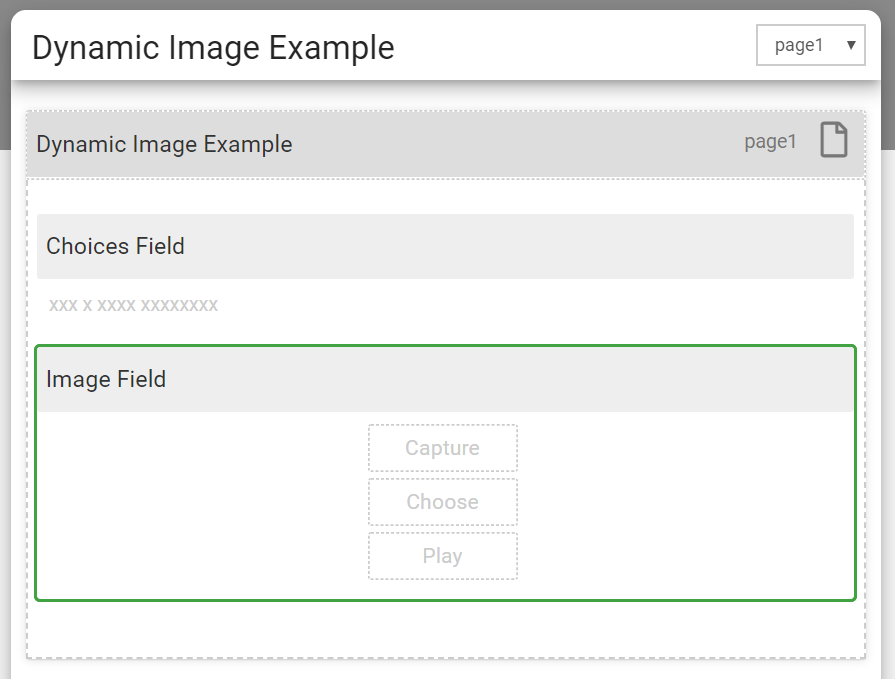
- On the choices field, locate the “Answer Choices” property and select a data source containing images stored inside an "Image" column.
- On the media, sketch or section field that you added previously, set the Bind to Data Source Column property to point at the Image column.
- Save your form and test it out.
You will notice that every time you select a different option in your Choices field, the image shown in your Media, Sketch or section field will change dynamically to the image stored in the database for that particular item.
Note:
- The device must have an internet connection in order to retrieve the image
- Images downloaded in this manner will be cached on the device for faster subsequent loads.
- While the app is busy downloading the image, a placeholder image will be displayed (more on that below) and once finished it will display the downloaded image within the field.
Displaying an Image within a Section Field
Images can be placed as static images in section fields for display on the app, but they can also be dynamically pulled from a data source as long as the column type in the data source is set to Image. This would be done using the DSFIRST function within the section field's dynamic image property. For example:
DSFIRST('DATASOURCEID', 1, '{{this[0]}}="GUID"')
In the above example, "DATASOURCEID" is the External ID of the data source, "1" is the column containing the Image, and "GUID" is the GUID of the row containing the image. This directs the system to grab the image in the column and row matching these parameters. "GUID" can be replaced by a data name as well, if a field on your form will determine this.
The data source column 0 (the GUID column) may also be named something descriptive of the actual image, as long as every entry is still unique. This will make it easier to refer back to these images in other locations on your forms wherever you want to use them!
Web-hosted Images
Dynamically download and display an image from a formula
- Add a Choices field to your form and assign it a data name of "choices"
- Add a Media (image type), Sketch or Section field to your form.
- Find the Dynamic Image property within the properties pane of that field and add a formula that constructs a URL. E.g., CONCAT('http://myexamplesite.com/', {{myfield}}, '.jpg')
- Save your form and test it out.
Location-based images
Displaying a map image for the result of a Location field (or a given set of coordinates)
You'll first need to generate a URL which returns a PNG or JPG image. The app will then visit this URL and dynamically load the returned image. For this kind of requirement, you need to use a static maps API service. These services take in a set of longitude and latitude coordinates on a URL returning a map image. Most services require you to sign up for an account; many have a free usage option, too. Take a look at the site below, which links to multiple services and provides a handy way to generate the static maps URL:
Once you have selected a target service, you can then create a CONCAT() formula which will plug in the Location field's longitude and latitude values in the relevant spot of the static maps URL.
E.g., something like (if you used Google Maps API):
CONCAT(
'https://maps.googleapis.com/maps/api/staticmap?center=',
LAT({{mylocationfield}}),
',',
LON({{mylocationfield}},
'&zoom=13&scale=1&size=600x300&maptype=roadmap&key=YOURAPIKEYHERE&format=png&visual_refresh=true'))
In the above, the target location field has a data name of "mylocationfield" and your Google Maps API key would replace the YOURAPIKEYHERE text. Additionally you could change the zoom setting as desired.
Placeholder images and what they mean
1. "Loading" placeholder image

This is a placeholder image that is displayed whilst the app is either still busy downloading an image from the web, or, whilst it is busy loading the image from the device into the field.
2. "Not found" placeholder image

This is a placeholder image that is displayed when the app failed to download an image or failed to transfer it from the device into a field. Below are some potential reasons that an image can fail to load:
- Very slow internet connections causing the download timeout of 30 seconds to kick in
- Incorrect URLs
- Mistakes with the “Dynamic Image” formula causing it to resolve to a value that is not either a URL pointing to an image on the web or a reference to a data source column containing images
Related Articles
Dynamic Images in Forms
The “Dynamic Image” property allows you to load images dynamically into Media, Sketch, and Section fields, usually through a data source column or a formula result. The dynamic image property allows you to, with the use of formulas, dynamically ...Viewing a Data Source on a Map
To view a data source on a map, the data source must have at least one column with a type of Geo "Coordinate." When the data source is saved, a new menu option will appear at the top of the page, as well as in the menu options when moving the cursor ...Adding Data Sources
Data Sources let you create and maintain data sets for use on Screens, saving you time by centralizing your data sets in one place. Add a Data Source When logged into the web portal: Navigate the left-side menu to Data Hub > Data Sources. Once on the ...Editing Data Sources
User-defined and Connected Data Sources can be edited in a variety of ways. You can edit directly in the web portal for small Data Sources or those that rarely need to be manually changed or edited. Click in a cell to edit/overwrite the data already ...Data Source Coordinates on a Map
The Mapping screen type allows you to display Data Source rows as map pins on a full-screen map in your app. We’ve added customization options, such as control over pin colors, callout display, and user interactions, to enable dynamic scenarios when ...