When designing forms, the designer usually creates formulas in the Dynamic Value property of fields to perform calculations, string manipulation, or logic to achieve desired results. But what if a different formula is needed based on user input when filling out a form? You could accomplish this with lengthy nested IF() conditions or toggle field visibility per formula, but there's a much simpler dynamic approach.
With the ability to evaluate text as a formula, you could have a data source containing multiple formulas (as text) from which an app user can select to determine which formula to use. Then, an EVAL() function in another field's Dynamic Value evaluates the selected text as a formula with form-captured data.
TABLE OF CONTENTS
EVAL() Function Explained
EVAL(formula , {{field1}} , {{field2}} , {{field3}} , ... , {{fieldN}})
The function has two parts: A formula and form field data names.
The formula part requires a formula, whether math, text, logic, etc., and must contain numeric placeholders that indicate which field value to use. Field values come after the formula as a comma-separated list of form field data names.
EVAL("{{0}} + {{1}}" , {{field1}} , {{field2}})
Where {{0}} is replaced with the value of {{field1}} and {{1}} is replaced with the value of {{field2}}.
Note that the formula is encased in double-quotations.
Alternatively, if the formula text was in the 2nd column of a data source and the linking field had a data name of formulaDS.
EVAL({{formulaDS[1]}} , {{field1}} , {{field2}})
This data source could be linked to the form with a Choices or Data Source field. To determine which formula to use, a user would need to select an option from the Choices field, or the Data Source would have filtering.
Examples
With a single EVAL() function in a form and a data source with three formulas, a user could decide whether to add, subtract, or multiply two numeric values. The image below depicts an in-app display with the respective field property configurations.
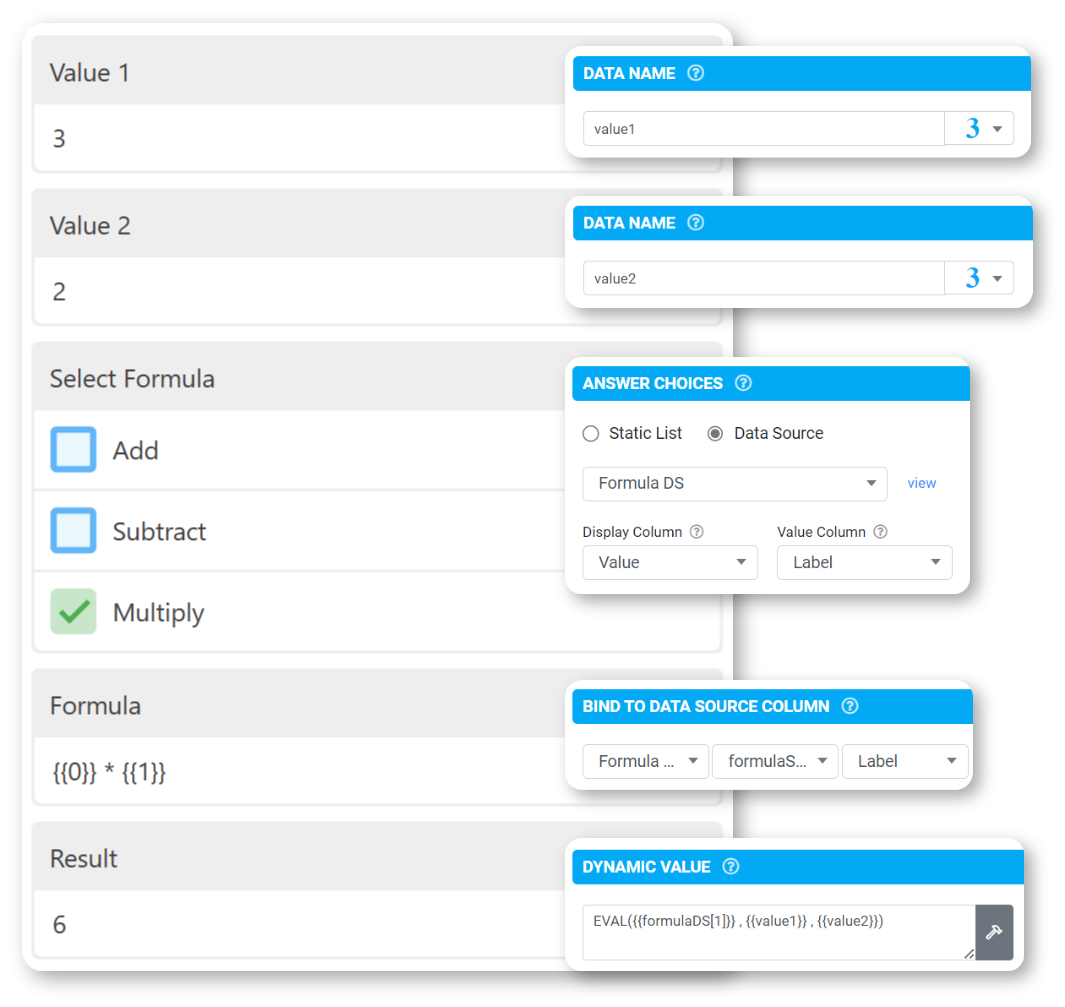
Result - Dynamic Value
EVAL({{formulaDS[1]}} , {{value1}} , {{value2}})
Data Source
| Value - Column 0 | Label - Column 1 |
| 1 | {{0}} + {{1}} |
| 2 | {{0}} - {{1}} |
| 3 | {{0}} * {{1}} |
Additional Formula Examples
| Text (Formula) | Dynamic Value With Data Source |
| IF({{0}} = 'Yes', 'True', 'False') | EVAL({{DS[1]}} , {{field1}}) |
| CONCAT({{0}}, ' and ', {{1}}) | EVAL({{DS[1]}} , {{field1}} , {{field2}}) |
| FORMAT-DATE({{0}}, 'yyyy-MMM-dd') | EVAL({{DS[1]}} , {{field1}}) |
| SUBSTITUTE({{0}}, 'name', 'title') | EVAL({{DS[1]}} , {{field1}}) |
| IF({{0}} + {{1}} >= {{2}}, 'Pass', 'Fail') | EVAL({{DS[1]}} , {{field1}} , {{field2}} , {{field3}}) |