Editing Form Entries

Editing Form Entries

Editing Form Entries

Occasionally, you may have situations where Form entry data is incorrectly captured by an app user and thus needs to be updated. This is possible via the secure website after a Form entry has been uploaded.

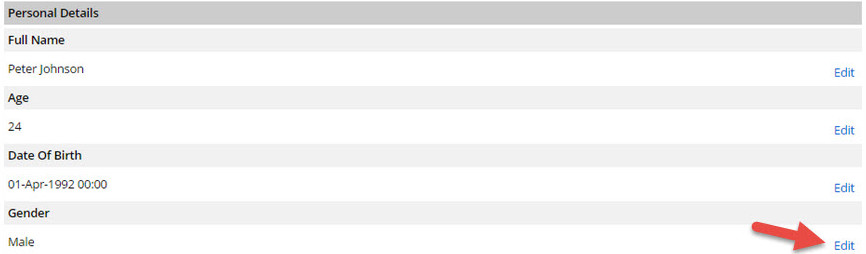
Only users able to access the web dashboard and with the Edit Data Entries permission granted on their respective Edit User pages of the dashboard can perform entry editing. Once granted permission, users will see an edit link on the View Entry page. View Entry is accessed via the Data Entries area -> select the target Form -> roll over entry row -> click view entry.
Please note that this method is not recommended for revising data on a regular basis and presents a significant risk to workflows if used on form entries that use process steps. If users receive a task that has had data edited on the back end, and the user has not synced with the server, then the data they submit can overwrite the edits that the other user has made on the back end via the dashboard. Any dependent fields that are edited can also potentially break the workflow, especially if they determine the recipient of the task. 

For these and other reasons, we recommend that users who wish to allow for data to be edited before a final form submission instead use the workflow itself to send the data to another party to review—or even themselves. 


    • Related Articles

    • Form Settings

      TABLE OF CONTENTS Version History Settings Customizing Titles of In-Progress Form Entries with Display Row Titles The Settings page is accessed from the “edit settings” link in the option bar of the Form Designer. You can also enter this page by ...
    • NetSuite - Form Connector

      Our Premium connector for NetSuite allows you to easily push data and files captured from your forms directly into your NetSuite account. This creates a seamless, one-way synchronization, ensuring all your data is automatically updated in your ...
    • Customizing Titles of In-Progress Form Entries

      We provide an option to set the answer of a chosen Form field as the row title in the History and Saved Entries screens of the app. To set this up simply follow these steps: In the web portal, go to the Settings page of your Form design. Select the ...
    • Viewing Form Entries in a Table

      The Data area contains all data collected from app users filling out Form entries in the field. From this page you can export the data to CSV format for use in spreadsheet programs like Microsoft Excel, export Form entries to PDF and print entries ...
    • Viewing Form Entries on a Map

      There are two ways to view captured data on a map: via the Dashboard page or view the Data Map page. Dashboard Page You can access this page from your Home page via the "Home" link. This provides a high-level dashboard of form entry activities across ...