Generating Android Bug Reports
This article is to help you generate the Android bug report to help us further investigate the issue that you have reported.
Enable Device Developer Mode
On the device in question:
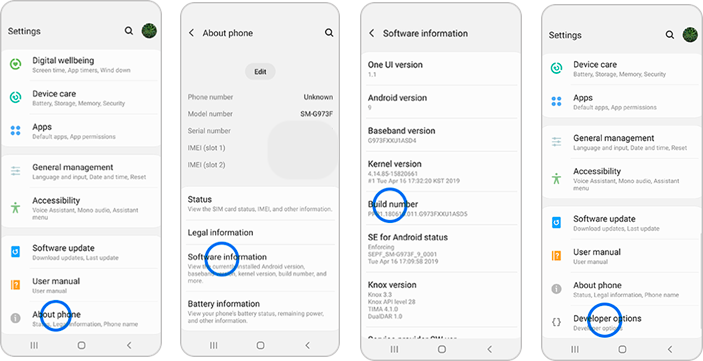
- Go to "Settings", then tap "About device" or "About phone".
- Scroll down, then tap "Build number" seven times.
Depending on your device and operating system, you may need to tap "Software Information", and then tap "Build Number" seven times. - Enter your pattern, PIN or password to enable the "Developer Options" menu.
- The "Developer Options" menu will now appear in your Settings menu.
Depending on your device, it may appear under Settings > General > Developer options.
Generate Bug Report
The report needs to be generated. After developer mode has been enabled, you can stay in developer options as this is where the function is to generate the bug report.
The screenshot (left) below shows that the second option is Bug Report. Click that option to generate the bug report. A popup will be shown, similar to the screenshot (right) below.
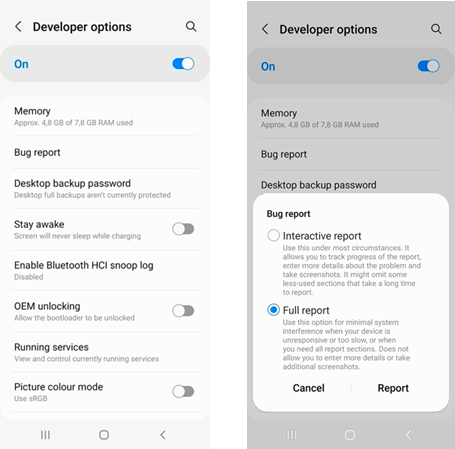
Make sure to select Full Report and then click the report button. This might take a few minutes and may differ from device to device, so please be patient while the report is generated.
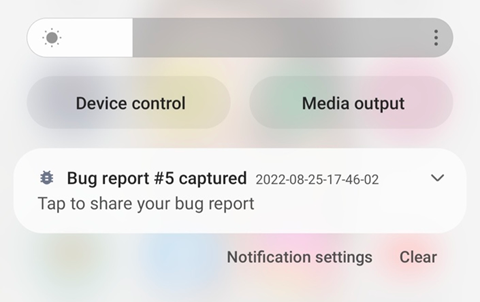
A notification will be displayed on the device as soon as the report has been successfully generated.
Share Report
Now that the report has been generated, it is time to share it with us. To do that, click on the notification. This will show the default share options. There are different options, we suggest uploading it to Google Drive in a folder that can be shared with us. We suggest this because the size of the report can differ each time, and emails have a size limit for attachments. If the file is too big, there will be no attachment, and we will not be able to access that report again as it is saved in the device's root folder that you do not have access to.
After the Report has been uploaded to Google Drive, please share that folder with us so our engineers can have a look at the report.
That is it. Please let us know if you have any questions or concerns.
Related Articles
Android 13 Support
Android 13 was released to the public on August 15, 2022. It was first available on Google Pixel 7 and 7 Pro devices. The update is currently rolling out to additional brands and models. We do not officially support Android 13 at this time as our ...Generating a Unique Number/Code
We offer several options for generating a unique number or code on a form output. This is often needed for scenarios like order numbers, invoice codes, document IDs, etc. One method is to use the Auto-Number field, which you can read more about in ...Why can't my Android devices receive data? (Android SSL Certificate Issues)
SSL Certificates can cause issues with the data connection between your Android mobile app and any Hosted GET or other web services that you connect to your applications. Android is very strict about an SSL certificate's trust chains – even stricter ...Why doesn't the app work on my older Android device (v5 and lower)?
Some older Android devices are not able to securely connect to our platform. This happens when the device does not have newer SSL root certificates installed by default. Users using such devices will not be able to log in to the app until they ...Charts in Templates
Charts in Excel or Word are not officially supported in our data template functionality. We are aware of some customers having success generating basic charts within their data templates; however, this is very much on a case-by-case basis. If you ...