
GeoOp Connection

GeoOp Connection

GeoOp Screenshot

GeoOp is an emerging job management system that allows service jobs to be coordinated and managed with efficiency. One of the easiest ways to automate your process is to link data sources to GeoOp entities such as jobs and users. Our platform enables a one-way synchronization to occur, where any changes in the GeoOp system are downloaded into your data source on a regular basis. Your data source will continue to update automatically until the connector is removed or an error occurs (such as losing authorization to access the GeoOp account).

Adding a GeoOp Connection

When logged into your eForms Mobile web portal, navigate to Connected Data → Connections

i
Access Permission
You must be an Administrator-level user or have Edit All Jobs permissions on GeoOp to see this option.

1. On the Connections page, click Add Connection and choose GeoOp.
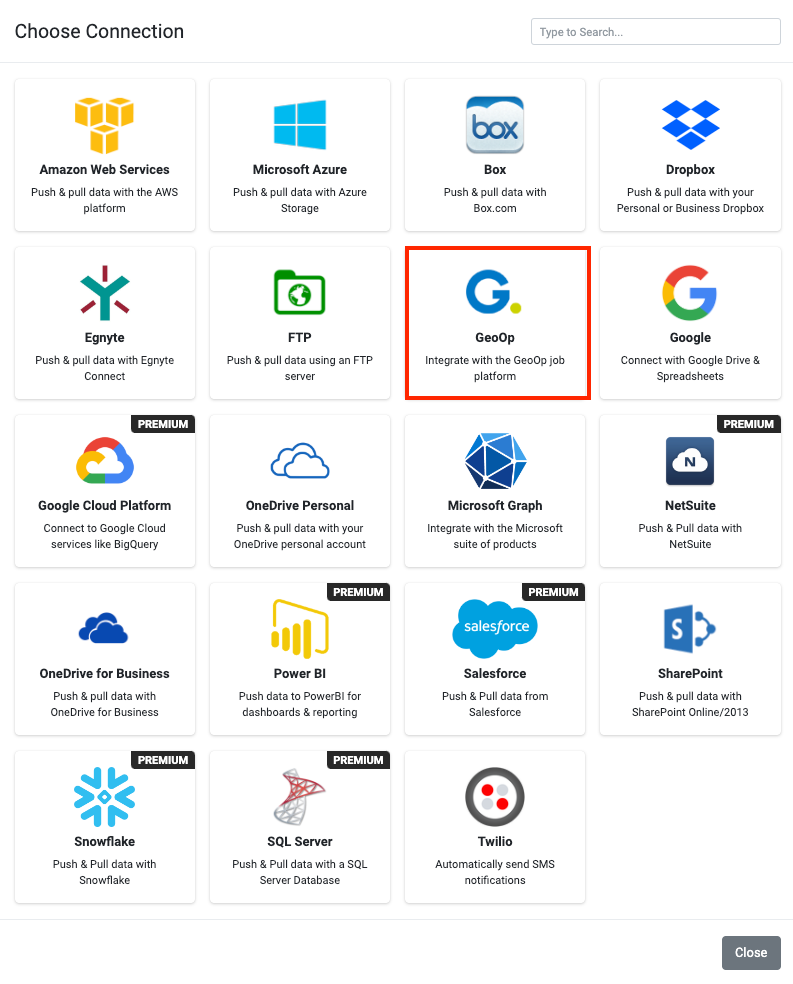
GeoOp Add Connection

2. The page will refresh, showing a new GeoOp connection row.

3. Click the Authorize button.

4. Log in with your desired GeoOp account.

5. Ensure you log in with the correct account—this is the account that all GeoOp Connectors will use.

6. Grant the requested access so that our Connectors can create and update entries in your GeoOp account.

7. After granting access, you will return to the Connections page. Your connection will verify automatically—a green tick will appear if everything is working.

Once your GeoOp Connection is active, you will see three checkboxes for automatic data sources. Tick these and click Save. Data sources for GeoOp Clients, Jobs and Users will be created automatically. Allow 1–2 minutes for synchronization. If data is not created or updated, there may be an error with the GeoOp data or account access. Click View Logs next to your connector on the Data Source Settings page for more details.


    • Related Articles

    • GeoOp

      GeoOp - Form Connector GeoOp is a 3rd Party, easy-to-use job tracking software system that make running your field sales or service business simpler and more efficient. This doc will not be a detailed account of how to utilize the GeoOp service, ...
    • Twilio Connection and TwilioForm Connector

      A Twilio Form Connector helps you send and manage short messages programmatically. Our platform lets you quickly and easily send text messages when a Form entry is uploaded and/or a Task Connector's triggering condition occurs. Before you add a ...
    • Adding a OneDrive Connection

      A few differences exist in how a OneDrive Personal and OneDrive for Business Connection can be added to our platform. Allowing Form Connectors to push data out and Data Source Connectors to pull data into the platform. We've combined both to compare ...
    • Pushing/Pulling Data To/From Other Systems

      One of the key features of our platform is the ability to "push" and "pull" data between the platform and other systems and services. This enables you to build apps and functionality that feature live business data. Examples of this can be jobs, ...
    • Common Connector Settings

      TABLE OF CONTENTS Basic Settings Add a Data Template Add a Run Condition Common Settings Overview Most of our connectors are different in various ways depending on what systems they connect to and the functionality they provide. However, there are ...