My Windows app shortcut no longer works after an update! How do I fix this?
Should your Windows app shortcut stop working after installing an app update, you can normally fix this in one of two ways:
a.) Uninstall your current version and then download and reinstall the latest version. You can find the latest app version's download link on the Dashboard page of our web portal.
NOTE: This approach will permanently delete any in-progress Form entries on your device.
OR
b.) Edit your existing app shortcut to fix the broken link.
Due to certain Windows configurations, sometimes the existing app shortcut is not properly updated to point at the correct app executable location. You can fix this by following these steps:
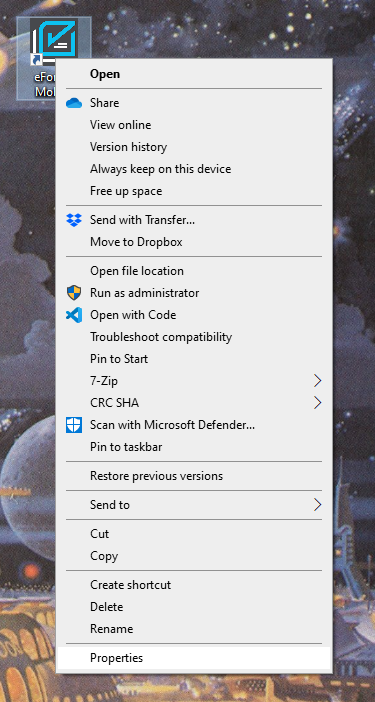
- Right-click on the shortcut and click “Properties”
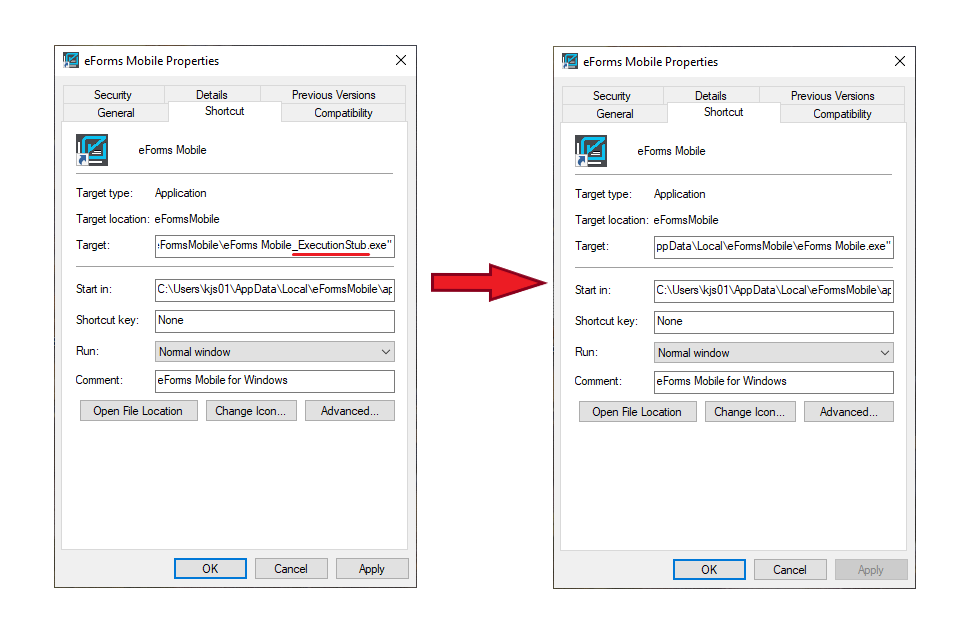
- In the box labelled “Target,” look for the text “_ExecutionStub” and remove it (if it exists).
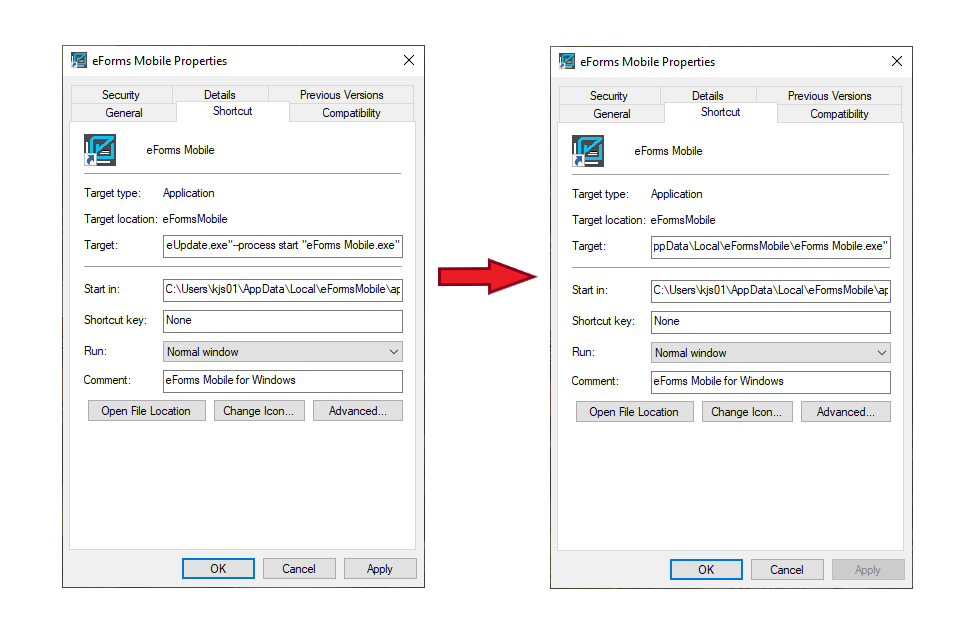
- While still in the Target field, remove all text starting at "Update.exe" to the start of the "FormsOnFire.exe" text.
- Click the Apply and then the OK button, which will close the dialog window.
- Your shortcut should now be working again
If this does not work, then option a.) will be your best option.
Related Articles
How do I Install the Windows App in a Custom Location
A customized Windows installed is available on request. This is usually necessary when an installation at machine level is required, instead of per user account on the machine. The main differences between the custom installer and the default ...What are the Windows app installation requirements? (e.g., for enterprise deployments)
The Windows app requires Windows 7 (ideally running the latest Service Pack update), Windows 8 or Windows 10. We recommend using Windows 10 with the latest operating system updates installed. The app requires a minimum of .NET Framework 4.5.2, which ...How do I check and/or install .NET Framework for my Windows app?
In order to run our Windows app on your device, you must ensure that .NET Framework version 4.7.2 or higher is installed. If you have kept your machine up to date with Microsoft's Windows Update service, then you likely already have the latest .NET ...Enabling Location/GPS on Windows devices
GPS/location functionality is provided using Windows Location services, which must be enabled in order the app to access these services. The link below describes how to configure Location Services on Windows 10: ...When does the app synchronize/check for updates?
Screens and all other content are updated on the device at predefined synchronization intervals that occur in the background when the app is running. These intervals are: At user login on the app (or auto-login if using the "Remember Logins" option). ...