 Our platform enables you to quickly and easily connect your data sources to NetSuite Objects.
This enables a one-way synchronization to occur - where any changes in the NetSuite Objects are downloaded into your data source on a regular basis.
Your data source will be automatically updated in this way until you remove the connector or an error occurs (such as losing authorization to access the database).
Note: You must ensure you have a valid NetSuite Connection set up on your organization before adding a connector.
Adding a NetSuite Data Source Connector
Navigate to the Settings page of the data source you'd like to import rows into.
- Connected Data > Data Sources
- In the list of available data sources, hover your mouse over the listing of the data source you wish to connect.
A set of options will show, click on the Settings link. - On the Settings page, after Basic and Advanced Options is the Connector option, click the Add Connector link.

- A new window with connectors to choose from will appear, click the NetSuite option.
The page should refresh with your newly added connector to be configured.
Configuring a NetSuite Data Source Connector
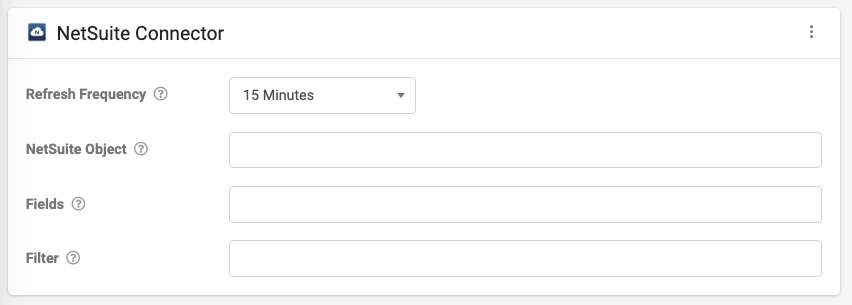
Next, configure the following:
- Refresh Frequency
The time interval of which data is pulled and refreshed by this connector.
- NetSuite Object
The name of the NetSuite Object that will be queried.
e.g Company, PurchaseOrder, SalesOrder
For a comprehensive list of all of the NetSuite Objects please go to the Finding Record Types and Field Names page or in your NetSuite account navigate to Setup>Records Catalog.
- Fields
Specify all of the fields that will be returned from the query comma separated.
e.g Id, Name, Lastname
For more info, please visit the Finding Record Types and Field Names page or in your NetSuite account navigate to Setup > Records Catalog.
- Filter
Add an optional filter clause to the query that will only return desired records.
e.g WHERE Lastname = 'Good'
Example
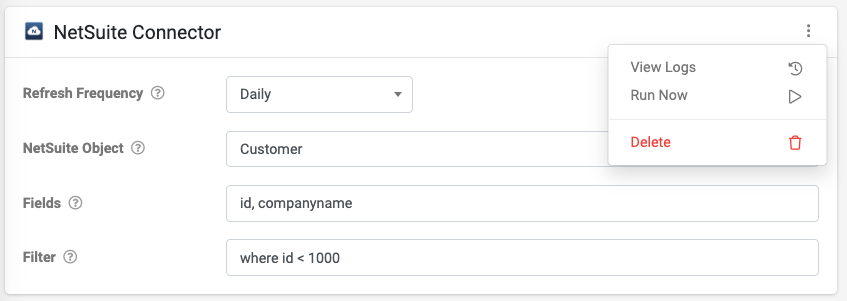
When you save your changes, the connector will be fired for the first time and after that will run at the refresh frequency you specified in the connector settings.
Wait a minute or so and then check the Rows page of your data source.
If rows are not downloaded, then there may be an error with the connection to NetSuite. You can also check errors by clicking on the kebab menu to View Logs for more information.