OneDrive Personal Connector
 This document will provide some detail on linking your app with OneDrive storage, using the built-in connector provided for this. For more detailed information on the OneDrive service, consult the official support documentation found here: https://support.microsoft.com/en-gb.onedrive
Adding a Form Connector
The Form Connectors page can be accessed from your Form designer, settings, or the Screens listing if you mouse over the Form row in question.
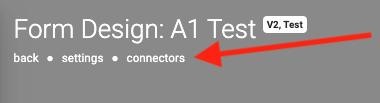
Once you are on the Connectors page, setting up a OneDrive Personal Connector is easy.
- Click on the ADD CONNECTOR button to see a list of the available Connectors.
- The click on OneDrive Personal option
This will refresh the page and display your Connector, ready for configuration.
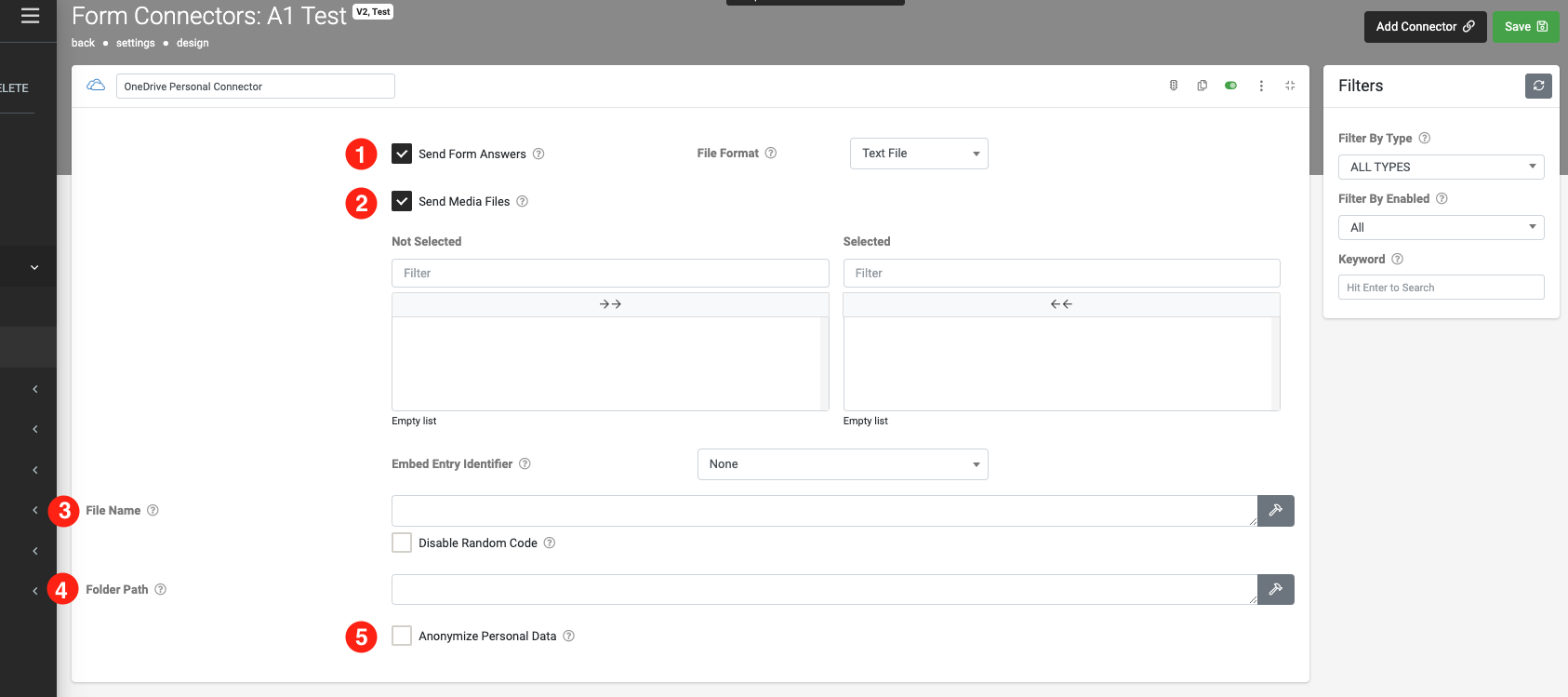
1. Send form Answers
You can choose what formation you want your Form entry data to be sent as.
CSV: Sends a Form data as a CSV file attachment on the email.
Excel: Sends a Microsoft Excel attachment, which is generated using an Excel XLSX template you upload.
PDF: Sends a PDF file attachment on the email, generated using either a generic PDF output or the Word/Excel template provided.
TextFile: Sends a Form data as a Text File attachment on the email.
Word: Sends a Microsoft Word attachment, which is generated using a Word DOCX template you upload.
2. Send Media Files
Allows you to attach which media files to be included in the email.
The Connector will send/attach all media captured in the Form entry (photos, videos, etc.) as separate files when the option is enabled. This is in addition to any generated answer/template output of the connector.
If the Anonymize Personal Data option is enabled, media files marked as Person Data will be excluded.
. File Name
Allows you to specify the name of the media files to be uploaded.
4. Folder Path
Enter the folder path under your Bucket that you wish to organize your file within: 'BucketName/FolderName/FileGoesInThisOne'
5. Anonymize Personal Data
In enabled, data from fields marked as Personal Data will be converted to a non-human-readable format to aid privacy.
More Information within our knowledge base on Output Templates and Common Connector Settings maybe of interest to you.
Related Articles
Adding a OneDrive Connection
A few differences exist in how a OneDrive Personal and OneDrive for Business Connection can be added to our platform. Allowing Form Connectors to push data out and Data Source Connectors to pull data into the platform. We've combined both to compare ...Box - Form Connector
Box is a highly Secure Cloud Storage Platform that is widely utilized for storing various data files. This robust platform not only allows users to store their files safely but also facilitates the easy sharing of these files with others, functioning ...Common Connector Settings
TABLE OF CONTENTS Basic Settings Add a Data Template Add a Run Condition Common Settings Overview Most of our connectors are different in various ways depending on what systems they connect to and the functionality they provide. However, there are ...Egnyte Connector
Governance and collaboration for a content critical age — Egnyte's secure enterprise cloud storage. Our built-in connectors allow for seamless integration with your Egnyte Connect account, ensuring efficient workflows across your organization with ...SQL Connector
After adding and authenticating a SQL Server Connection, you can add Data Source Connectors to pull data from a database or push data on form submissions using Form Connectors. A Premium connector for direct connection to Microsoft SQL Server. Our ...