Adding a OneDrive Connection
A few differences exist in how a OneDrive Personal and OneDrive for Business Connection can be added to our platform. Allowing Form Connectors to push data out and Data Source Connectors to pull data into the platform.
We've combined both to compare the differences between these two Connections and what you need to be aware of when using them.
Adding Connections
The Connections area of the platform is where you can add connections for connectors. Navigate the side menu to Connected Data > Connections.
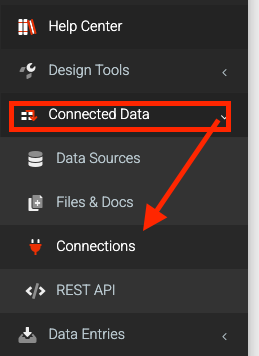
On the Connections page:
- Click the ADD CONNECTION button on the top right to bring up a list of connections.
- Based on your usage requirements, click on the OneDrive Personal or OneDrive for Business option to add that respective connection.
Authenticating
OneDrive Personal and OneDrive for Business support various authentication options in the Microsoft ecosystem when authenticating your connections. The table below illustrates this:
| Options | OneDrive Personal | OneDrive for Business |
| Microsoft 365 Account | ✓ | ✓ (Requires the root location of your OneDrive storage, Library URL) |
| Azure / Entra | ✓ | ✓ |
| Sharepoint | ✓ | ✓ |
| MS Graph (Recommended) | ✓ | ✓ |
OneDrive Personal
After you click the icon to add the OneDrive Personal connection, you will see this unauthorized connection added to your connections page as shown below:

Click on the Authorize button and log in with your preferred authentication option. Once you are authenticated and you've given the necessary permissions, your connection will show that you have successfully added your connection as shown below:

Your OneDrive Personal connection is now ready to use.
OneDrive for Business
After you click the icon to add the OneDrive for Business connection, you will see this unauthorized connection added to your connections page, as shown below:
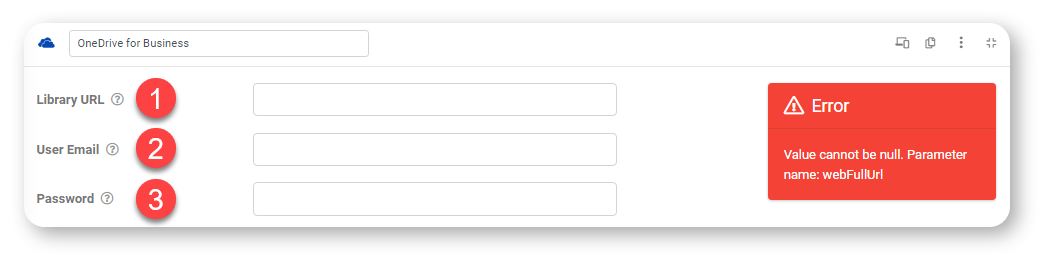
1. Library URL - Your Library URL is the root location of your OneDrive user storage.
To find your Library URL:
- Log into Office 365 using your target user account
- Browse to OneDrive via the Office 365 apps list
- Copy the URL from your browser address bar
e.g., https://xxx-my.sharepoint.com/personal/yyy/_layouts/1/onedrive.aspx
2. User Email - Your designated OneDrive for Business user name/email. All interactions between our
our platform and OneDrive will occur within this user's OneDrive storage space.
| We recommend that you set up a dedicated Office 365 user for platform use - avoid using a personal/admin account |
3. Password - Password of your OneDrive for Business
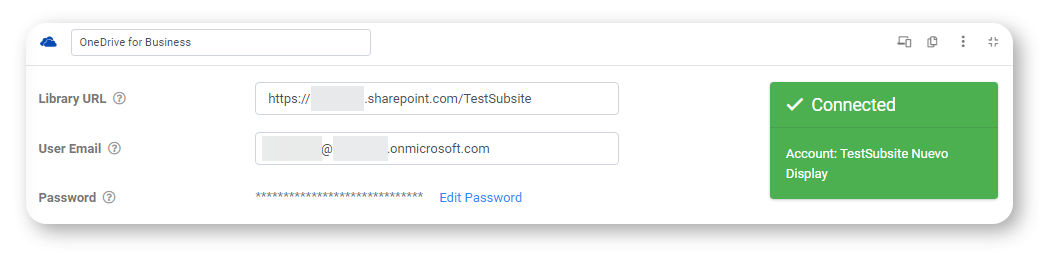
Once you've entered all the required details correctly and saved, your connection should authenticate, and you should see it looking like this:
Additional Info
Most issues you might encounter will likely relate to access permissions on your account or if you've used a OneDrive Personal account on a OneDrive for Business connector.
So here are a few troubleshooting questions you should ask yourself if you cannot get this working.
- Am I using the correct account for this connector?
As stated above, it's best to have a dedicated account created for linking to our platform. - Have I adequately set the account permissions? (Sharepoint or Azure/Entra)
Check the respective knowledgebase guides for details on setting up Sharepoint or MS Graph connections to ensure you've configured your connections properly if you use these services. - Am I using the correct URL for my library URL? (OneDrive for Business)
The URL could have sharepoint.com or onmicrosoft.com or some other Microsoft service shown. Ensure that you have copied the URL correctly and have no spaces or gaps anywhere in the URL.
If you're still having issues, reach out to our support team, and we'll be glad to help.
Related Articles
OneDrive Personal Connector
This document will provide some detail on linking your app with OneDrive storage, using the built-in connector provided for this. For more detailed information on the OneDrive service, consult the official support documentation found here: ...GeoOp Connection
GeoOp is an emerging job management system that allows service jobs to be coordinated and managed with efficiency. One of the easiest ways to automate your process is to link data sources to GeoOp entities such as jobs and users. Our platform enables ...Twilio Connection and TwilioForm Connector
A Twilio Form Connector helps you send and manage short messages programmatically. Our platform lets you quickly and easily send text messages when a Form entry is uploaded and/or a Task Connector's triggering condition occurs. Before you add a ...Microsoft Power BI
This is a Premium connector for direct connection to Microsoft Power BI. Power BI is a business analytics solution consisting of multiple tools and building blocks that let you visualize your data and share insights across your organization. The ...Box - Form Connector
Box is a highly Secure Cloud Storage Platform that is widely utilized for storing various data files. This robust platform not only allows users to store their files safely but also facilitates the easy sharing of these files with others, functioning ...