RFID Scanning with Zebra Device
We have long facilitated barcode scanning with external scanners from Zebra. More recently, we have expanded our capabilities to include RFID scanning by integrating support for Zebra devices.
Currently, our ability to support RFID scans with Zebra devices leverages the Zebra DataWedge functionality. To test and demonstrate this new feature, we configured a Zebra RFID device using the specified setup:
Test device and Configuration
Zebra Software: DataWedge version 11.3.40 | 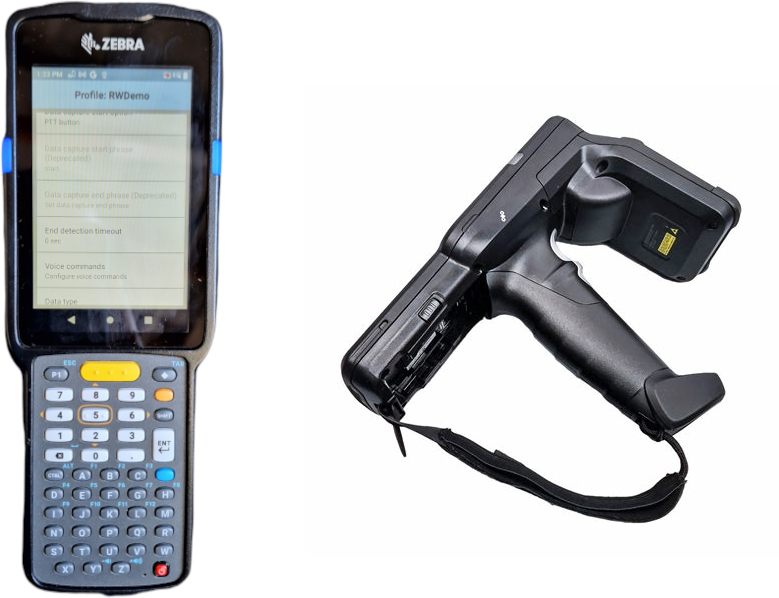 |
The RFID scanning mechanism we demonstrate in this article shows how you can start building apps that run on Zebra devices with RFID capabilities
What is RFID?
RFID, short for Radio-Frequency Identification, revolutionizes how we identify, track, and manage items using radio waves. This dynamic technology employs electromagnetic fields to seamlessly transfer data between an RFID tag and a reader, enhancing automatic identification and data capture processes.
Widely adopted across diverse sectors like retail, logistics, healthcare, transportation, agriculture, and manufacturing, RFID technology outshines traditional barcode systems. It offers key benefits such as non-line-of-sight communication, rapid data capture, increased data capacity, and the capability to read multiple tags at once—streamlining operations and boosting efficiency in a multitude of industries.
Getting Started
Before you begin, you will need to ensure the following:
- You have the eForms Mobile app installed on your device.
- You've opened the RWDemo app on your Zebra device at least once (this is necessary to create the RWDEMO profile that you will use to interface with the RFID tag reader).
- You have created a CSV data source of your tags using the 123RFID app and imported this as a data source into eForms Mobile .
Configuring DataWedge
You can now start to configure DataWedge.
Setup DataWedge Profile
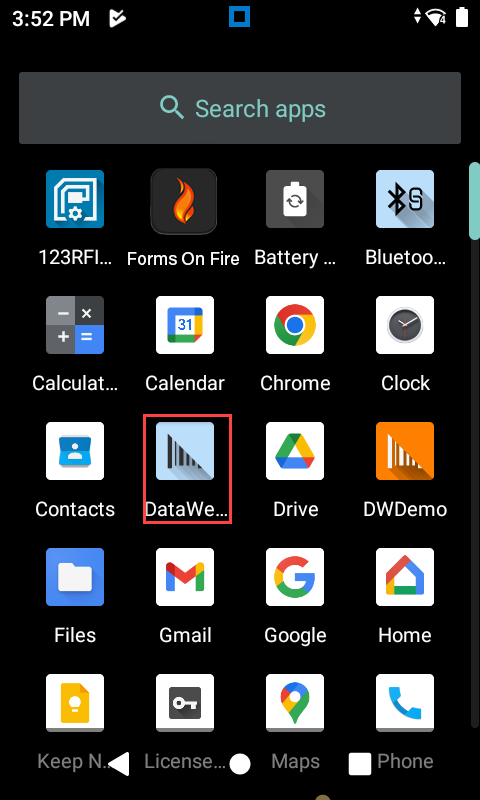
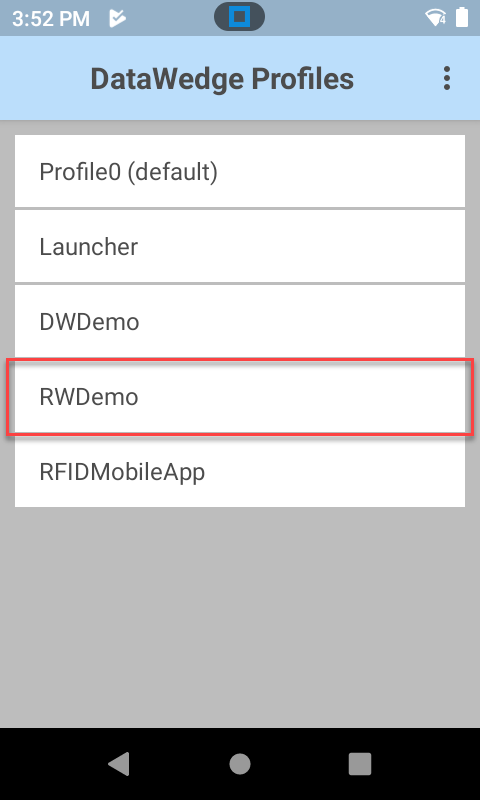
1. Open the DataWedge app on your Zebra device and select the RWDEMO Profile.
 |  |
Configure RWDEMO Profile
2. Ensure that the RWDEMO profile is enabled, as show in the image below, and click "Associated Apps" to associate eForms Mobile with the profile. 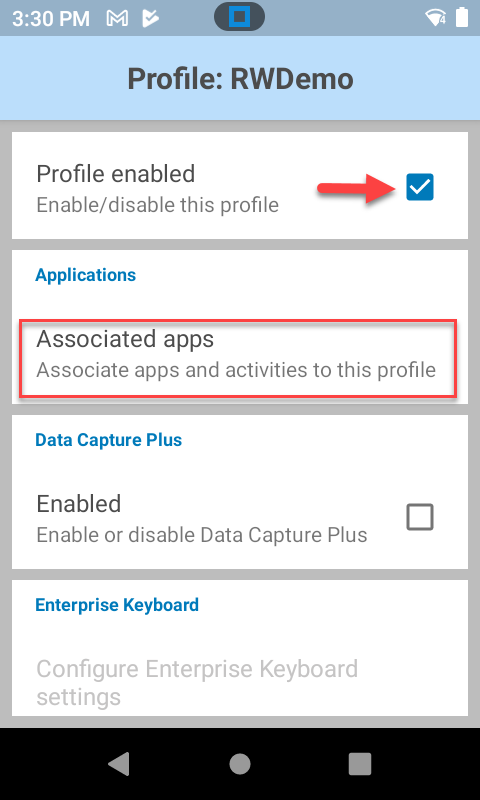
Associate Apps with Profile
3. After you click "Associated Apps", click on the 'more options' menu in the top-right corner to add a new app association.
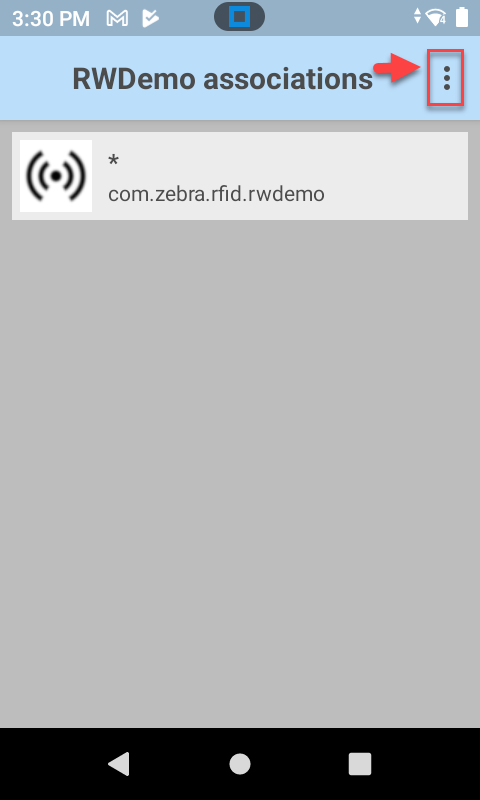 | 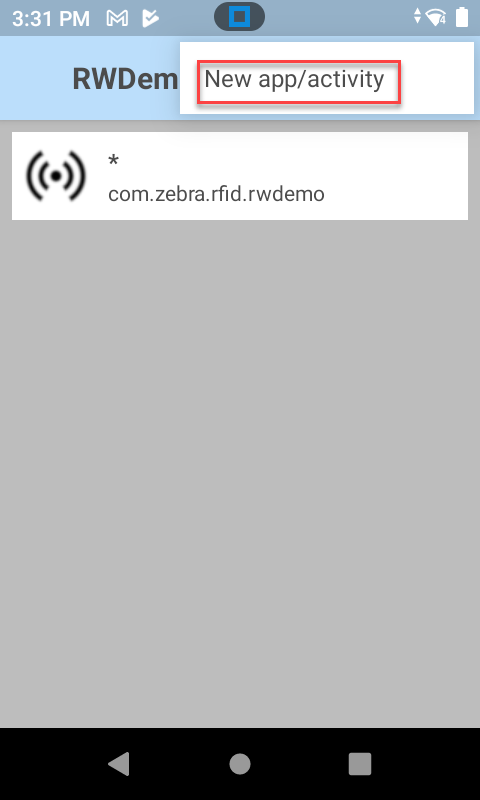 |
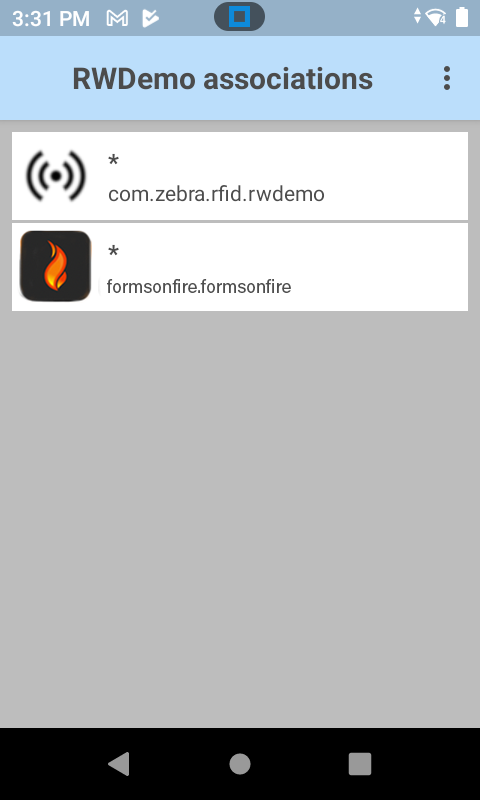
4. This will then bring up a list of apps installed on your device. Select eForms Mobile from the list; this will open another list from which you will select the option with the asterisk as shown below:
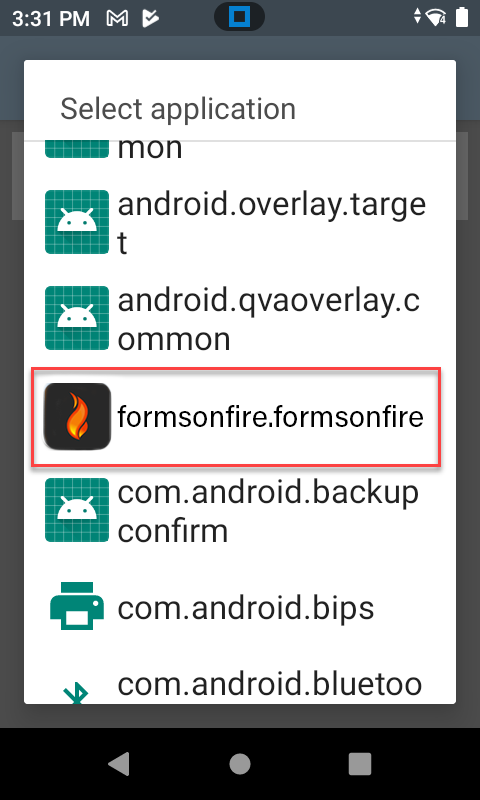 | 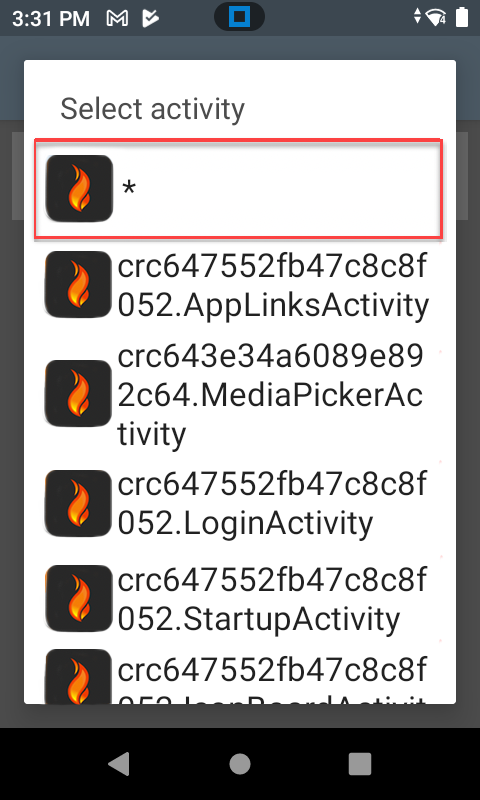 |  |
5. Once added, go back to the main RWDEMO profile menu and scroll down. Disable the Barcode Scanner as show below: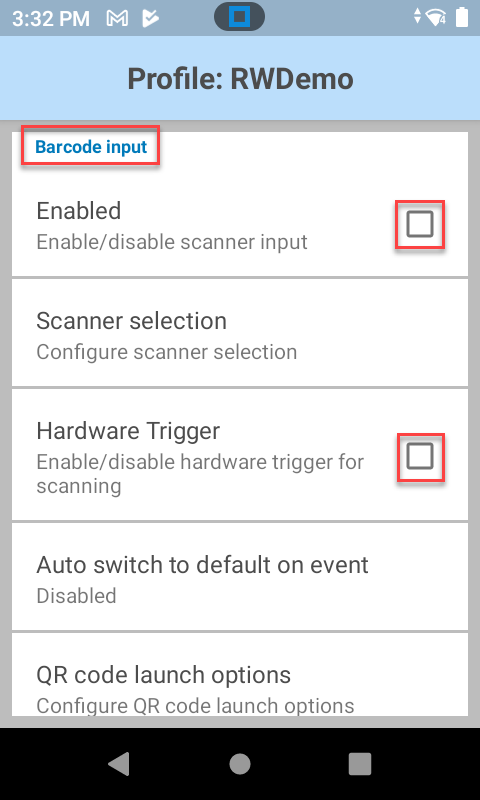
Enable RFID Input
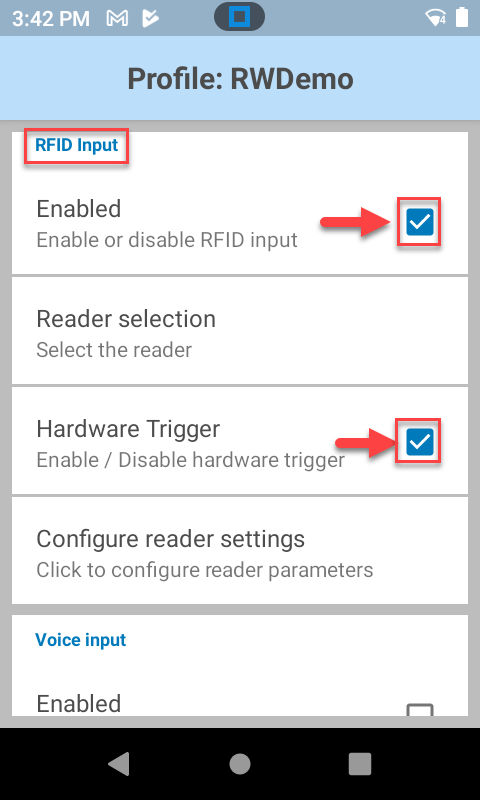
6. Scroll down to RFID Input and ensure you have RFID enabled with the hardware trigger also enable, as shown below:
 |
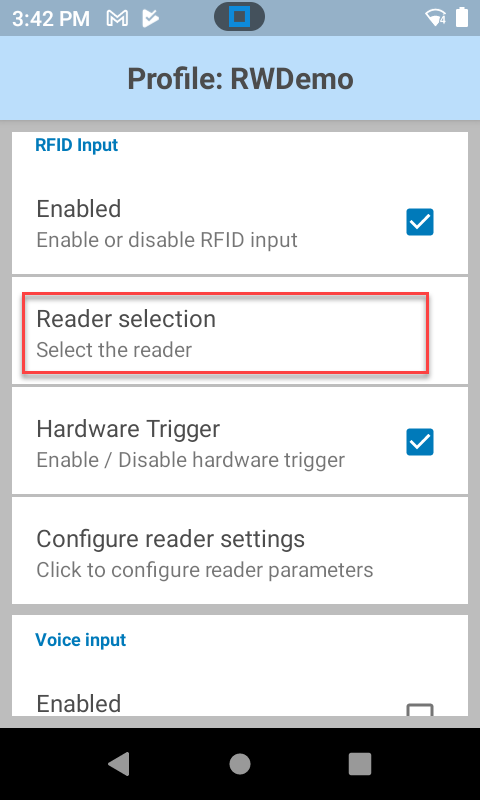
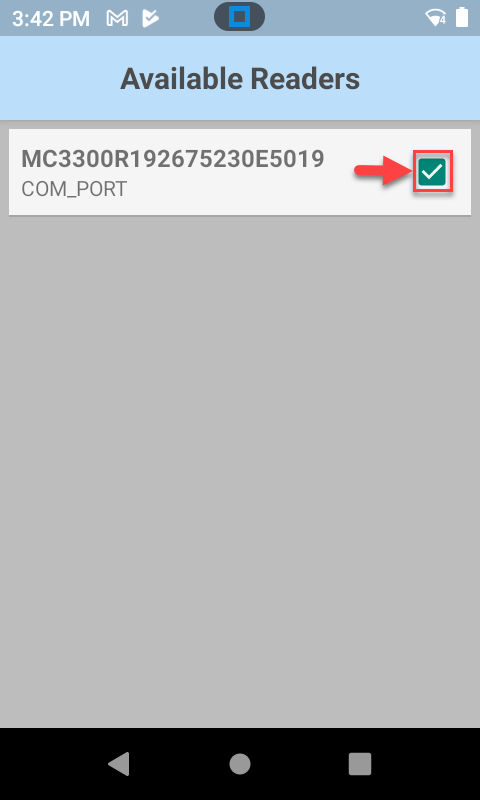
7. Now click on "Reader selection" to ensure that you have the reader selected as shown below:
 |  |
Configure Reader Settings
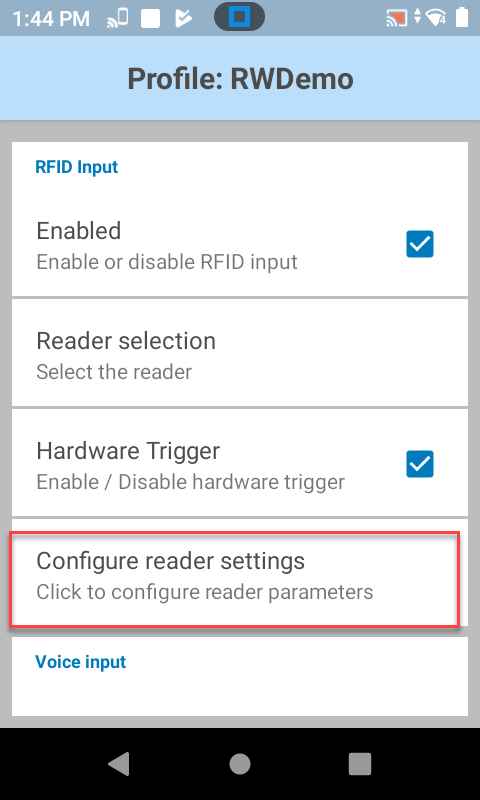
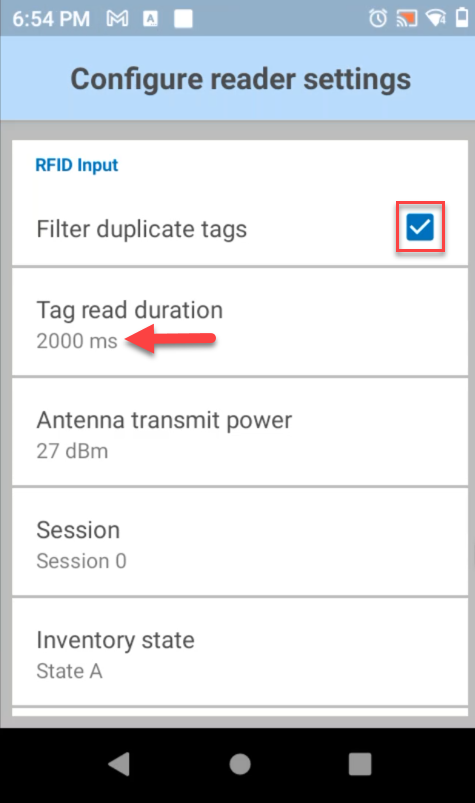
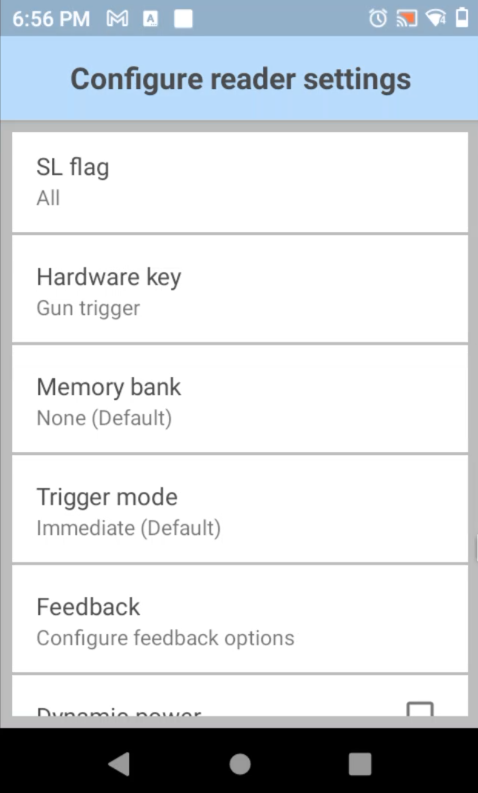
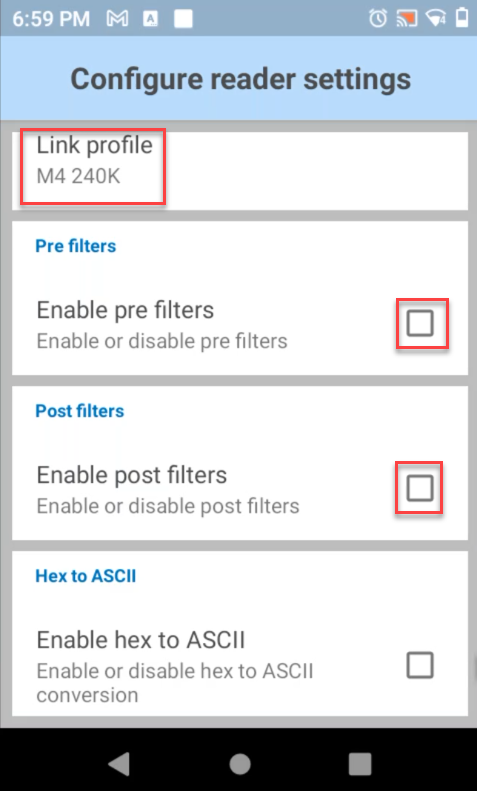
8. Go back to the main RWDemo configuration and configure the reader's settings as shown below:
 |  |  |  |
Configure Keystroke Output
9. Scroll down to "Keystroke Output" and configure it as show below: 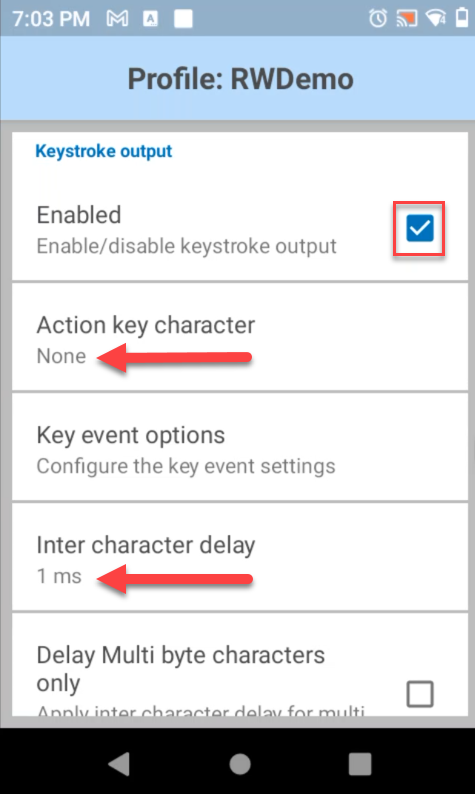
Now you are ready to Test
At this point, you are ready to start scanning RFID tags and processing them in eForms Mobile . Open the screen in eForms Mobile that you want to read the RFID tags into and ensure the cursor is active and flashing in the text area you want to capture RFID tags into.
Make sure your device isn't connected to the cradle charger. If it is, the RFID reader won't read tags. 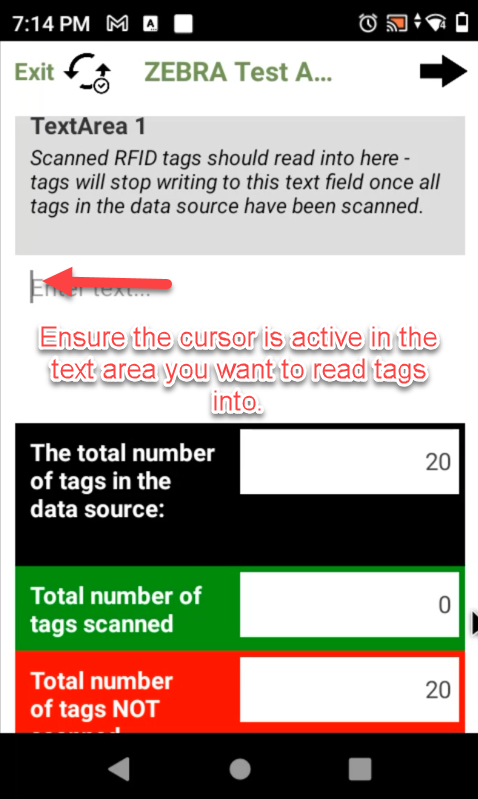
As soon as you press the trigger button on the Zebra device, it will start reading tags into the text area that has the active cursor. You can then use your data source with the list of RFID tags you pre-populated to determine how many tags have been read and how many have not. The tags will be read into the text area, as shown in the screenshot below, and you can then process it according to your own objectives. 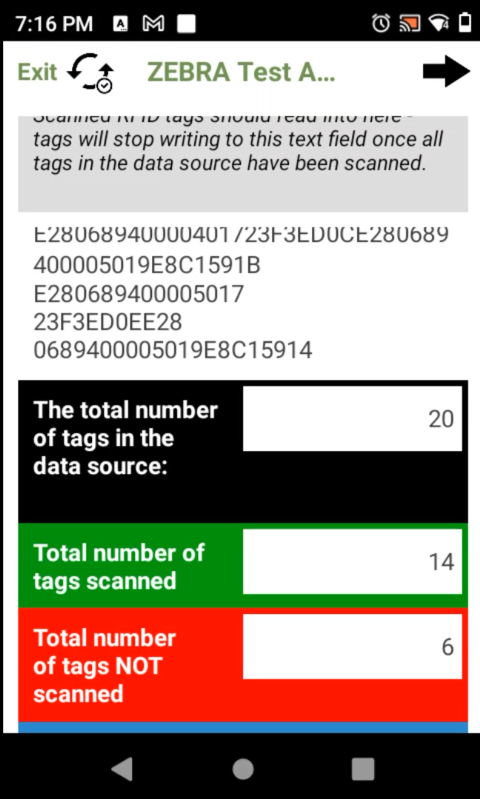
Should you require assistance in getting your RFID tags to read into our platform, please do not hesitate to contact our support team for assistance.
Related Articles
RFID Scanning with Zebra Devices
We’ve supported barcode scanning using external barcode scanners by Zebra for some time now. Recently, we’ve extended our support for products in the Zebra range by enabling support for RFID scanning using Zebra devices. At present, our support for ...Rapid Barcode Scanning
A scenario may arise where you need to scan multiple barcodes for swift processing using the app. This could be for inventory, stock auditing, or any other process where scanning numerous barcodes or QR codes could increase the app user’s efficiency ...Device Language & Numeric Fields
Depending on your region or device language set, the Numeric Field will capture decimal values separated by a point (.) or a comma (,). If the numeric field’s value is needed in calculations, you must ensure the separator is a point (.). This can be ...Sizing images to fit a device screen dimension
If you can precisely measure the width of your screen or know the screen's exact dimension in pixels, you can calculate the pixels needed to mirror the physical size of the screen on a printed-out copy of the image. Here's how: Determine the width or ...Repeatedly Scanning Barcodes / QR Codes
Depending on your scenario, you may want to create a list of barcodes that are scanned by the user through a Form. One way you can do this is to have a very simple Form design that contains just a single barcode field along with a Data Source field. ...