Sizing images to fit a device screen dimension
If you can precisely measure the width of your screen or know the screen's exact dimension in pixels, you can calculate the pixels needed to mirror the physical size of the screen on a printed-out copy of the image. Here's how:
- Determine the width or length of the screen, depending on which dimension you anticipate being larger on the captured image. There are two ways to do this:
- Manually measuring the screen dimension using a physical measuring tool
- Calculating via the below formula, if the below details are known (recommend to check your device information if not):
(Pixel width / screen ppi)*72
- Convert the above measurement to pixels using a tool like this.
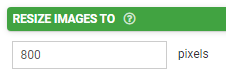
- Enter the above into the "Resize Images To" property of the form, accessible by clicking the name of the form at the top of the designer window:
- On your form's connector, check the box to "Send Media Files Separately."

- Bear in mind that if you use a data template and opt to send High Resolution images, the 72 figure in the calculation in Step #1 above may need to be revised to 96 or higher.
Bear in mind that the specified resizing will be done to the image's greater dimension, either width or length. As a result, this process will only work as long as the intended image dimension is not exceeded by the other dimension. For example, if you have measured the screen width and determine the calculations accordingly, the resizing will apply to the length instead if the length ends up being greater.
Related Articles
Images Sizing in Templates
To add an image, all you need to do is add the placeholder for the image field. However the system will size the image automatically and usually this is not what you desire. To get the best image output and fit for your template, we suggest you try ...Capture Google Maps Images in eForms Mobile
Using Google’s Open API, forms designed in eForms Mobile can easily display map images from Google Maps right on the screen for users to reference and annotate! In short, the eForms Mobile Media field allows any image to be captured from a URL. The ...Dynamic Images in Forms
The “Dynamic Image” property allows you to load images dynamically into Media, Sketch, and Section fields, usually through a data source column or a formula result. The dynamic image property allows you to, with the use of formulas, dynamically ...RFID Scanning with Zebra Device
We have long facilitated barcode scanning with external scanners from Zebra. More recently, we have expanded our capabilities to include RFID scanning by integrating support for Zebra devices. Currently, our ability to support RFID scans with Zebra ...Screen Title
A screen’s title bar is a constant found at the top of every screen, informing the user of the screen they’re viewing and providing a default, but customizable, navigation for completing a form. Coupled with a few unique properties not found on basic ...