Showing Data Source Rows on a Map (Mapping Screens)
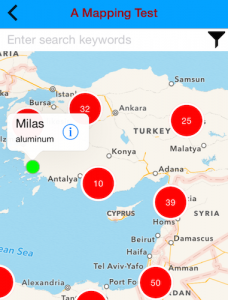
The Mapping screen type provides the ability to display Data Source rows as map pins on a full-screen map in your apps. We’ve added customization options such as control over pin colors, callout display and user interactions to enable dynamic scenarios when the user selects a map pin. Smart clustering of data points means that the Mapping screen can handle the display of thousands of pins while remaining responsive and engaging to your users.
You can specify a default formula filter to apply to the Data Source rows displayed in a Mapping screen. This is helpful in displaying just a subset of the Data Source rows - e.g., all rows within a certain state or city. Options are also provided to allow the user to specify their own custom filters on top of this.
By default, the auto-complete search in these Screens will filter rows based on the user’s search text matching anywhere within the displayed row values. Our "Search Pattern" option allows you to you specify a custom regular expression to replace the default matching behavior.
Displaying your data in a map adds another level of flexibility and productivity to your clients’ apps, as users can visualize their data in a geographic way.
Getting Started
To create a new Mapping screen in the secure website:
- Go to the Screens page and click the Add New button
- Choose "Map a Data Source" from the Screen Type list, and then select a name for your Screen.
- Select the target Data Source to display as pins on your map. This Data Source must contain a column with location coordinates in space-separated decimal degrees (latitude longitude). E.g., New York City is 40.7142700 -74.0059700
- Click the Create button to create your new Mapping screen. This will take you into the Mapping Screen designer.
- In the designer, click on the pin in the preview area: this will display the pin properties available to configure. Make sure that the "Pin Co-ordinates" property is correctly set to your location column.
- Configure other options like the pin's popup text as desired, then click the Save button to save your changes. Use the Test button to test your changes on the native app, and when all is working as expected use Publish to make your new Mapping screen available to your users!
Common Questions about Mapping Screens
How can I control the color of the location pins in a Mapping screen?
If you wish to apply conditional coloring to map pins, you must set up Conditional Display Rules on your Data Source.
- Go to the Data Source -> Rows page.
- There is a little "cog" icon in each column header on the Rows page; click this icon on the desired column to show the Column Settings dialog.
- You can then add Conditional Display Rules to control styling of row data.
Click the question mark icons to see detailed hints and information on how to create a rule formula.
What coordinate format must I use for row values in the Pin data source column?
The column must contain the location co-ordinates in space-separated decimal degrees (latitude longitude). E.g., New York City is 40.7142700 -74.0059700
If I have two entries with the exact same geo coordinates, how can I access the popup details of each pin?
In the app, a pin will show with a number on it if there are multiple rows at the exact same location. Simply tap the pin to "cycle" through each row at that co-ordinate. Tapping will also display the popup details for that specific row.
What is the "Cluster Icon Style" property for?
If your Data Source contains a lot of rows within a specific area of the map, then the app will automatically cluster pins at various zoom levels for performance purposes. This enables a smooth map experience for the user. As the user zooms down into a specific area, the clusters will progressively break up into individual pins. The Cluster Icon Style option in the Mapping designer allows you to specify the color of these cluster icons.
Related Articles
How can I display a list of location addresses on a map?
Currently our Map screens require that you provide geo coordinates in order to show pins on a map. So, unfortunately, addresses will not work. The good news is that you can perform bulk geo-coding of addresses through various online services. If you ...Advanced Column Settings for Data Sources
To help control how the Data Source filters and rows display across your apps, our platform provides advanced column configuration functionality. This functionality is accessed via the Data Sources -> Rows page in the secure website; simply click on ...Data Source Settings
Basic, App Functionality, Advanced, and Connector options can be configured on the Data Source Settings page. Accessed by clicking on the Settings link when hovering over a data source on the Data Source page, or when viewing the rows of a data ...Mapping- Custom Layers
Mapping - Custom Layers With this feature, you can now add visualization layers from your GIS (Geographic Information System) to provide context and information to your users. The layer data must be provided in GeoJSON format. Once in GeoJSON format, ...Viewing a Data Source on a Map
To view a data source on a map, the data source must have at least one column with a type of Geo "Coordinate." When the data source is saved, a new menu option will appear at the top of the page, as well as in the menu options when moving the cursor ...