Single Sign On with Azure Active Directory
Prerequisites
Before you configure provisioning, check the following in your platform account:
- Ensure you are subscribed to our Enterprise Edition plan, since this unlocks our Azure Active Directory integration options.
Please contact your representative or email us at support@eformonsmobile.com. - Go to the Menu -> Organization Setup page and find the section titled "External User Authentication & Provisioning".
Click the Add Connector link and select the "Azure Active Directory" option from the list of available connectors - this will save the Organization Setup page and reload it. - Make note of the SCIM Url, User Name, Password and OpenID Connect Login Redirect URI values that display on the Azure Active Directory connector details.
You will need these for the Azure Active Directory configuration steps below.
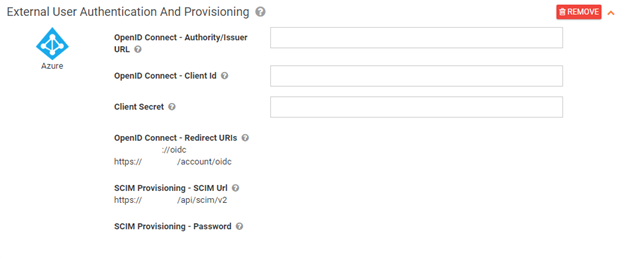
Configuring Single Sign On (OIDC Identity Provider)
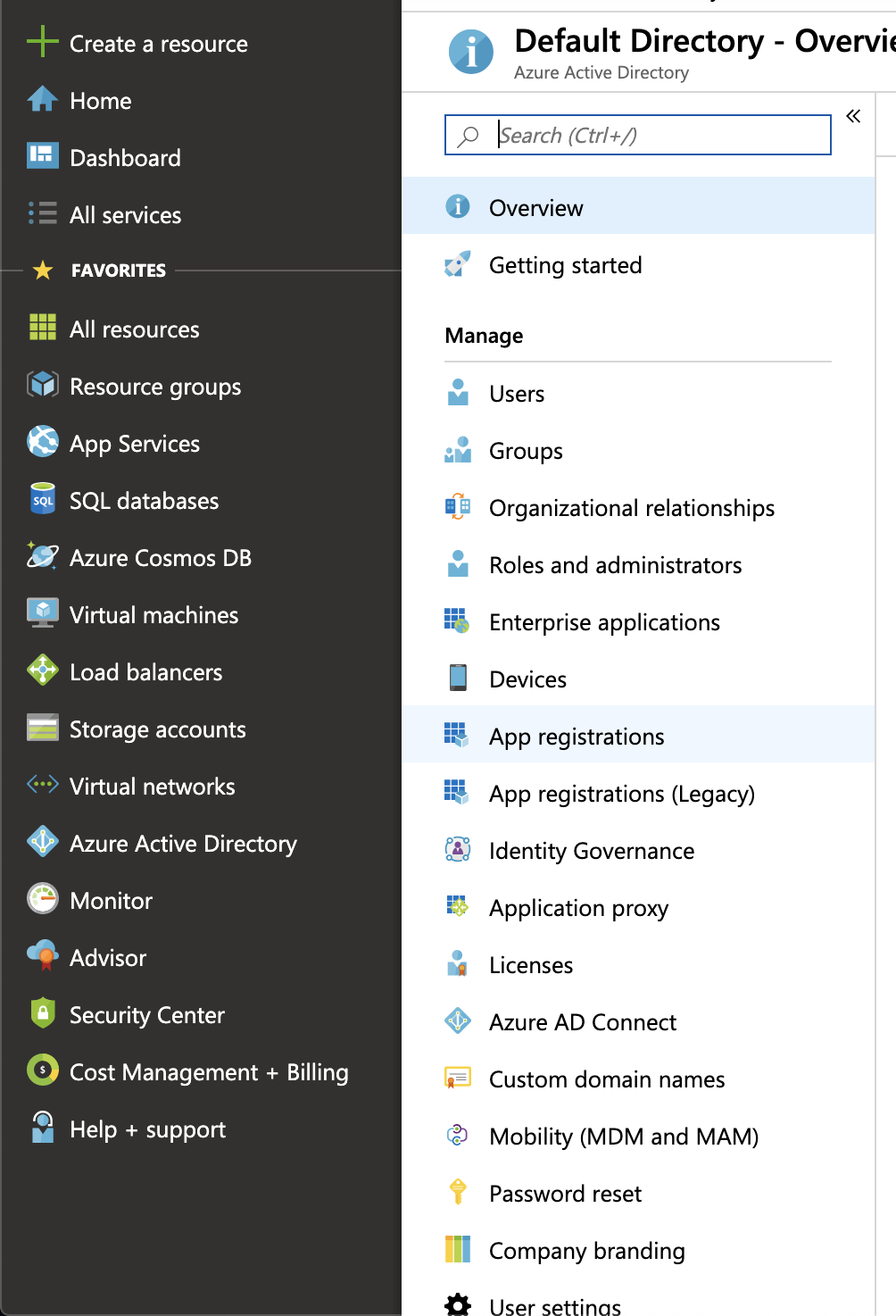
1. Log in to your Azure account and navigate to Azure Active Directory > App registrations.
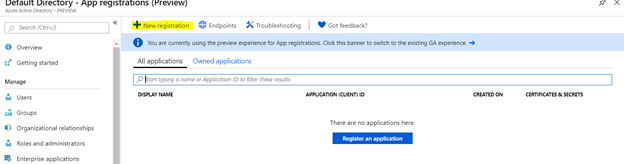
2. Select New Registration, enter a name for your app and select register
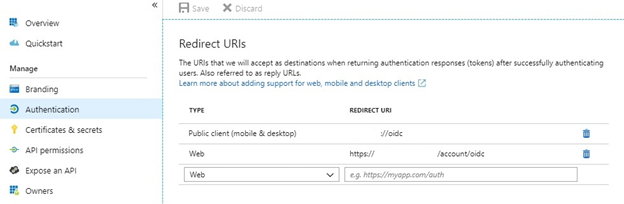
3. From the left pane select Authentication. In the Redirect URI's section, enter the two Redirect URI values found on your Organization Setup page into the forms below. The first Redirect Uri's type should be set to Public client (mobile & desktop). The second Redirect Uri's type should be set to Web.
4. In the Certificated & Secrets section, Click on the New Client Secret button to add a new client secret.
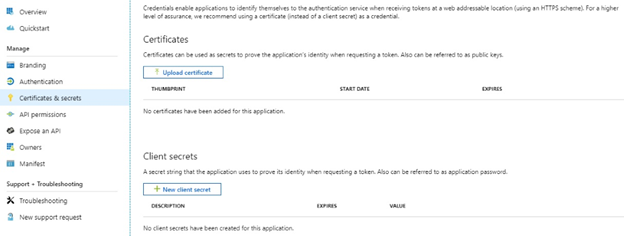
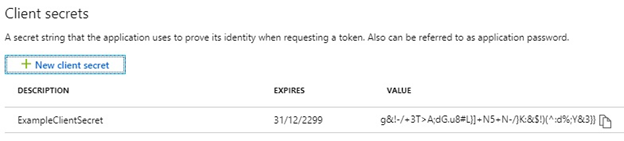
5. Enter a descriptive client secret name, and set to desired expiry date. (we recommend using never)
6. Copy the client secret value that was generated, and paste that into the Client Secret field found on your Organization Setup page.
7. Navigate to the overview section and copy the Application (client) ID and paste it into the OpenID Connect - Client Id field found on your Organization Setup page.
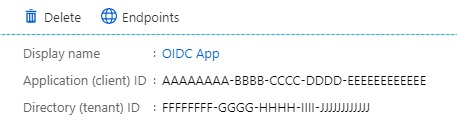
8. Whilst still on the same overview section, copy the Directory (tenant) ID from the overview screen, and combine it with the default azure login url. https://login.microsoftonline.com/{tenant}.
Example based on overview image above:
https://login.microsoftonline.com/FFFFFFFF-GGGG-HHHH-IIII-JJJJJJJJJJJJ
Copy this complete tenant url, and paste that into the OpenID Connect - Authority/Issuer URL field found on your Organization Setup page.
Remember to Save in the top right hand corner of your Organization Setup
Related Articles
Provisioning Users and Single Sign On with Azure Active Directory
TABLE OF CONTENTS Features Prerequisites Configuring User Provisioning through Azure AD (via SCIM) Configuring Single Sign On (OIDC Identity Provider) Troubleshooting & Tips Required Values for Provisioning Assigning Website Access to Azure Active ...Single Sign-On with Okta
TABLE OF CONTENTS Features Prerequisites Create an OpenID Connect application General settings Sign On Assignments Troubleshooting and Tips Assigning Website Access to Okta Users Features Okta is able to perform the following actions automatically ...Single Sign On with Ping Identity
This guide provides the steps required to configure OpenID Connect based single sign on via Ping Identity. IMPORTANT NOTE: User logins may become disrupted during the steps below. We strongly recommend that you create a "testing SSO" environment (via ...Azure Blob Connector
Azure Blob storage is a feature of Microsoft Azure. It allows users to store large amounts of unstructured data on Microsoft's data storage platform. In this case, Blob stands for Binary Large Object, including images and multimedia files. Our ...Adding an MS Graph Connection
Previously, integrations with MS products required authenticating a connection for each product. Now, with the introduction of MS Graph Connections, individual connections fro each MS product is a thing of the past. One Connection authenticating ...