Single Sign On with Ping Identity
This guide provides the steps required to configure OpenID Connect based single sign on via Ping Identity.
IMPORTANT NOTE:
User logins may become disrupted during the steps below. We strongly recommend that you create a "testing SSO" environment (via our Enterprise Toolkit) and trial your SSO configuration and tests in that environment before rolling SSO out to any production environments you have.
Prerequisites
Before you configure provisioning, check the following in your platform account:
- Ensure you have added our Enterprise Toolkit option to your account since this unlocks our Ping Identity integration options. Enterprise Toolkit can be enabled via the Billing page in the web portal.
- Go to the Menu -> Organization Setup page and find the section titled "External User Authentication & Provisioning." Click the Add Connector link and select the "Ping Identity" option from the list of available connectors; this will save the Organization Setup page and reload it.
- Make note of the OpenID Connect Login Redirect URL values that display on the Ping Identity connector details. You will need these for the Ping Identity configuration steps below.

Configuring Single Sign On (OIDC Identity Provider)
- Log into your PingOne admin console. Before starting the SSO configuration, go the the Dashboard and make note of your account's application portal URL.


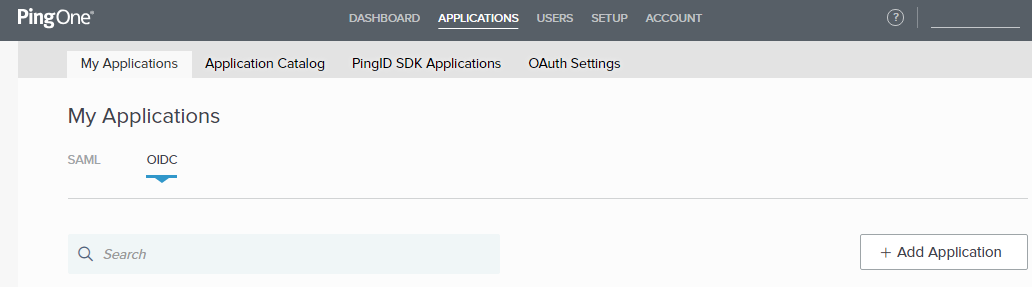
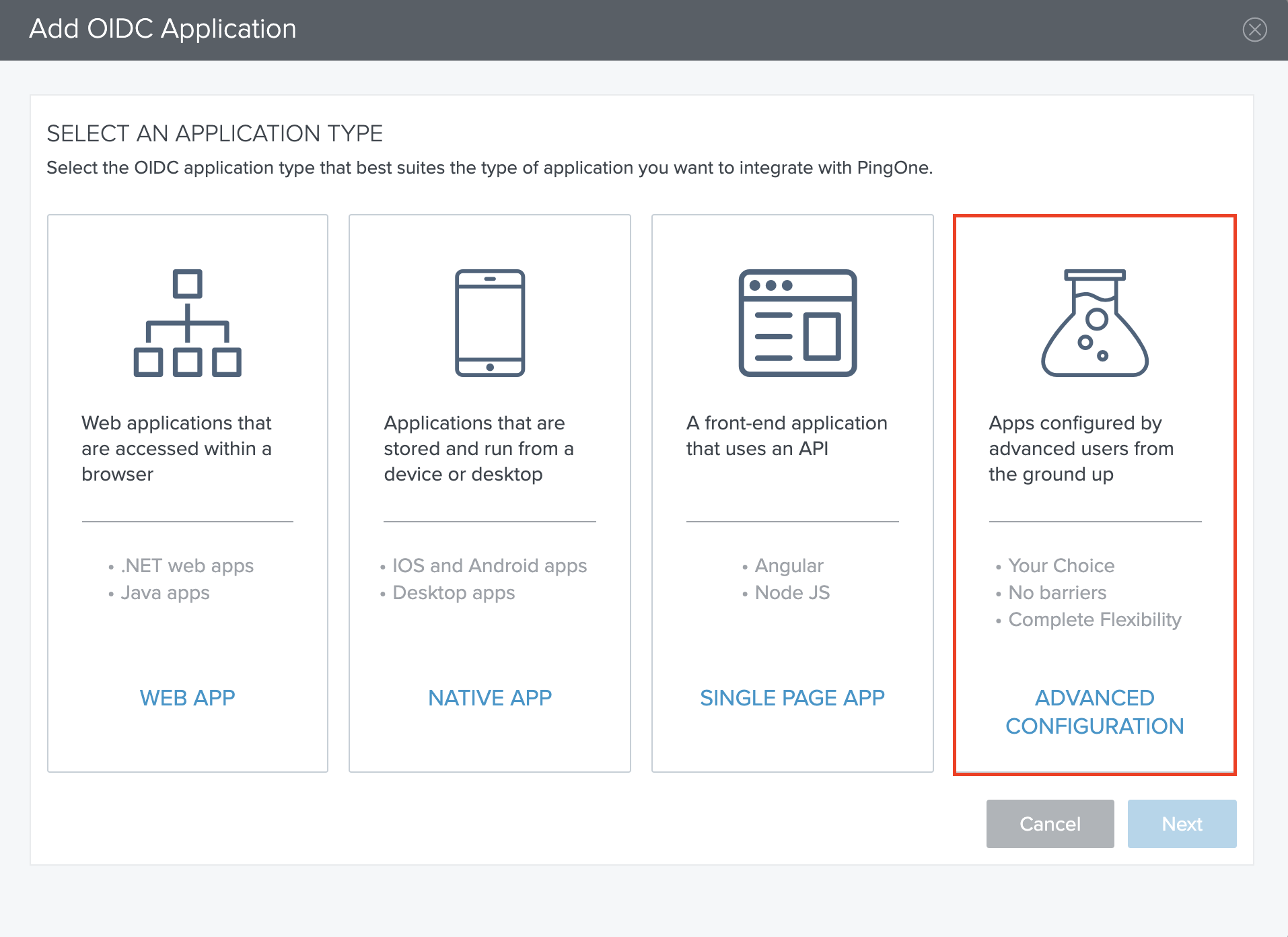
- Navigate to Applications > My Applications > OIDC , click on the "Add Application" button and select Advanced Configuration.
- Enter a desired name for your application along with a short description. Then add the appropriate category for your app and an optional image that would make it easier to identify.
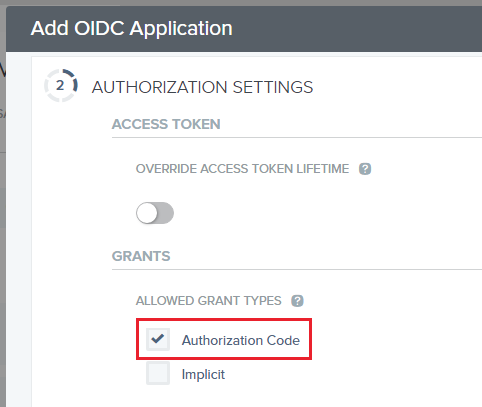
- In the Authorization Settings section, make sure to check Authorization Code.
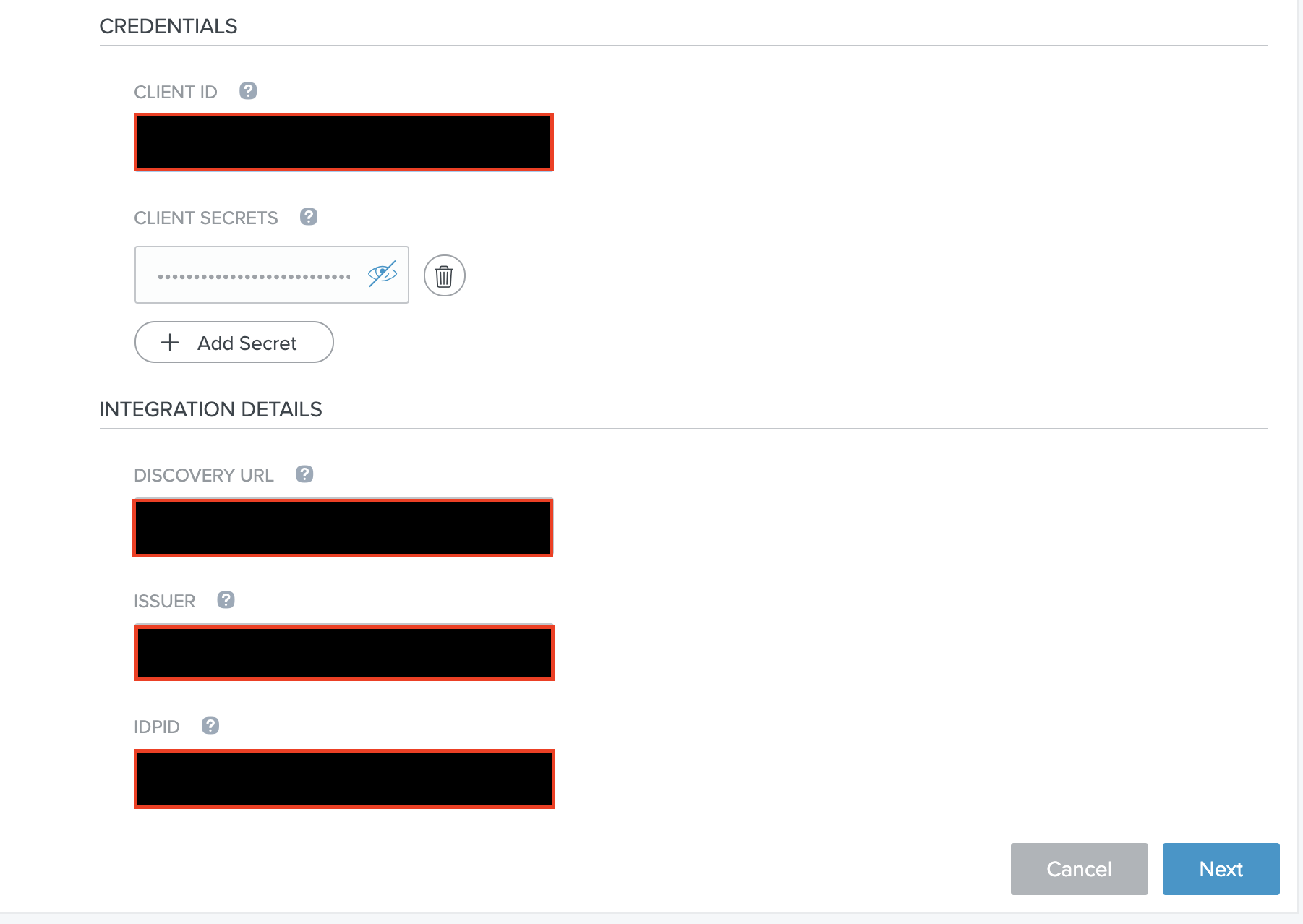
- Click on the "Add Secret" button and then copy the secret that was generated and paste it into the Client Secret field found on your Organization Setup page.
- Note the Client ID, Issuer and IDPID fields on the same page. Copy these values and paste them into the corresponding Client ID, OpenID Connect - Authority/Issuer URL and IDPID fields found on your Organization Setup page.
- In the SSO FLOW AND AUTHENTICATION SETTINGS, you will need to input the application portal URL from step 1 in the START SSO URL field. You will then need to fill in the redirect URLs that can be found on your Organization Setup page.
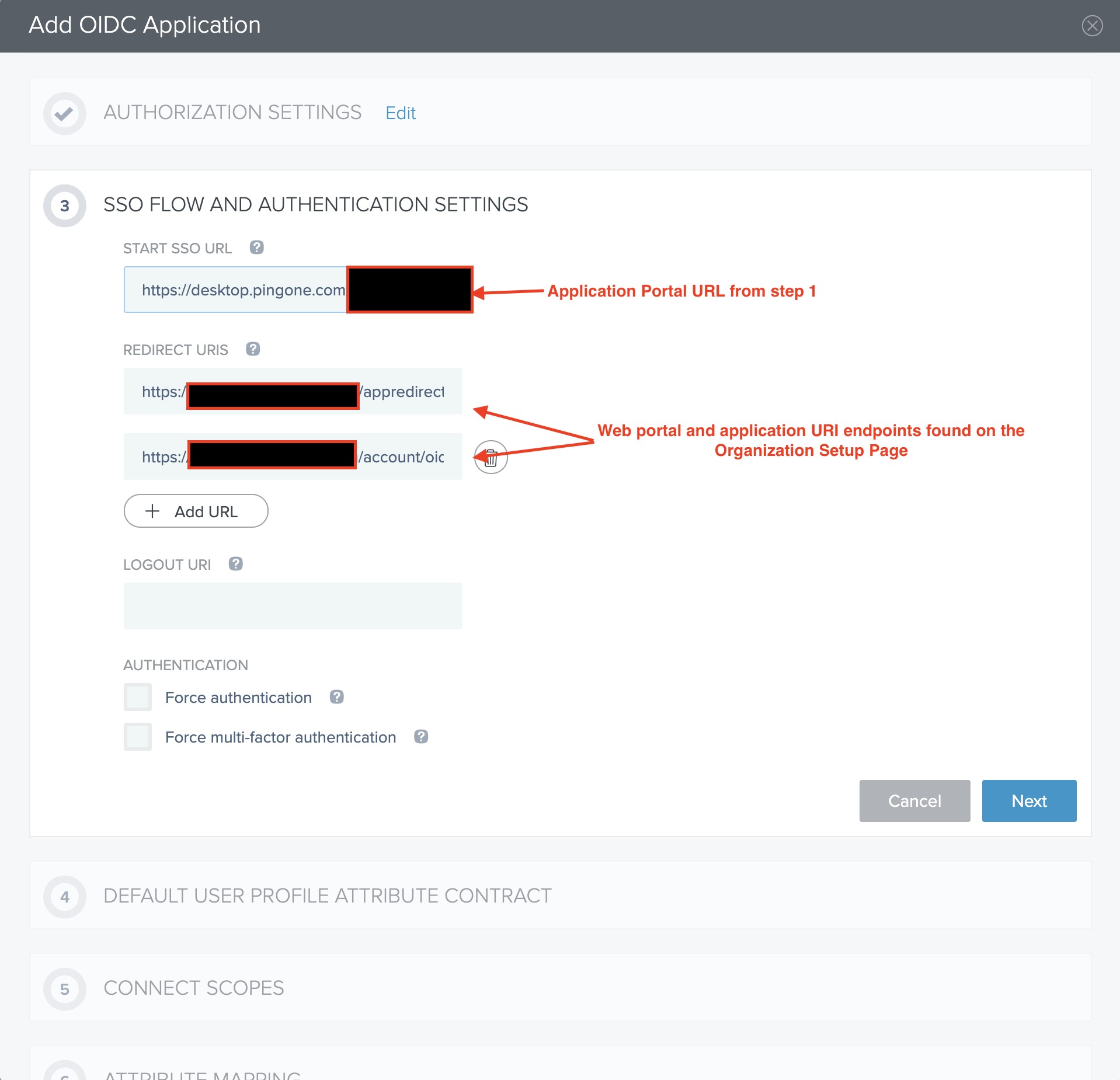
- You can click Next without making changes for the 4. Default User Profile Attribute Contract and 5. Connect Scopes sections.
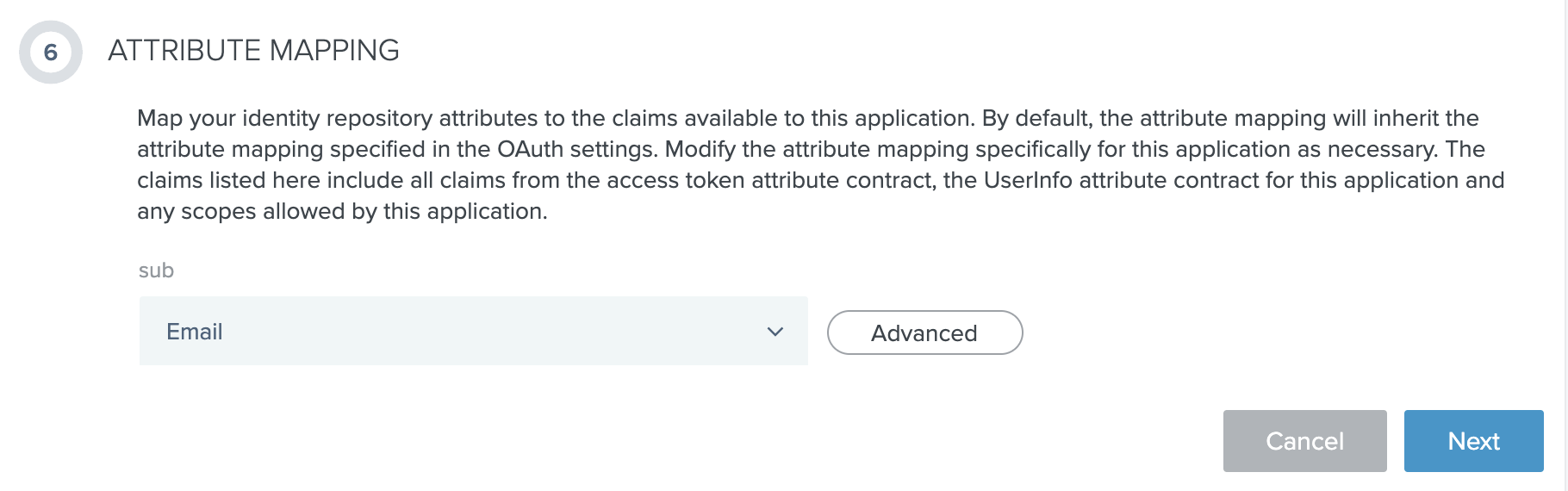
- For the Attribute Mapping, choose Email from the drop-down menu and then click Next.
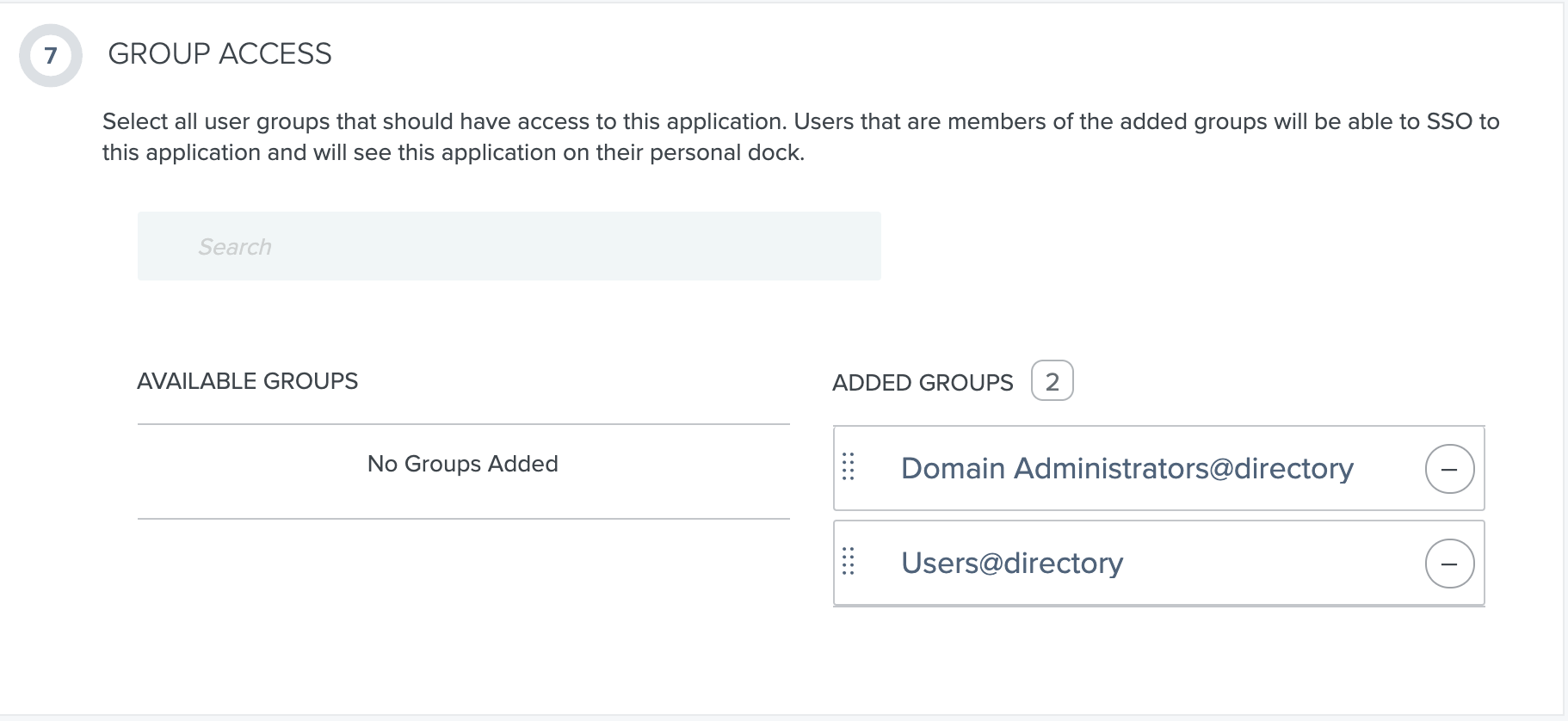
- For Group Access, select all groups that you would like to have access to the application.
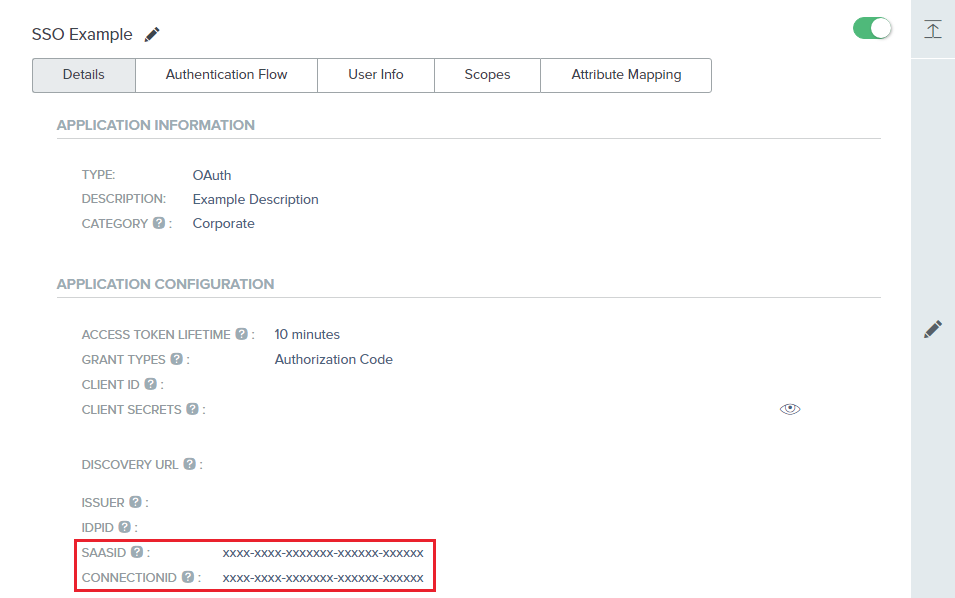
- After you have completed all the steps above, you can save your changes. Next, go to the application details page to find the SaaSID and the ConnectionID. Copy and paste those values into their respective fields on the your Organization Setup page and save your changes.


You should now be able to log in via your Ping user account using your Ping password.
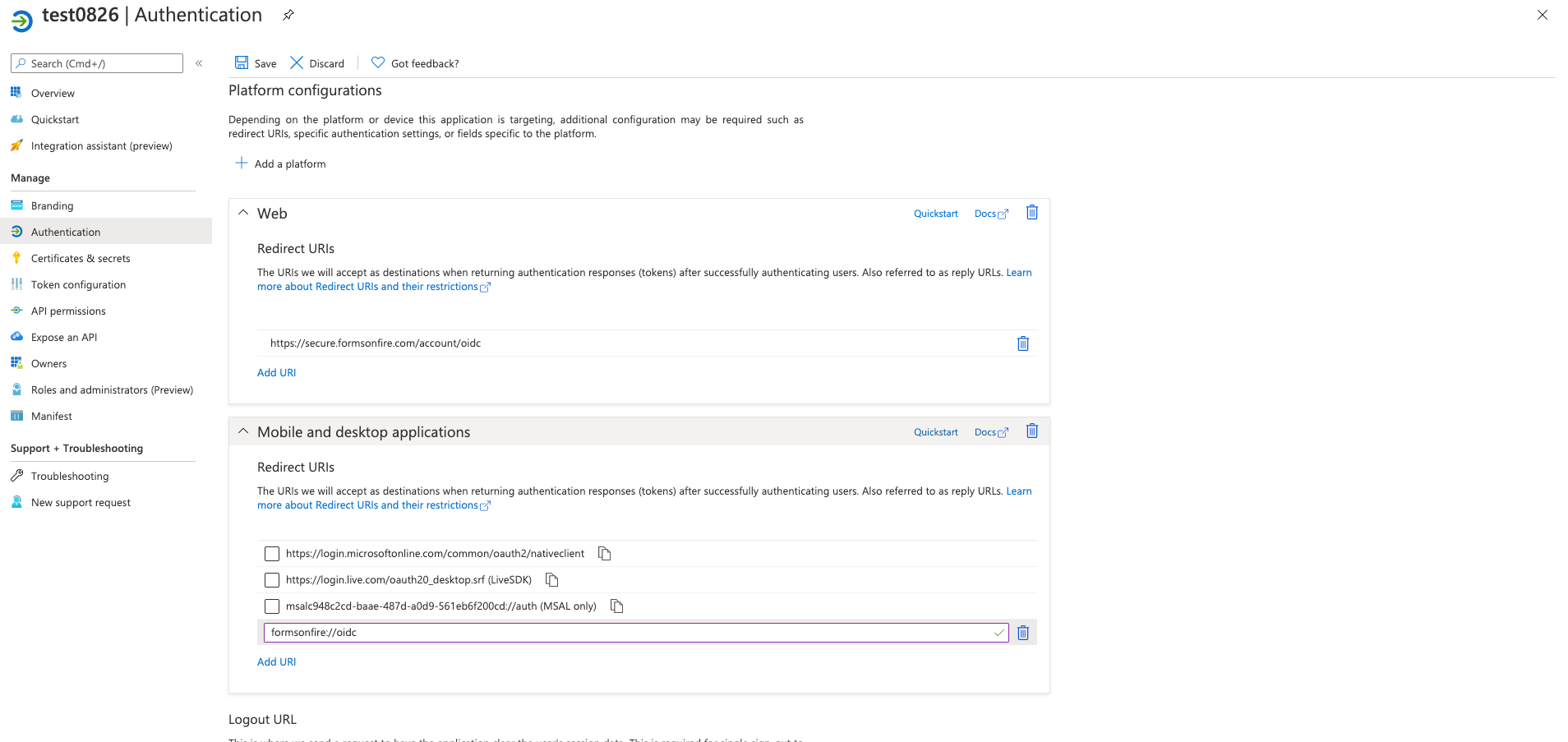
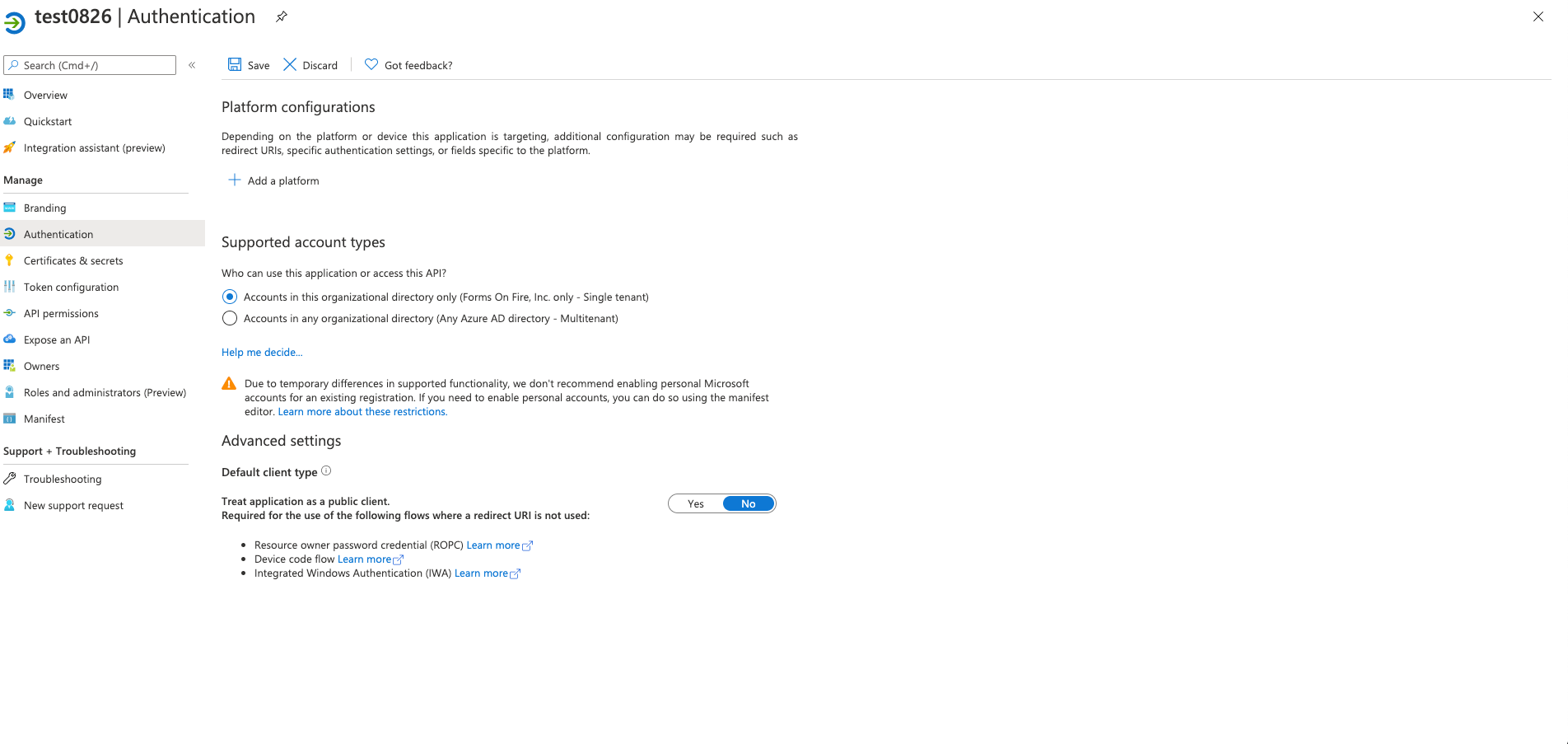
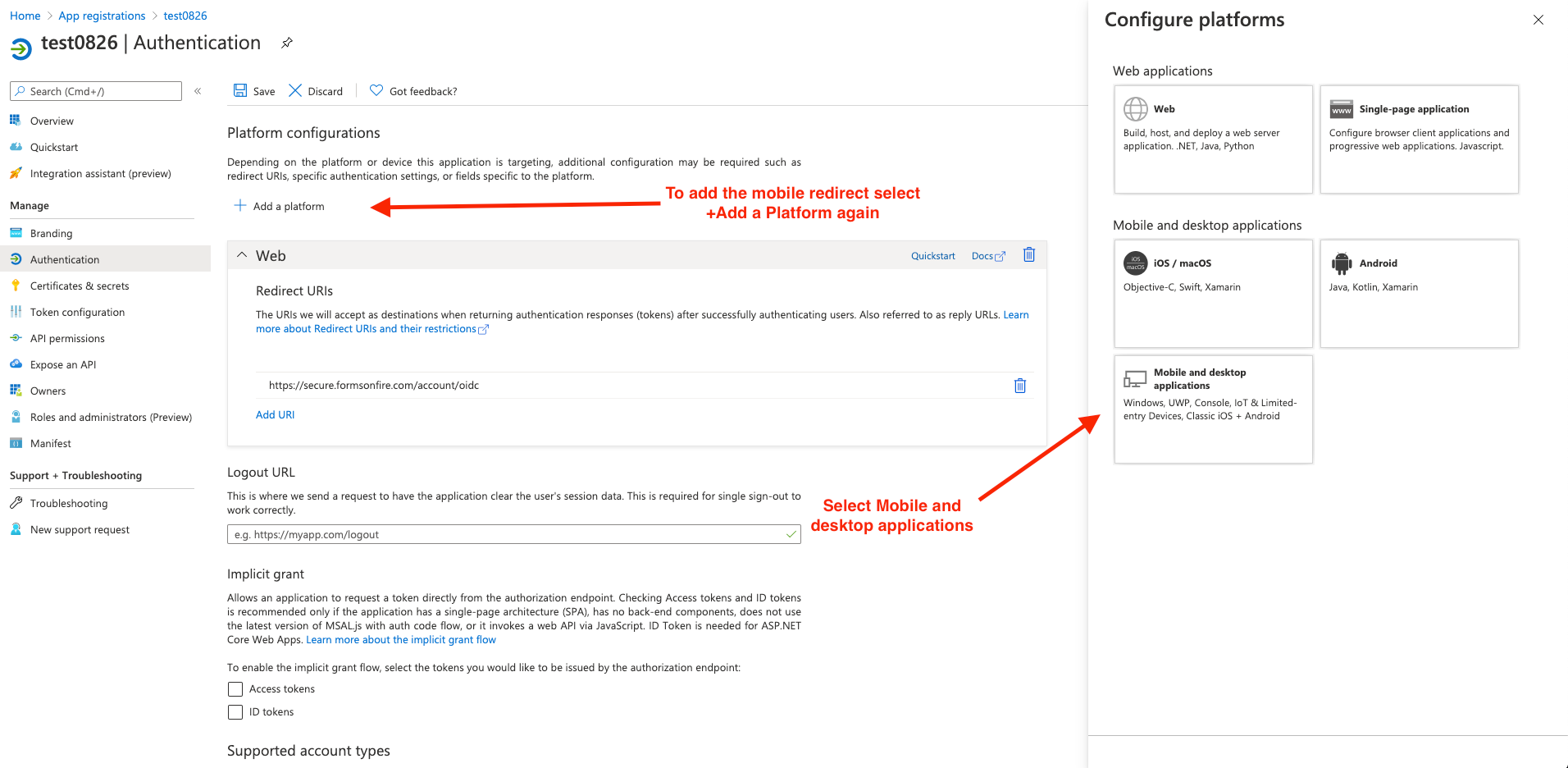
UPDATE - new photos from Brandon
Related Articles
Single Sign On with Azure Active Directory
Prerequisites Before you configure provisioning, check the following in your platform account: Ensure you are subscribed to our Enterprise Edition plan, since this unlocks our Azure Active Directory integration options. Please contact your ...Provisioning Users and Single Sign On with Azure Active Directory
TABLE OF CONTENTS Features Prerequisites Configuring User Provisioning through Azure AD (via SCIM) Configuring Single Sign On (OIDC Identity Provider) Troubleshooting & Tips Required Values for Provisioning Assigning Website Access to Azure Active ...Single Sign-On with Okta
TABLE OF CONTENTS Features Prerequisites Create an OpenID Connect application General settings Sign On Assignments Troubleshooting and Tips Assigning Website Access to Okta Users Features Okta is able to perform the following actions automatically ...Email-less Login
Enable users to log in with a non-email identifier like an SSO username or ID when using Okta or Ping Identity, when Enterprise Toolkit is activated on an account. Use the left-side menu on the platform to navigate to Admin > Organization Setup. Then ...Google BigQuery - Data Source Connector
Our platform enables you to quickly and easily connect your data sources to a Google BigQuery table. This enables a one-way synchronization—changes in the Google BigQuery table are downloaded into your data source on a regular basis. Your data source ...