Using Quick Sync to Test Screen Designs
Our Quick Sync feature transforms the potentially tedious yet essential task of testing screen designs into a straightforward process by integrating it as a standard option in the title bar.
Released in the Art Deco District Release platform update with a few more quality-of-use improvements.
Previously, when testing screen designs and viewing design changes in-app, you'd have to...
- Save the design (web portal).
- Force Sync the app from App Settings and navigate back to the screen being tested (in-app).
Or - Force Sync the app in the screen being tested if an action button's user interaction was set to "Force Sync".
Previously, you might have found yourself frequently switching between screens for testing or setting up user interactions, a process that could be quite cumbersome. However, this is no longer the case with the introduction of Quick Sync and Status Connect. The need to navigate away from a screen currently under test within the app has effectively become obsolete.
All screens now have a Force Sync icon, preconfigured in the Title Bar (Action Buttons- Left2)
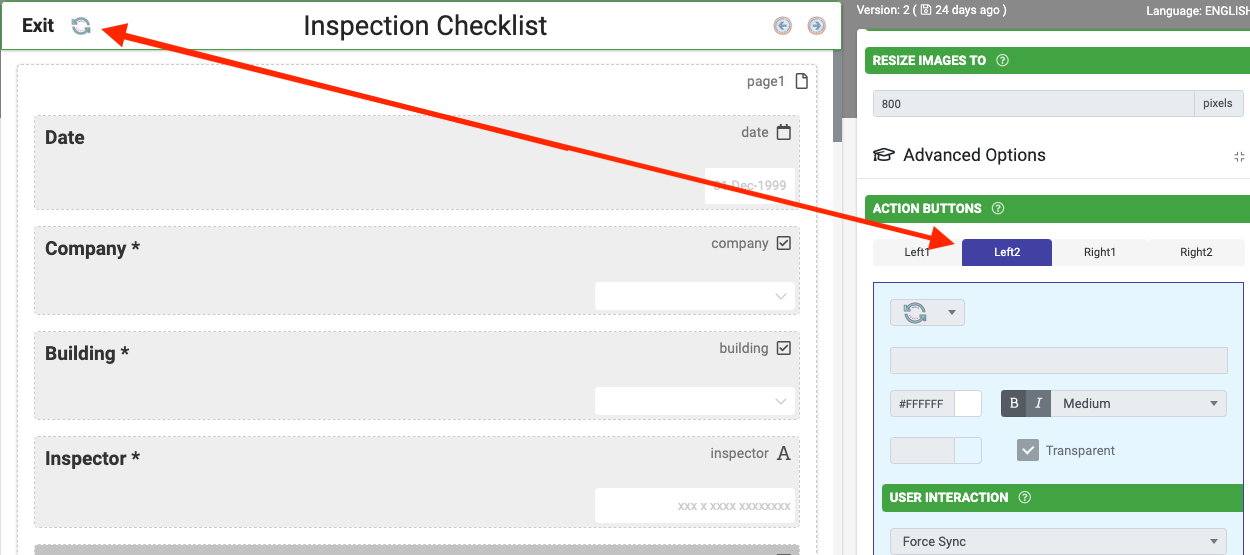
Testing design changes has never been easier when all you need to do is tap on the Quick Sync icon to pull in any changes recently made to the form.
Related Articles
Testing Your Screen Designs (TEST Mode)
Often you will want to make changes to an existing published screen. Our platform lets you do this by creating and publishing new versions of your Screens, allowing you to rapidly iterate your Screen designs based on user feedback. The published ...Using Force Sync to Manually Re-submit Unfinished Uploads
Sometimes a form will hang up uploading to the platform after the user submits it. This is often due to the user device’s network connection and the size of any media files included in the form (photos, a captured signature field, etc.). If this was ...Platform Sync - Data Source Connector
Platform Sync (previously known as Hosted GET) lets you set up a data source connector for any external database on any external system for which we do not have a live connector. While it is a bit more technical to configure, it does allow you to get ...Formula Quick Question and Answer Reference
This is a compilation of common scenarios that use formula to achieve the goal. This is a quick reference in a Q&A layout. For more detailed explanations and practical examples, kindly consult our Recipes section. Q: How do I move Fields between ...Form Screen Type
The Form screen type is the primary way that you can build data capture screens on the platform. This allows you to rapidly replace paper forms with digital versions, as well as extend existing data capture screens from desktop or web systems to a ...