Adding a Box Connection
Box is a Secure Cloud Storage Platform designed specifically for the purpose of securely storing your data files. This versatile platform allows users to easily share their files with others, functioning similarly to other popular cloud file storage services such as Dropbox, Google Drive, and OneDrive for Business, which are widely used for personal and professional file sharing.
To ensure effective communication between your system and Box, it is essential to authenticate a connection to Box. This authentication process must be successfully completed before Form Connectors can push files or Data Source Connectors can pull data from the files located in your Box account. It is a crucial step in integrating Box's capabilities with various applications.
TABLE OF CONTENTS
Adding a Box Connection
To add connections for either Box - Data Source Connector or Box - Form Connector, you first need to navigate to the Connections area of the platform. You can do this by using the side menu to go to Connected Data > Connections.
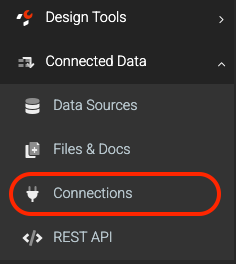
On the Connections page, you will find several options:
- Click the ADD CONNECTION button located at the top right corner of the page, which will display a list of available connections.
- From the list, click on the Box option to proceed with adding the connection.
Authenticating
After successfully adding a connection, you will need to fill in the required properties for the connection and then save your changes.

Next, click the Authorize button and authenticate your account with Box. When prompted to accept permissions, it is imperative that you allow all requested permissions. Once you have successfully authenticated your Box account, your connection will be fully operational and ready for use.
Related Articles
Box - Data Source Connector
Our platform enables you to quickly and easily connect your data sources to data from a file in Box. This enables a one-way synchronization to occur - where any changes in the Box file are downloaded into your data source on a regular basis. Your ...Box - Form Connector
Box is a highly Secure Cloud Storage Platform that is widely utilized for storing various data files. This robust platform not only allows users to store their files safely but also facilitates the easy sharing of these files with others, functioning ...Adding a SharePoint Connection
Authenticating a connection to SharePoint enables communication between the two platforms. This must be successfully added before Form Connectors can push or a Data Source Connector can pull data. Sharepoint List is a premium form connector and ...Adding a PostgreSQL Connection
Authenticating a connection to PostgreSQL enables communication between the two platforms. This must be successfully added before Form Connectors can push or Data Source Connectors can pull data. TABLE OF CONTENTS Adding Authenticating Additional ...Adding MySQL Connection
MySQL is an open-source Relational Database Management System that uses SQL to create and manage databases. As a relational database, MySQL stores data in tables of rows and columns, organized into schemas. Our MySQL Connectors allow you to push and ...