Box - Data Source Connector
Our platform enables you to quickly and easily connect your data sources to data from a file in Box. This enables a one-way synchronization to occur - where any changes in the Box file are downloaded into your data source on a regular basis. Your data source will be automatically updated in this way until you remove the connector or an error occurs (such as losing authorization to access the file).
Set up a Box Connector to your Data Source by following these simple steps.
Note: You need to have configured a Connection to your Box account before adding a Connector.
TABLE OF CONTENTS
Adding a Box Data Source Connector
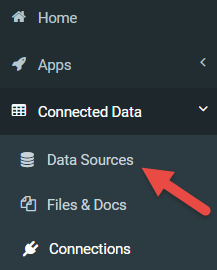
- Navigate the side menu to Connected Data > Data Sources
- Hover over a form and click the “Settings” icon link ()
- In Settings, hit the “Add Connector” button
- Select the relevant option to add the connector

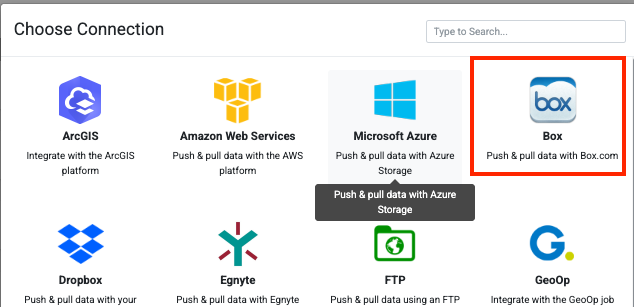
This will refresh the page with the newly added connector ready for configuration.
Nothing has been saved at this stage, so save your connector after making any changes to enable or update it.
Alternatively, if you’re viewing the rows of a data source, you can navigate to the Settings page using the option under the page’s title.
Configuring a Box Data Source Connector
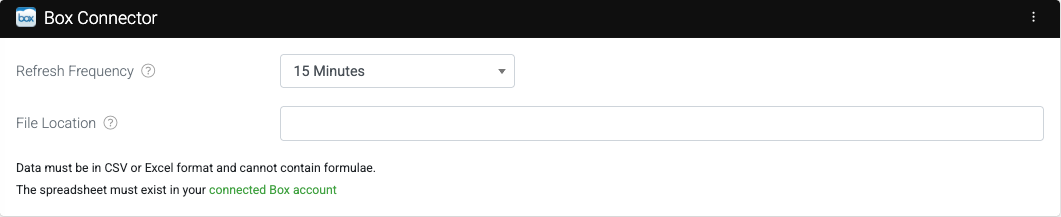
Next, configure the following:
- File Location
Enter the file location on Box to import data from. The location should be entered in the following format: ‘FolderName/Folder2/FileName.csv’. The following file types can be imported as a Data Source: Comma-Separated Values (.csv), Microsoft Excel (.xlsx). - Refresh Frequency
The frequency that data is pulled by this connector.
| File Format Guidelines Data must be in .csv or .xlsx format and cannot contain formulae. The spreadsheet must exist in your connected Box account |
Connector Logs
When you save your changes, the connector will be fired for the first time, and after that, it will run at the refresh frequency you specified in the connector settings.
Wait a minute or so, or click the three-dot menu ( ) and access the RUN NOW to manually trigger the connector and check the Rows in your data source.
If rows are not downloaded, there may be an error in accessing the file or with the data in the file. To identify and resolve the issue, you can review the logs by clicking the three-dot menu ( ) and selecting VIEW LOGS.
Once resolved, you can rerun the connector and confirm that the rows have been successfully downloaded.
Related Articles
Adding a Box Connection
Box is a Secure Cloud Storage Platform designed specifically for the purpose of securely storing your data files. This versatile platform allows users to easily share their files with others, functioning similarly to other popular cloud file storage ...Displaying & Updating Data Rows from/to An External System
Step 1: Define and Connect a Data Source To display and manipulate data rows from an external system, you will first need to define a Data Source that models the particular data entity in question. Effectively, a Data Source is just rows and columns ...Box - Form Connector
Box is a highly Secure Cloud Storage Platform that is widely utilized for storing various data files. This robust platform not only allows users to store their files safely but also facilitates the easy sharing of these files with others, functioning ...Dropbox - Data Source Connector
TABLE OF CONTENTS Adding a Dropbox Data Source Connector Our platform enables you to quickly and easily connect your data sources to data from a file in both Dropbox Personal as well as Dropbox for Business. This enables a one-way synchronization to ...QuickBooks - Data Source Connector
Our platform allows for simple integration and rapid setup of a one-way synchronization with QuickBooks data for the screens you design. Once you have added and authenticated a QuickBooks Connection, you can include a QuickBooks Data Source Connector ...