Adding a QuickBooks Connection
QuickBooks simplifies accounting for small businesses by automating tasks such as bookkeeping, invoicing, time tracking, sales tax management, budgeting, bank reconciliation, and inventory tracking.
By using apps from our platform, these tasks can be further enhanced, allowing for the creation or updating of data in QuickBooks, including contacts, invoices, tracking categories, and timesheets.
To connect eForms Mobile with QuickBooks, you need to first establish a Connection. This setup enables eForms Mobile to share information with your QuickBooks account.
Once the connection is established, you can use Form Connectors to send data to QuickBooks or Data Source Connectors to retrieve information from it.
| Note: QuickBooks Online Connection is a premium service and requires a premium user subscription. |
Creating a Connection
Using the left-side navigation menu, select Connected Data > Connections.
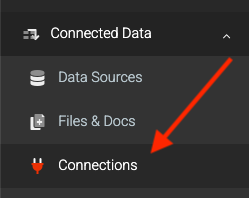
On the Connections page:
- Click the ADD CONNECTION button in the top-right corner to display a list of connections.
- Select the QuickBooks Online option.
Verifying a Connection
After adding a QuickBooks Connection, click the Authorize button and log into your QuickBooks account to permit eForms Mobile to send or retrieve data from your account.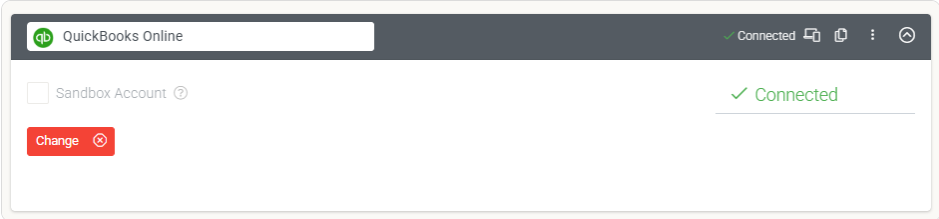
After logging in, click the Save button at the top right of the page. The connection will indicate "connected" status, confirming that eForms Mobile can now interact with your QuickBooks account.
You can now incorporate QuickBooks - Form Connector and Data Source Settings to send and retrieve data from your QuickBooks account.
Sandbox Account
Facilitates testing via a QuickBooks sandbox account.
Website as a Service?
If you operate a branded website, it is necessary to enable QuickBooks Connections before you can add Connections.
Related Articles
QuickBooks - Data Source Connector
Our platform allows for simple integration and rapid setup of a one-way synchronization with QuickBooks data for the screens you design. Once you have added and authenticated a QuickBooks Connection, you can include a QuickBooks Data Source Connector ...QuickBooks - Form Connector
Our platform lets you easily add and quickly configure a one-way synchronization of form-captured data to QuickBooks. After adding and authenticating a QuickBooks Connection, QuickBooks Form Connectors can be added to Data Entry Forms to push data ...Adding a PostgreSQL Connection
Authenticating a connection to PostgreSQL enables communication between the two platforms. This must be successfully added before Form Connectors can push or Data Source Connectors can pull data. TABLE OF CONTENTS Adding Authenticating Additional ...Adding a Box Connection
Box is a Secure Cloud Storage Platform designed specifically for the purpose of securely storing your data files. This versatile platform allows users to easily share their files with others, functioning similarly to other popular cloud file storage ...Adding MySQL Connection
MySQL is an open-source Relational Database Management System that uses SQL to create and manage databases. As a relational database, MySQL stores data in tables of rows and columns, organized into schemas. Our MySQL Connectors allow you to push and ...