Capturing Repeatable Data
There are 3 field types that enable you to capture data on a repeating basis: the Page field, the Table field and the Gallery field.
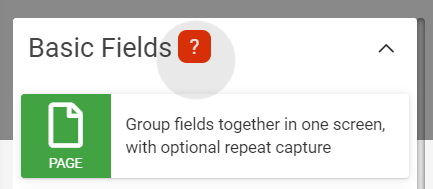
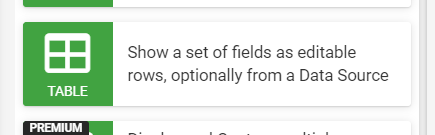
You can use any of these 3 repeatable field types to enable your users to capture multiple data entries.
Please note that placing repeating tables inside repeating pages is not supported on output templates and not recommended within a form design.
Page Field
Page fields allow grouping of various fields together in one screen with optional repeatable functionality.
By selecting a Page field that has been added to your Form Designer, you can view its Basic Properties that will allow you to configure the following properties.
- Repeatable
- Repeat Range
- Prevent Deletion of Repeats
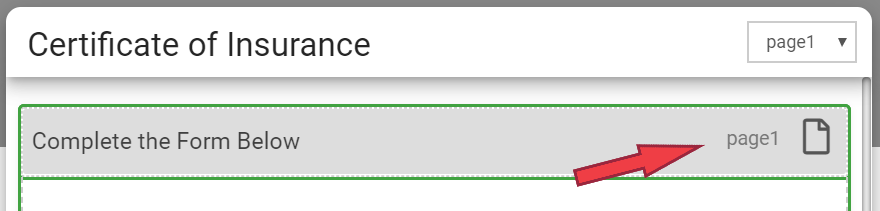
You can access the page’s Basic Properties by left clicking on the page field as shown below.
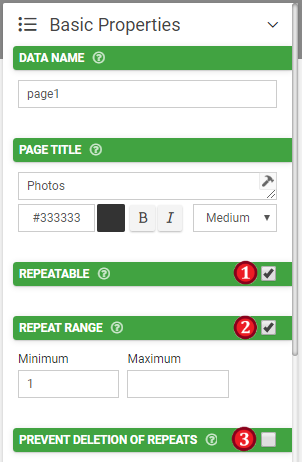
1. REPEATABLE
Allow this page to repeat its fields. The App will prompt the user as to whether they want to keep adding more repeats of this Page.
2. REPEAT RANGE
Minimum and/or maximum times this page should be repeated. If Minimum is set, the App will automatically repeat this Page that number of times. Thereafter the user is prompted to add more. Once Maximum repeats is reached, the App will move to the next Page
3. PREVENT DELETION OF REPEATS
By default, users can delete repeats via a button provided at the top of each repeatable Page. This option removes the button, preventing repeat deletion. This is useful for cases such as pre-populated and/or fixed repeats.
NOTE: The Page title will appear as part of the prompt when being asked to add a repeat. Keep this in mind when giving the Page a title.
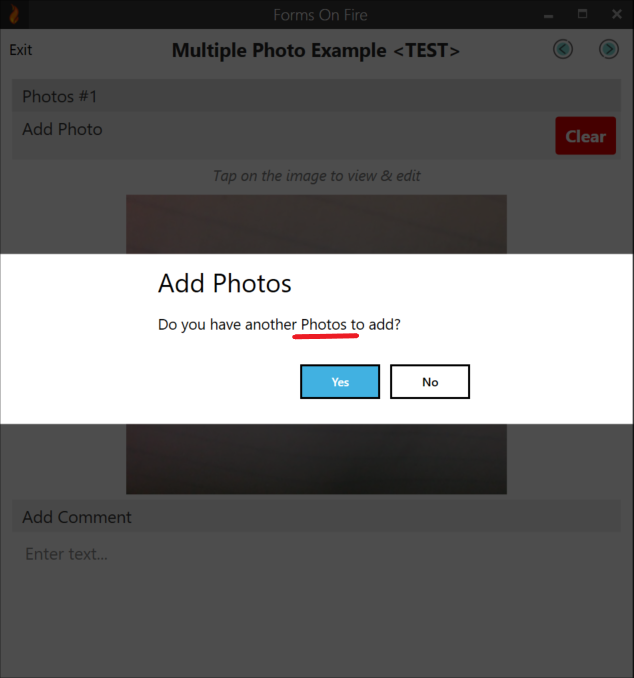
Table Field
Table fields allow the capture of repeating rows of information within a Form page.
Fields with desired repeat entries added into the table field in the Form Designer will be displayed as rows with the respective field titles as column headers in the App.
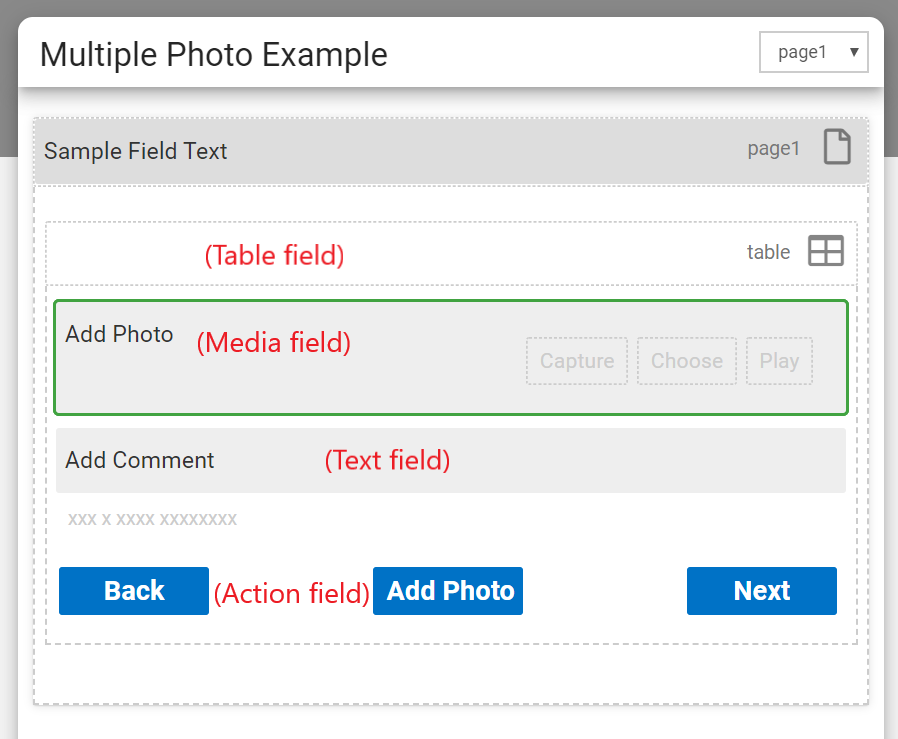
NOTE: The Table field has its own dotted line border that indicates fields within it.
By selecting a Table field that has been added to your Form Designer, you can view its Basic Properties that will allow you to configure the following properties.
- New Row Button
- Table Paging Size
- Row limits
- Prevent Deletion of Repeats
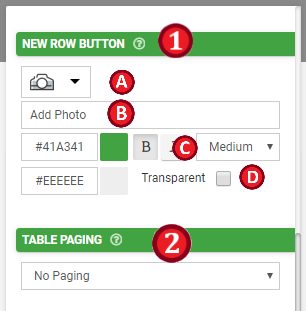
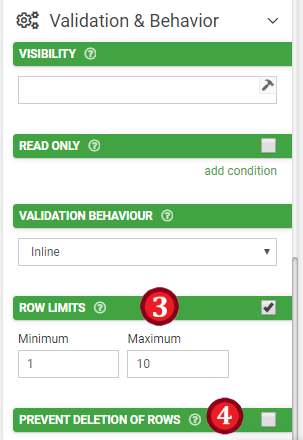
1. NEW ROW BUTTON
Customize the button that allows the user to add new rows to the Table. If this is left blank, a standard button is shown with text of 'Add Row' or local equivalent.
A. Button icon
B. Button text
C. Customize button text
D. Customize button background
2. TABLE PAGING SIZE
The maximum number of rows to display on this Table. If the Table is populated with more rows than this maximum, the app will show paging buttons to enable the user to look through all rows.
3. ROW LIMITS
Minimum and/or maximum rows this table can contain.
NOTE: Maximum can be no larger than 50 rows currently.
4. PREVENT DELETION OF ROWS
By default, users can delete rows via a button provided at the top of each Row Page. This option removes the button, preventing row deletion. This is useful for cases such as pre-populated and/or fixed Table rows.
In the App, selecting the “add new” button to create an entry or selecting a row to edit the fields of an existing entry is how the Table field is populated with repeating data.
NOTE: While you can take photos in a Table field, they won't be displayed as rows in the Table on the mobile App.
In both cases above, you will be able to capture as many repeat instances of your target fields as desired.
Gallery Field
Please see this article for details about the Gallery Field.
Related Articles
Capturing Repeatable Data
Three field types enable you to capture data repeatedly—the Page, Table, and Gallery fields. You can use either of these 3 repeatable field types to enable your users to capture multiple data entries. Identifying how you want to capture multiple sets ...Nesting Repeatable Data
Capturing structured, repeatable data is essential for many workflows, from property audits to equipment inspections. However, some scenarios require additional repetition, such as rooms within apartments or components within a machine. The most ...Repeatable Data in Templates
After capturing repeatable data, you might want to customize how it displays in a PDF output using Word or Excel templates. There are two ways to output the answers for these repeatable fields in your template: Repeat rows in a Word table or Excel ...Nesting Repeatable Data - Nested Repeating Tables
Capturing repeatable data using a repeating Table field is amazing, However, sometimes, you need to group data within other data, like putting a smaller box inside a bigger box. In the app builder, you can do this by nesting one Table Field inside ...Dynamic Form Data Sources
When designing forms and you need to display a list of options in-app, a Choices field is the tool to use. Where you can add a static list of options (Display/Answer values) or link a data source to drive the field’s options. However, this requires ...