Gallery Field Type

TABLE OF CONTENTS
This is an advanced field type that allows a user to upload multiple images into a form from a device's gallery and capture images using the device's camera, displaying al. The form displays all images as thumbnails. Other field types can be added to the Gallery field, allowing for image captions, comments, or any additional information required.
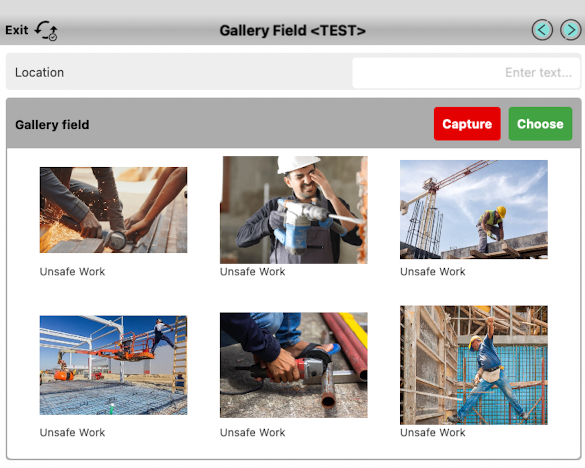
Note: A maximum of 6 images can be added at a time. If you wish to add more than 6 images, please consider instead using a repeating table with a media field inside. See this article for more on repeating tables.- Add a Gallery Field.
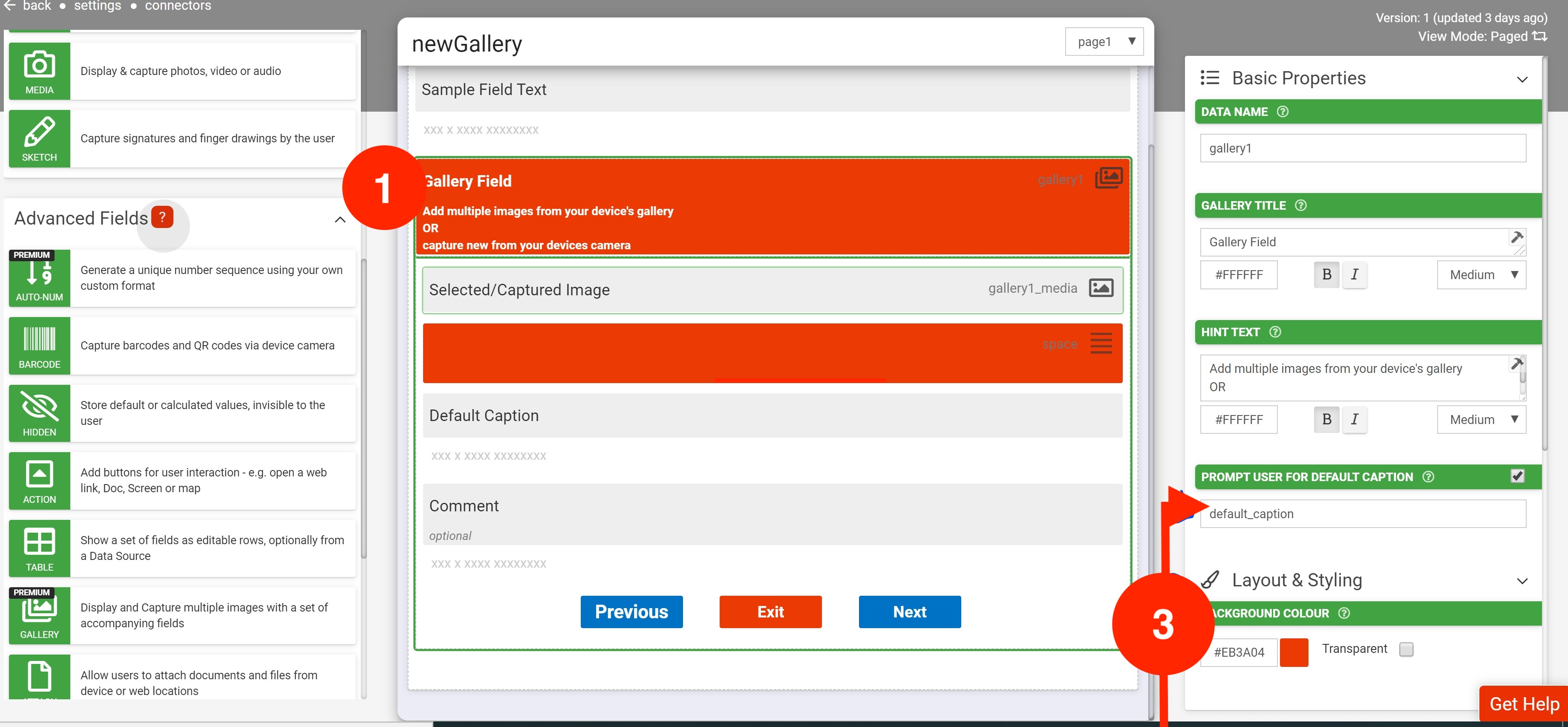
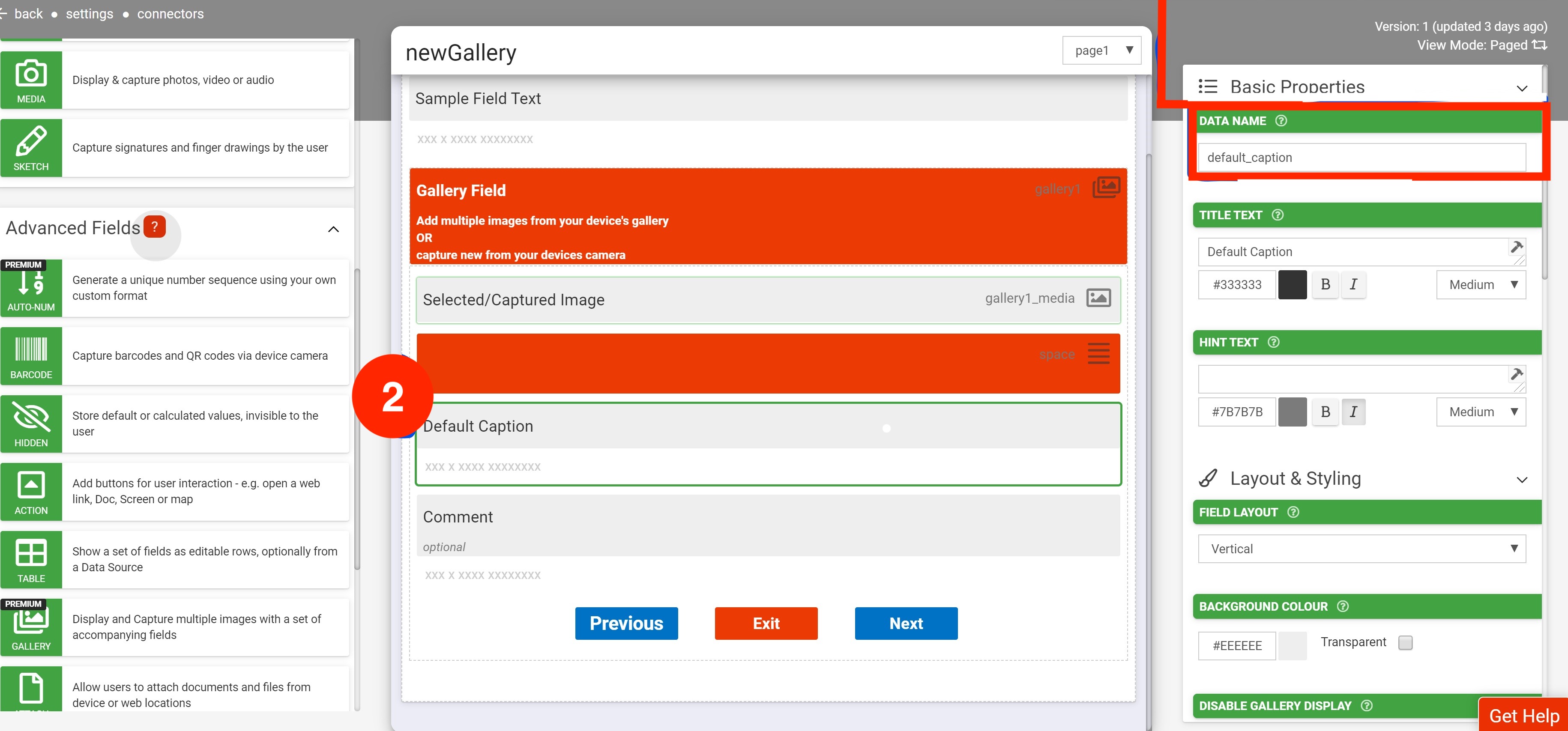
- Add a Text field into the Gallery field and assign a data name.
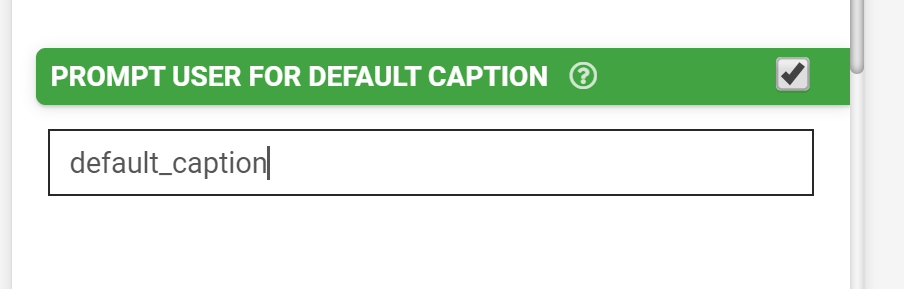
- Add the data name of the Text field into the Gallery Field's "Prompt User for Default Caption" property.
- Optional - Add other field types to capture additional data (comments, location, etc.).
Basic Properties
Data Name
This is the name of the field that should be referenced in any form logic or API calls. Users will not see this name on the form.
Data names cannot contain spaces or any special characters other than an underscore and must begin with a letter. They are case-sensitive and must be referred to precisely whenever they are referenced.
Gallery Title
This is the name of the field that will be displayed to users on the app. This property is completely optional; while a field must contain a data name, a field title is optional.
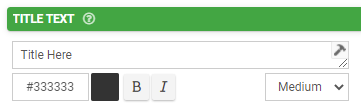
The text color may be chosen with a hex code. The text may be also formatted as Bold or Italic and given a relative size -- Small, Medium (the default), or Large.
Hint Text
This optional field can be used to show secondary information to the user in the app. Consider using this to provide instruction or clarification to the user as they fill out the field.
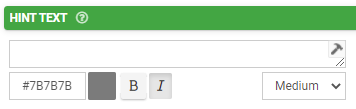
Formatting options for this property are the same as those given available for the Title Text property.
Prompt User for Default Caption
If the gallery field is selected, the app will prompt the user to input a default caption for all images selected at a time. Here you may specify the data name of a text field that will serve as this default caption text.
In-App Prompts/Display
Within the app, the Gallery field will display a Choose/Capture option. When selecting either option, you'll be able to select multiple images or capture a single image and then type a caption that will display below all images from that instance.
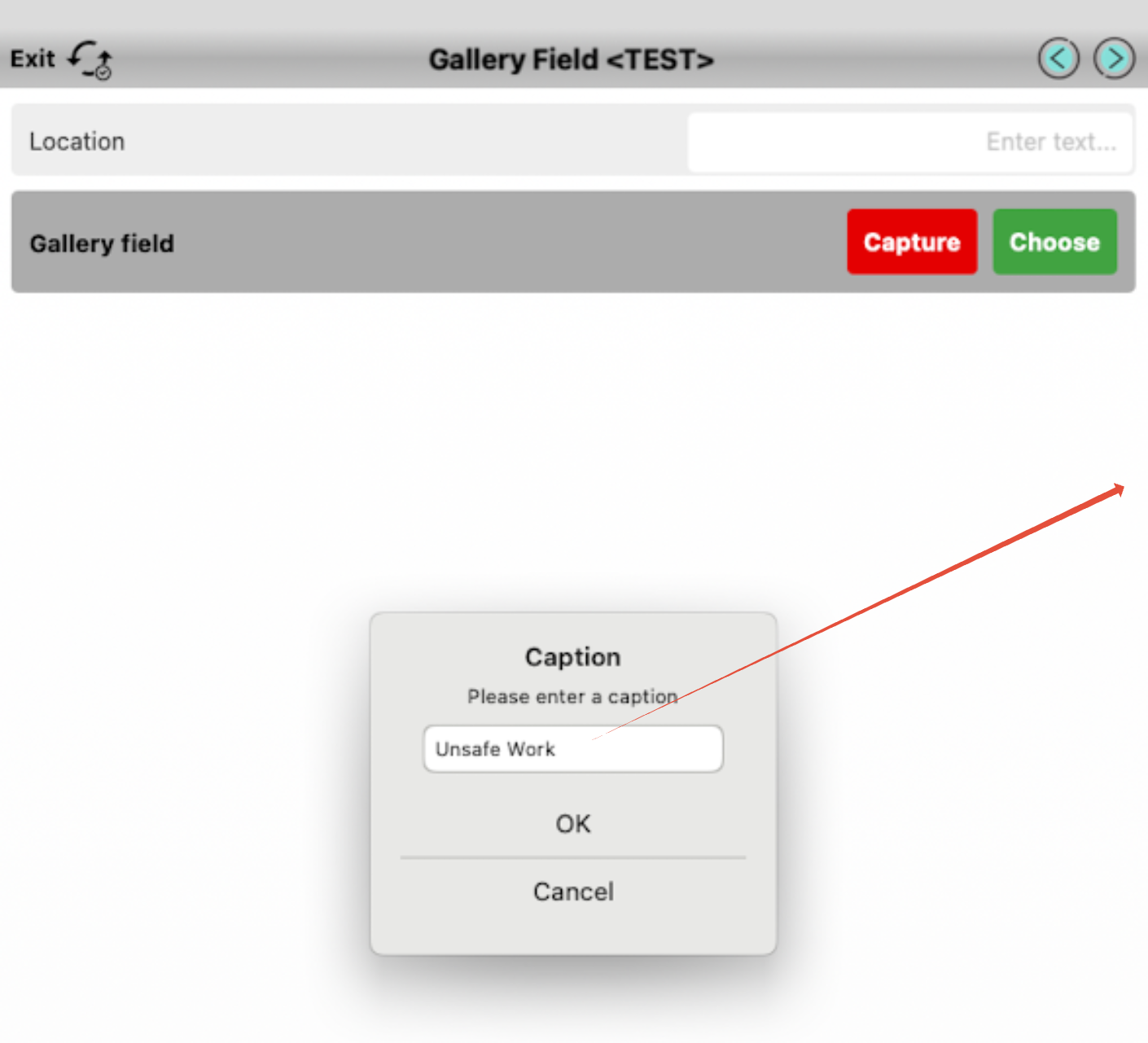 | 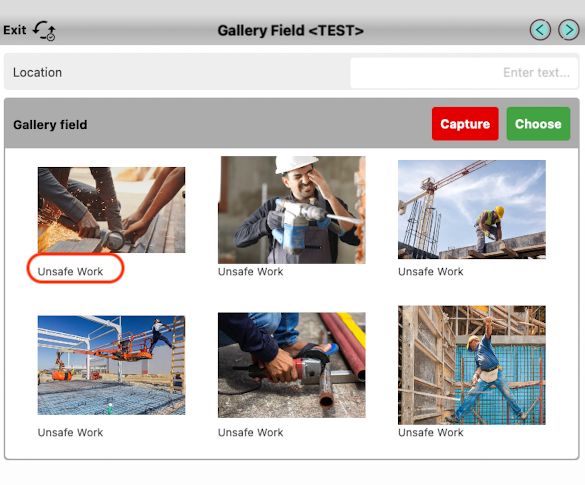 |
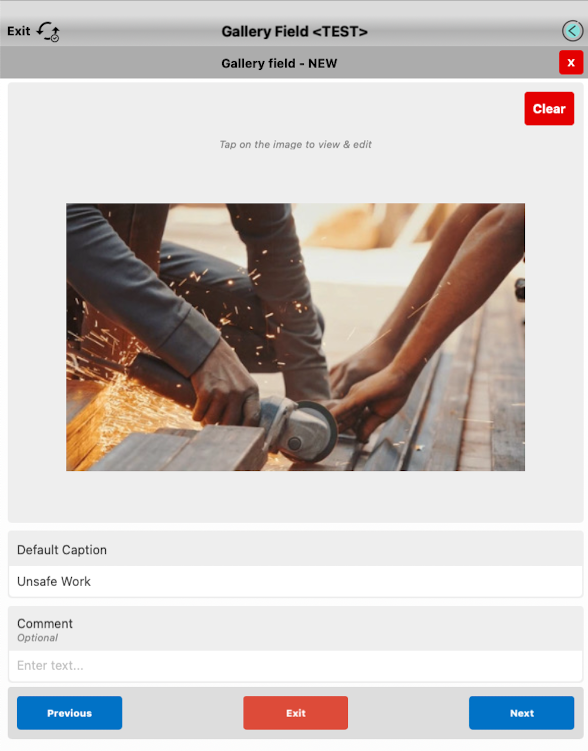
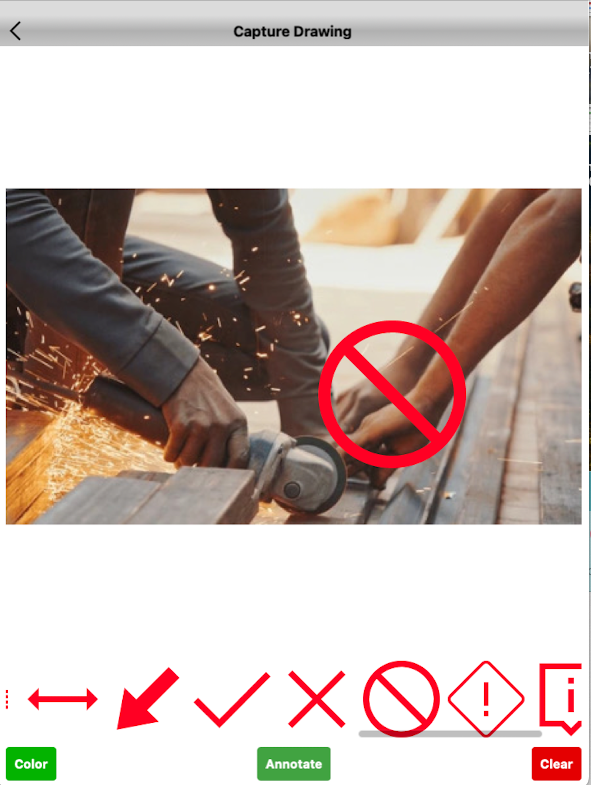
Edit your images and captions by simply selecting the image thumbnail. You can also edit the image's additional fields and annotate the image.
 |  |
Layout & Styling
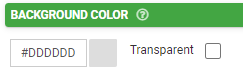
Background Color
The color chosen in the hex code field here will apply to the field. The Transparent box can also be chosen instead for making this transparent instead of a solid color.
Validation & Behavior
Required
Checking this box will enforce validation against this field to make the field required, disallowing the user from progressing to the next page or submitting the form if it is left blank. If the user tries, they will be prompted with an error to return to the field and enter a value. When this validation occurs is determined by the "Validation Property" chosen on the page level; please see this article for more detail on this.

This property can also be made conditional based on a formula. To enable this, click "add condition" below the checkbox and enter a formula into the field that populates. The formula serves as the basis of the required-ness of this field.
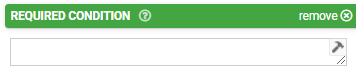
Please see this article for more information on conditionally-required fields.
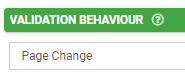
Validation Behavior
This drop-down specifies how the fields in this gallery should be validated.
- Inline validation occurs immediately after the user has entered a value into a field.
- Page Change validation occurs when the user tries to navigate away from a gallery page.
- End of Form validation allows the user to leave a row page while fields are invalid, only performing validation checks when the entry is to be uploaded.
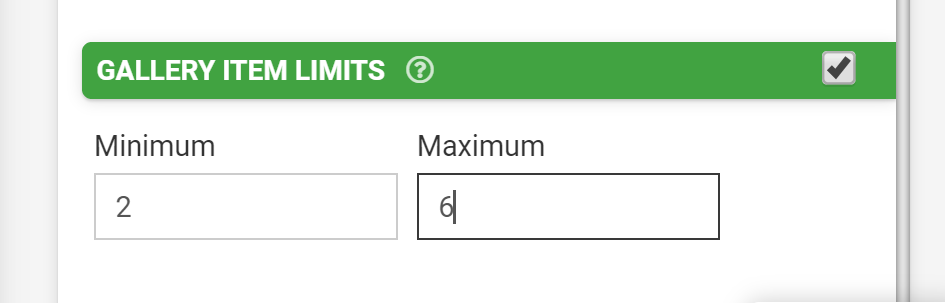
Gallery Item Limits
This checkbox option enables validation of the minimum and/or maximum number of images that a gallery can contain. This is useful for scenarios where the number of displayed/uploaded images needs to be controlled.
Output Gallery Field Data in a Custom Word/Excel Template
As noted previously in this article, the gallery field type is a repeatable field type, like the table field, and therefore, to output the data it contains in a template, it must be encased in a REPEATROW or REPEATSTART.
To display images and other content captured by a Gallery field on your output template, please refer to the syntax defined in our Repeating Data article.
{{!REPEATSTART|3}}
| {{gallery1_media}} | {{gallery1_media}} | {{gallery1_media}} |
| {{caption_default}} | {{caption_default}} | {{caption_default}} |
{{!REPEATEND}}
Related Articles
OCR Field Type
Note, the OCR field requires an internet connection to return image text. The OCR (Optical Character Recognition) Field type lets you convert written or printed information into text via your device's camera. Setting up an OCR Field After creating a ...Sketch Field Type
A Sketch Field Type can be used to capture signatures, or to annotate images or drawings. Configuring the Sketch Field Type Simply drag and drop a Sketch Field from the left-hand tolbar onto your Form page and configure it using the right-hand ...Date/Time Field Type
TABLE OF CONTENTS Basic Properties Data Name Title Text Hint Text Date/Time Type Working with Date & Time values in formula and bound Data Source scenarios How to get Date & Time values stored in your local time zone Layout & Styling Field Layout ...Section Field Type
TABLE OF CONTENTS Basic Properties Data Name Title Text Hint Text Static Image Dynamic Image Layout & Styling Background Color Validation & Behavior Visibility The section field is a read-only field type that lets you display text and/or an image in ...Numeric Field Type
A numeric field may be used to capture and display numeric inputs in decimal or integer format. Basic Properties Data Name This is the name of the field that should be referenced in any form of logic or API calls. Users will not see this name on the ...