Creating a Google Connection for Google Drive & Spreadsheets
To move data between Google Drive and Google Sheets, you first need to set up and authenticate a connection between the two. Once this connection is in place, you’ll be able to easily send (push) or receive (pull) data between them.
A Form Connector can then be configured to automatically send uploaded files to your Google account or add new rows to a spreadsheet when a form submission is received.
You can add Data Source Connectors to retrieve (pull) information from a spreadsheet into a data source for use within the app.
- Google Drive - Data Source Connector
- Google Spreadsheet - Data Source Connector
Adding a Google Connection
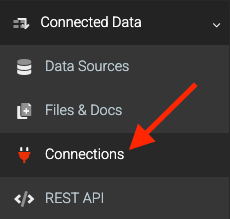
Navigate to the Side Menu → Connected Data → Connections to add a Google Connection.
More information on adding a connection can be found here: Adding Data Connections.
On the Connections page:
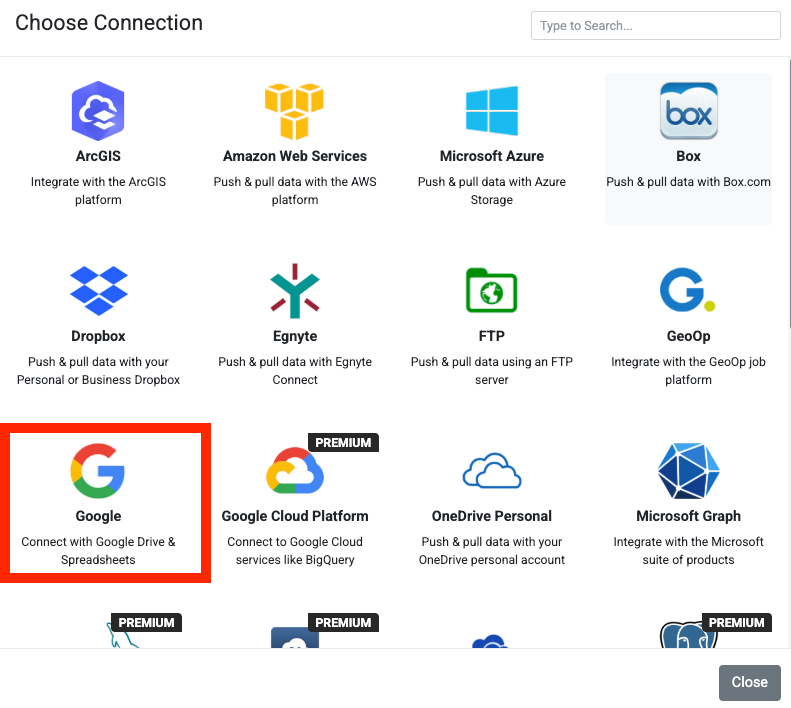
- Click the ADD CONNECTION button on the top right to bring up a list of connections.
- Click on the Google option.
Authenticating
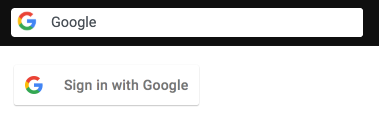
After the connection is added, sign in with Google credentials and choose an account to authenticate the connection.
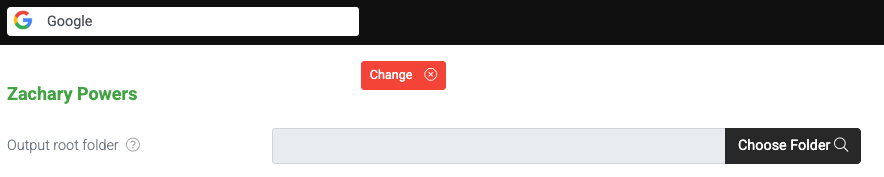
Once you’ve successfully connected and authenticated your Google account, you can use Google Picker (Choose Folder) to select a root folder. This helps simplify folder paths when setting up Form Connectors.
Legacy Connections
Google Connections created before December 2024 use a restricted access scope when interacting with Google accounts. The Legacy Connection tooltip identifies these connections.
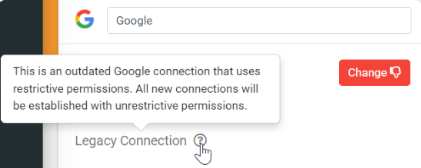
Connections using restricted scopes eventually require CASA Certification, which is a complex process. This update ensures only unrestricted scopes are used.
We STRONGLY recommend re-authenticating any legacy connections to take advantage of this update.
Related Articles
Google Spreadsheet- Form Connector
TABLE OF CONTENTS Adding a Google Connection Adding a Google Connector to your Form Add a Run Condition Update Column Headers Google Spreadsheets is a popular, free platform for creating and maintaining spreadsheets. Its popularity has also resulted ...Google Drive
A Google Drive data source connector will sync a data source with a spreadsheet or CSV file hosted on Google Drive. Any changes made to the data source on Google Drive will be reflected on the data source. Synchronization can occur up to every 15 ...Google Drive - Form Connector
Form Connector – Google Drive automatically sends completed form files and data to Google Drive for secure storage, organization, and easy team access. After adding and authenticating a Google connection, your forms can push output files like PDF, ...Adding a Google Cloud Platform Connection
NOTE: Google Cloud Platform connections are only available on Premium accounts. To add a Google Cloud Platform Connection, go to the Connections page which is accessible via Menu -> Connected Data -> Connections. You must be an Administrator-level ...Google Spreadsheet - Data Source Connector
A Google Drive data source connector synchronizes a data source with a Google Drive spreadsheet. Any changes made to the Google Spreadsheet will be updated on the data source on the platform. Synchronization can occur in as little as 15 minutes. Your ...