Details Screen Type
The Details Screen Type is one of our data perusal screens. This screen type is data-driven and enables you to visualize the rows in a data source.
To add a details screen, navigate to Apps -> Screens. Click on the ADD NEW+ button
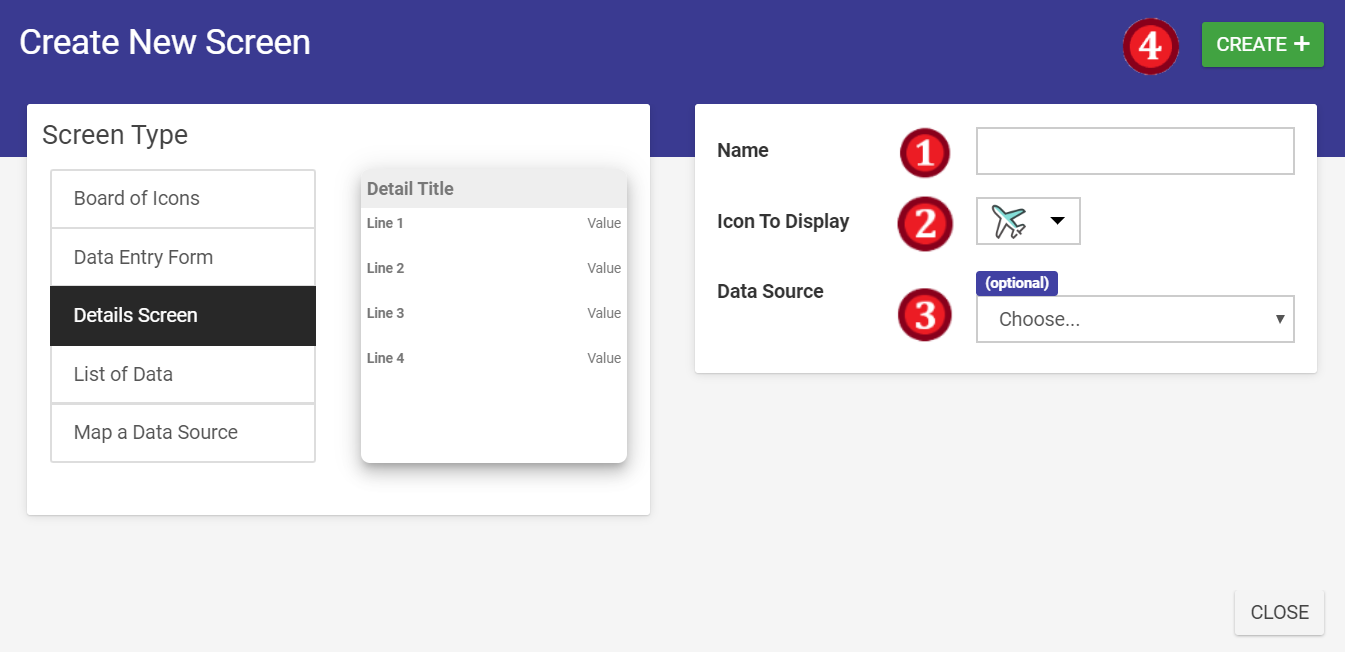
- Name your Details Screen
- Select a suitable icon
- Select your data source (optional)
- Click on the CREATE+ button
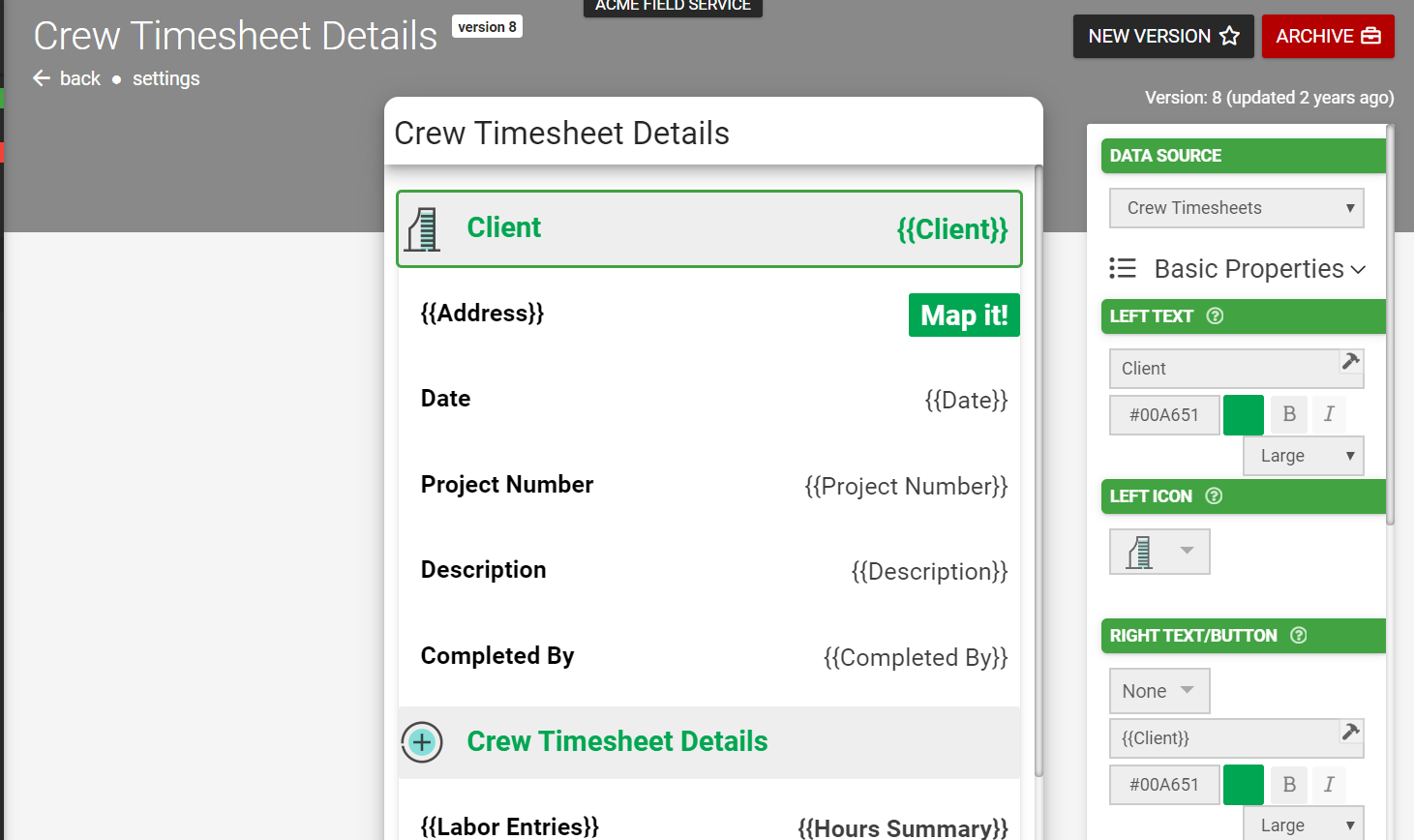
Configuring the Title bar
- Data source - A selection of connected data sources within your app to which to relate your configuration.
- Screen Title - This will be populated with the name of your screen.
- Action Buttons - Define buttons to appear on the title bar.
- Select which button you'd like to configure: LEFT, RIGHT1 or RIGHT2
- Select an icon
- Add the button text
- Select the button colors
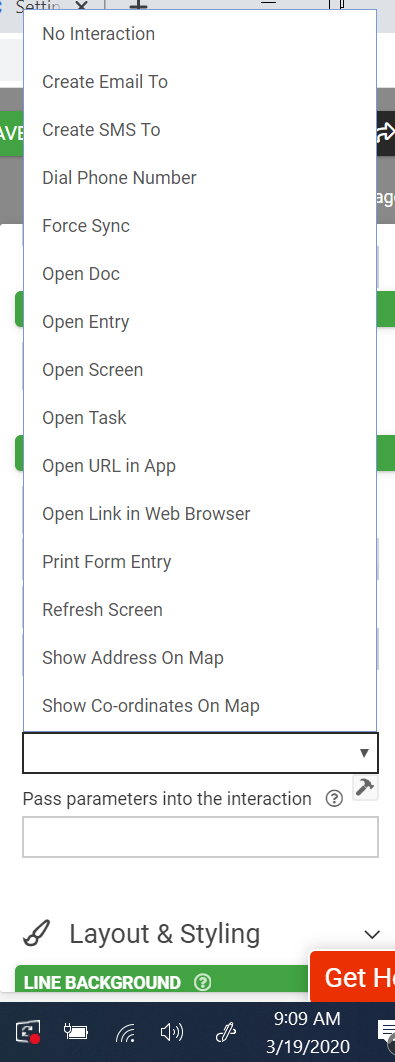
- Select the user interaction. E.g.,
- Visibility selection check box
- Button Visibility - Control the visibility of this button using a formula
Detail Lines
Select Add a Detail Line to create a new entry.
Data source – A selection of connected data sources within your app to which to relate your configuration of the detail line.
Basic Properties
- Left Text - Static text and dynamic values related to the data source can be entered here. Color, font and text size can also be adjusted.
- Left Icon - The icon image displayed for this detailed line. Having no icon selected for display is also an option.
- Right Text/Button - Same as left text and left icon combined but on the right-hand side of the field. Color, font and text size can also be adjusted.
A user interaction can also be configured with the same choices as above.
Layout & Styling
- Line Background – Choose the color of the detail lines background.
- Transparency tick box – Select to make the background transparent and vice versa.
Validation & Behavior
- Line Visibility - Control the visibility of a detail line with formulae and relatable data.
- Display format (retired) – A legacy value now replaced by formula functions; e.g., FORMAT-DATE(), FORMAT-NUMBER().
Related Articles
Map Screen Type
The Map Screen Type is one of our data perusal screens. This screen type is data-driven and enables you to visualize data with a GPS component on a map. To add a details screen, navigate to Apps -> Screens. Click on the ADD NEW+ button. Name your Map ...Form Screen Type
The Form screen type is the primary way that you can build data capture screens on the platform. This allows you to rapidly replace paper forms with digital versions, as well as extend existing data capture screens from desktop or web systems to a ...Board of Icons Screen Type
The Board of Icons Screen type is one of our data perusal screens. It allows a custom set of icons to be added with numerous user interactions that control what happens when a user selects an icon in the app. Ideal for organizing a set of screens ...Numeric Field Type
A numeric field may be used to capture and display numeric inputs in decimal or integer format. Basic Properties Data Name This is the name of the field that should be referenced in any form of logic or API calls. Users will not see this name on the ...NFC Field Type
The NFC field allows you to build Form screens that can read/write NFC tags using Android or iOS devices. NOTE: Read only supported on iOS devices NFC on Android: Examples: A form can read data from an NFC tag and pre-populate additional field values ...