NFC Field Type
The NFC field allows you to build Form screens that can read/write NFC tags using Android or iOS devices.
NOTE: Read only supported on iOS devicesNFC on Android:
Examples: A form can read data from an NFC tag and pre-populate additional field values that can only be acquired from the tag, either confirming a location was checked, obtaining machine specs that are no longer visible, or launching a form after scanning a tag to perform a particular inspection,
The best way to experiment with the NFC field is by using inexpensive NFC stickers (also called tags). You can purchase these online; just run an internet search for the term "NFC Stickers." NTAG213 tags in particular have proven very compatible with our Android NFC implementation.
Please be aware that the NFC standard has several variants, particularly around encryption. We do not currently support encrypted NFC tags and have no plans to do so at this time.
Always first purchase one or two sample tags and test these with your target devices and app before purchasing in bulk. This will save you money if your tags prove to be incompatible with our NFC implementation.
There are two fairly self-explanatory operations you can perform against a blank/new NFC tag/sticker:
- Read values from the tag
- Write a value to the tag (if the tag permits)
When working with new/blank tags, you must specify a MIME type that the app will use for read/write operations on that NFC field.
e.g. application/vnd.nameofyourapp - where nameofyourapp is any unique name you wish, without spaces.
You set the MIME type via the "Read/Write MIME Type" property found on the NFC field's properties in the Form designer.
Once a MIME type is set, then when you run the app you will see a Read button appear on the NFC field.
When the user opens the screen, a Read button will be seen on the NFC field. If you hit the Read button and then tap your device to the NFC tag/sticker, the value will be set as the answer of the NFC field. Should you have any subsequent form fields that have formulae depending on the NFC field's value, then those will be triggered by the read operation.
When it comes to writing values to the NFC tag, this is controlled via the "Write Value" property found on the NFC field in the Form designer. You must specify a formula that gives a text/string result in this property. A simple form field reference such as {{myfield}} will not work as a Write Value; you need to use the field in a formula function such as CONCAT(). The formula result will be written on the tag via a Write button that appears on the app when a write formula is specified. E.g., you could specify CONCAT(USERLASTNAME(), ', ', USERFIRSTNAME()) as the Write Value formula.
EXAMPLE
To see an example of NFC functionality in action with a form, please download "NFC Card Read/Write" from our Form Templates catalog. This example includes both writing to and reading from an NFC card, both string (text) data and images! (Note that image storage will be limited to the storage size of the NFC card.)
On Read Action
This dropdown is used to define an action to occur each time the user successfully reads a NFC tag with the field.
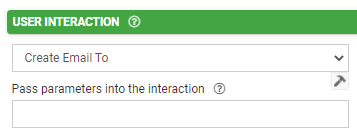
- Create Email To - this will send an email to the address specified in the Pass Parameters field with the app's default email program. The parameter passed can include static text or field values. Pass values from fields in the form using the {{dataname}} syntax.
- Create SMS To - this will send an SMS message to the address specified in the Pass Parameters field with the app's default messaging program. The parameter passed can include static text or field values. Pass values from fields in the form using the {{dataname}} syntax.
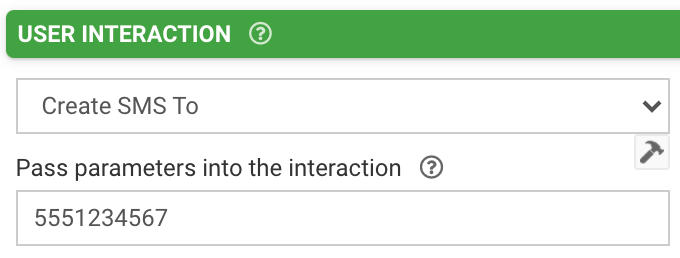 Note that this can only be used on a device with messaging capability.
 - Dial Phone Number - this will dial the phone number specified in the Pass Parameters field with the app's default phone program. The parameter passed can include static text or field values. Pass values from fields in the form using the {{dataname}} syntax.|
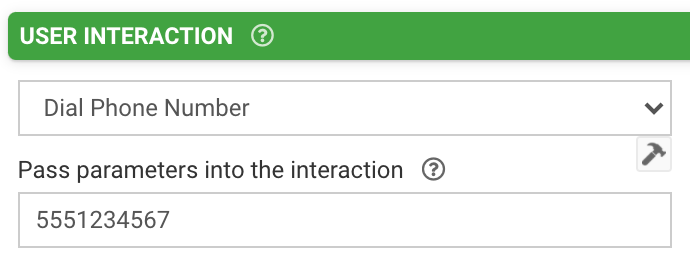 Note that this can only be used on a device with dialing capability.
 - Exit Without Saving - this will prompt the user to exit the form without saving the entry as a local draft. This essentially saves the user two keystrokes, since going back and clicking "Exit without Saving" will not be necessary.
- Exit & Save Changes - this will save the form as a local draft and exit the form without prompting the user. This essentially saves the user two keystrokes, since going back and clicking "Save and Exit" will not be necessary.
- Force Sync - this will Force Sync the local device. This is a very useful action as it saves the user several keystrokes, bypassing the need to navigate to return to the device start screen and settings page.
- Geocode Address - this will convert an address text string into decimal latitude/longitude coordinates. The address must be provided in the "Pass parameter" field below and can be either static text or a form field reference with {{dataname}} syntax and in standard address format - i.e., Street Address, City, State/Province, Postal Code, Country or {{address}}, {{city}}, {{state}}, {{postal}}, {{country}}.
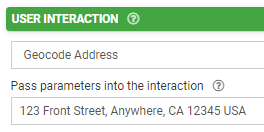 The geocoded coordinate result (if any) is populated into the field, with the result being "lat lon" - e.g., -13.3823724 153.9832837. The result will not be visible to the user unless the "Display Result to User" property is enabled (see Advanced Options further in this article).
 - Jump to Form Location - this will allow the user to navigate to various parts of the form based on the target chosen in the "Target for interaction" field. These targets can be relative or specific - i.e., the next or previous page, or a specific page somewhere on the form.
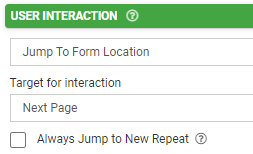 A common and recommended use for this is within repeating tables, using the Repeat Row targets to allow users to quickly add new rows or navigate to other rows without needing to leave the table.
Note that although by default the app goes to the first repeat if one exists when jumping to a repeatable page, the app can instead always create a new repeat, skipping over any pre-existing repeats, if the "Always Jump to New Repeat" checkbox is enabled.
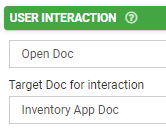
- Open Doc - this will open a document from your document library (read more about this here). The target document can be a specific reference from the drop-down or a dynamic value determined by a passed parameter. For the latter, you may pass values from form fields using {{dataname}} syntax or specify the unique ID or external ID of the Doc to open using static text or field values.
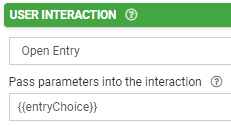
- Open Entry - this will open the form entry specified in the "Pass parameters" field below. This parameter can be static text or dynamic reference based on a form field such as a choices field linked to the App: Entry History data source. Note that the latter will only work if previous form entries have been submitted on the local device. If none have been submitted, the user will receive an error message when opening the screen since the linked data source will be empty.
- Open Screen - this will open another screen. The target screen can be chosen in the drop-down, with parameters optionally passed in the field below. These parameters can be static text or dynamic values from the form using the {{dataname}} syntax.
For Form targets, you can preset target fields with "dataname:value," pipe-separated.
E.g., field1:{{city}}|field4:hello
For Listing and Mapping screen targets, you can pass in a formula for filtering the target rows. Use {{target[column]}} for target columns.
E.g., {{target[3]}} >= {{price}}
For Detail and Task Details targets, pass the identifier of the target data row or Task. For data rows, the identifier must match the first column's value.
E.g., {{mychoice}}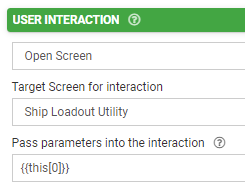
Once the user has submitted or exited the target screen, they will be returned to the original form with their progress retained. - Open Task - this will open a task as defined by the "Pass parameters" field below, where the Task ID for the target Task should be specified. Columns from the App Tasks data source can be referenced using {{this[column]}} syntax - e.g., {{this[2]}} will pass the 3rd column's value for the current selected row.
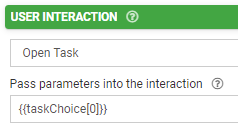
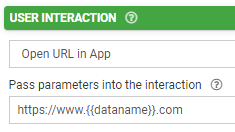
Note that this will only work if open tasks are present. If none are available, the data source will be empty, and the user will receive an error message when opening the form. - Open URL in App - this will load the URL specified in the "Pass parameters" field below within the app, provided the device has network connectivity. The app will be used rather than a web browser. The parameter may be static or dynamic, based on a form field reference. Pass values from fields in the form using {{dataname}} syntax -- e.g., http://www.example.com?val1={{city}}..
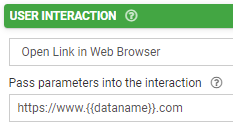
- Open Link in Web Browser - this will load the URL specified in the "Pass parameters" field below within the app's default web browser, provided the device has network connectivity. The parameter may be static or dynamic, based on a form field reference. Pass values from fields in the form using {{dataname}} syntax -- e.g., http://www.example.com?val1={{city}}..
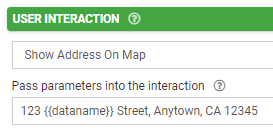
- Show Address on Map - this will show a map featuring the address specified in the "Pass parameters" field below. The address can be either static text or a form field reference with {{dataname}} syntax and in standard address format - i.e., Street Address, City, State/Province, Postal Code, Country or {{address}}, {{city}}, {{state}}, {{postal}}, {{country}}.
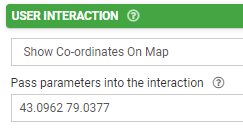
- Show Coordinates on Map - this will show a map featuring the latitude and longitude coordinates specified in the "Pass parameters" field below. The coordinates can be either static text or a form field reference, space-separated and using the {{dataname}} syntax - e.g., -12.345678 76.54321 or {{mylocationfield}}.
- Upload Form and Print - this will submit/upload the form and print an output report based on the HTML template provided in the App Printing section within the form Settings page. The print job will be sent via the device's default printing service. Please see this article for more detail.
- Upload Form - this will submit/upload the form. This serves as an alternative to the usual navigation to the end of the form to press the Upload button there.
Read/Write MIME Type
This property is used to specify a target MIME type to read from and write to - e.g., application/vnd.myapp or text/html.
Read Value From
This dropdown is used to specify a target record type from which to read.
NOTE: This setting is ignored if a MIME Type is specified (see above).
Write Value
This property is used to define a write value for the NFC tag. A tag can only be written, and the "Write" button will only appear on the field for the app user, if this property contains content. The value of this property can be static and/or dynamic, featuring data names from the form.
You must specify a formula that gives a text/string result in this property. A simple form field reference such as {{myfield}} will not work as a Write Value; you need to use the field in a formula function such as CONCAT(). The formula result will be written on the tag via a Write button that appears on the app when a write formula is specified. E.g., you could specify CONCAT(USERLASTNAME(), ', ', USERFIRSTNAME()) as the Write Value formula.
Lock Tag on Write
This checkbox option, if checked, will permanently lock the NFC tag upon a successful write operation. Once the tag has been locked, the tag CANNOT be unlocked!
Layout & StylingField Layout
This drop-down determines how this field is shown on the screen.
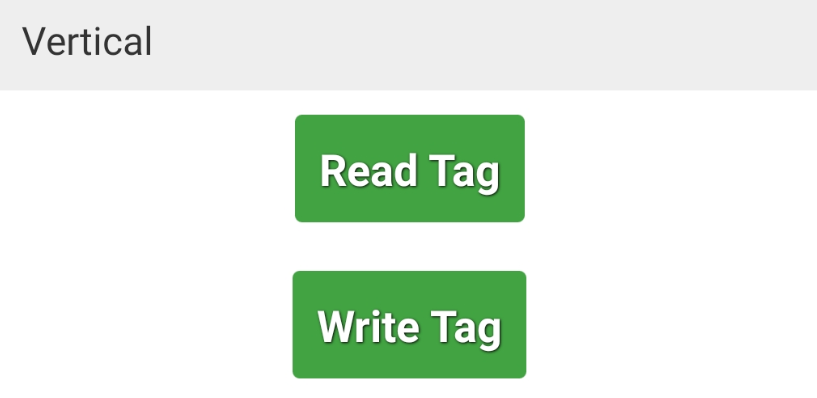
- Vertical places the Title and Hint vertically above the field.
- Horizontal will stack the entry field to the right of the Title and Hint text.

- Horizontal (Tablets Only) will use a Vertical layout for phones and Horizontal for tablets.
Background Color
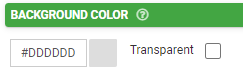
The color chosen in the hex code field here will apply to the field. The Transparent box can also be chosen instead for making this transparent instead of a solid color.
Scan Inline
This checkbox option, if checked, will cause the NFC reader to be activated upon the screen being opened instead of showing a Read button for the user to click (which is the default). Note that only one inline NFC reader is supported per page or table.
Validation & Behavior
Required
Checking this box will enforce validation against this field to make the field required, disallowing the user from progressing to the next page or submitting the form if it is left blank. If the user tries, they will be prompted with an error to return to the field and enter a value. When this validation occurs is determined by the "Validation Property" chosen on the page level; please see this article for more detail on this.

This property can also be made conditional based on a formula. To enable this, click "add condition" below the checkbox and enter a formula into the field that populates. The formula serves as the basis of the required-ness of this field.
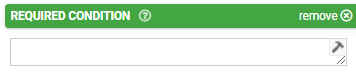
Please see this article for more information on conditionally-required fields.
Visibility
The contents of this field will determine whether the field will be visible to the user. For more detail on visibility rules, please see https://support.eformsmobile.com/a/solutions/articles/42000017721.
Dynamic Value
This property is used to define a calculation/formula that will populate the field's value. Often this is used in conjunction with the "Read Only" property (see below) so that the field will calculate and display to the user without the possibility of manual edits. https://support.eformsmobile.com/a/solutions/articles/42000109832 is recommended as a starting point for more reading on this.
Please see this article for details on the relationship between Default Value and Dynamic Value.
Read Only
If this checkbox is checked, users will be able to see the contents of the field but will be unable to make edits.

Similar to the Required property, the Read-Only property also includes the ability to define a conditional formula determining whether the read-only property is enabled. Click "add condition" to define such a formula.

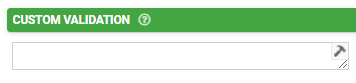
Custom Validation
Add your own custom formula to this property for validating text entered into this field by users. The formula is only applied when the field has an answer. Enforcement will be done according to the "Validation Property" chosen on the page level; please see this article for more detail on this.
Validation Message
The contents of this property will serve as a custom message to display to the user if their input fails validation.
Advanced Options
Default Value
The value entered in this property serves as the initial value of the field prior to manual input. Please see this article for details on the relationship between Default Value and Dynamic Value.
Bind to Data Source Column
This property allows for the binding of the contents of the field to a data source that is linked to either a choices field or data field on the form. For details, please see the screenshot below:
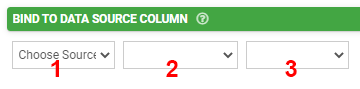
- The data source can be selected with this dropdown. More than one will be available if multiple data source control fields (choices fields or data fields) have been added to the form.
- The data source control field can be selected from this dropdown. More than one will be available if multiple data source control fields for the same data source have been added to the form.
- The column on the data source to be bound can be selected from this dropdown.
Data Source binding allows you to create forms that can load data from, and update data to, any given data source. This opens up amazing opportunities to have dynamic data that is updated on the move (e.g., adding contacts or clients). For more information, please see this article.
Bind to Global Value
Global Values are a local key/value store that is available to any Screen on the app. Use this property to allow the user to view and save defaults for use across the app (e.g., a default project or customer). Please see this article for more information.
Exclude from Export/Display
By default, every field is displayed on Form entries in the Data area, and is included in non-templated exports (e.g., generic pdf, CSV, spreadsheet, database connectors). Use this property to prevent this field from showing on all such displays and exports.

Is Personal Data
This indicates that data captured in this field may contain personal or sensitive data, which in turn can be anonymized when exported from the platform when then the "Anonymize Personal Data" option is checked on a form connector. Please see this article for more on this.
NOTE: Use of this option does not grant or imply additional security, protection, and privacy of data.

Example Form
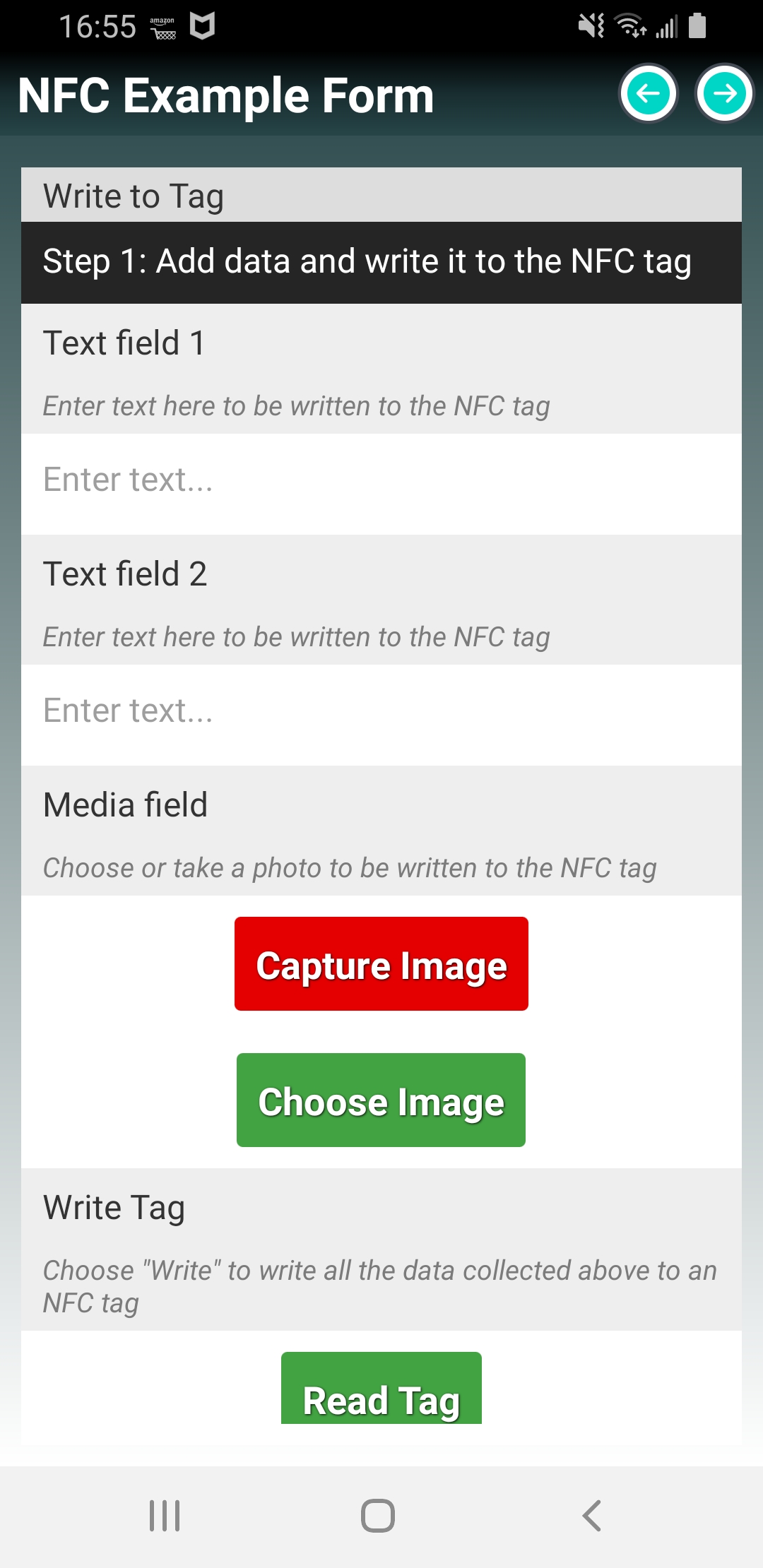
To see an example of NFC functionality, be sure to install the free form template "NFC Example Form" from our Form Templates catalog. This form demonstrates both writing content to an NFC card and parsing the content back out from the card. Note that this will require NFC tags with enough storage capacity to hold an image file.
NFC Functionality in iOS
Android and iOS have different ways to manage reading from and writing to NFC Tags. Below is a method that will allow you to write URIs to NFC Tags and then use eForms Mobile deep-linking feature to allow you to open a specific app after scanning an NFC tag in iOS.
Step 1:
Download NFC Tools from the Apple App Store
Step 2:
Using NFC Tools, write a new Custom URL/URI record to the NFC tag. The URI format should be:
(matching the format as configured on the web platform via Apps > App Setup > Launch Options)
Step 3:
Ensure NFC is enabled on the device and scan the tag. The system will present a popup notification that can be clicked to launch the app and deliver the tag data to it.
The iPhone XS and later support background tag reading. With background tag reading, the system scans for and reads NFC data without requiring users to take an explicit choice to read a NFC tag. The system displays a pop-up notification each time it reads a new tag. After the user taps the notification, the system delivers the tag data to the appropriate app. If the iPhone is locked, the system prompts the user to unlock the phone before providing the tag data to the app. |
To avoid unintentional tag reading, the system reads tags in the background only when the user’s iPhone is in use.
Also, be aware there are times when the display is on, and background tag reading is unavailable, such as if:
- The device has never been unlocked.
- A Core NFC reader session is in progress.
- Apple Pay Wallet is in use.
- The camera is in use.
- Airplane mode is enabled.
Related Articles
Sketch Field Type
A Sketch Field Type can be used to capture signatures, or to annotate images or drawings. Configuring the Sketch Field Type Simply drag and drop a Sketch Field from the left-hand tolbar onto your Form page and configure it using the right-hand ...Gallery Field Type
TABLE OF CONTENTS Layout & Styling Background Color Validation & Behavior Required Validation Behavior Gallery Item Limits Output Gallery Field Data in a Custom Word/Excel Template This is an advanced field type that allows a user to upload multiple ...Date/Time Field Type
TABLE OF CONTENTS Basic Properties Data Name Title Text Hint Text Date/Time Type Working with Date & Time values in formula and bound Data Source scenarios How to get Date & Time values stored in your local time zone Layout & Styling Field Layout ...Section Field Type
TABLE OF CONTENTS Basic Properties Data Name Title Text Hint Text Static Image Dynamic Image Layout & Styling Background Color Validation & Behavior Visibility The section field is a read-only field type that lets you display text and/or an image in ...Numeric Field Type
A numeric field may be used to capture and display numeric inputs in decimal or integer format. Basic Properties Data Name This is the name of the field that should be referenced in any form of logic or API calls. Users will not see this name on the ...