Downloading Old Form Submissions in Bulk
Any data submitted, old or new, can be downloaded from the web dashboard in a compressed file containing each desired submission in either PDF or Word format based on any output template associated with the file - even a template added after the form was originally submitted.
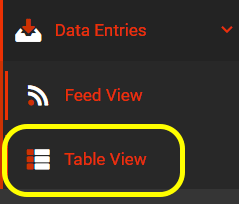
In order to select the forms to be downloaded in the output template, visit Data Entries > Table View in the left-hand navigation pane.
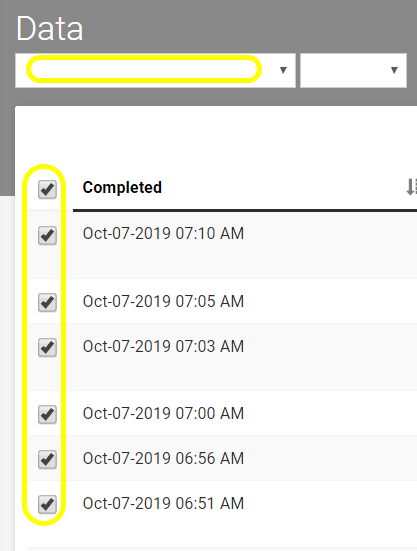
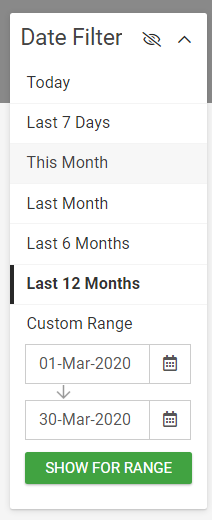
From here, select the desired form from the drop-down menu above. Also, if desired, select the date range from the Date Filter on the right. This will populate all submissions of this form during the specified time period, listed in the main content area by date and time. From these submissions, check the checkboxes for the ones you wish to download.
Once all the desired form submissions are selected, click the Manage data button in the upper-right corner of the screen.

This will display the Manage Selected Data window (see image below). From here, under either the Bulk PDF or Bulk MS Word section (depending on your preference), select the name of the desired output template from the drop-down beneath “Export As.” Then click the “Download” link in the upper-right corner of the section.
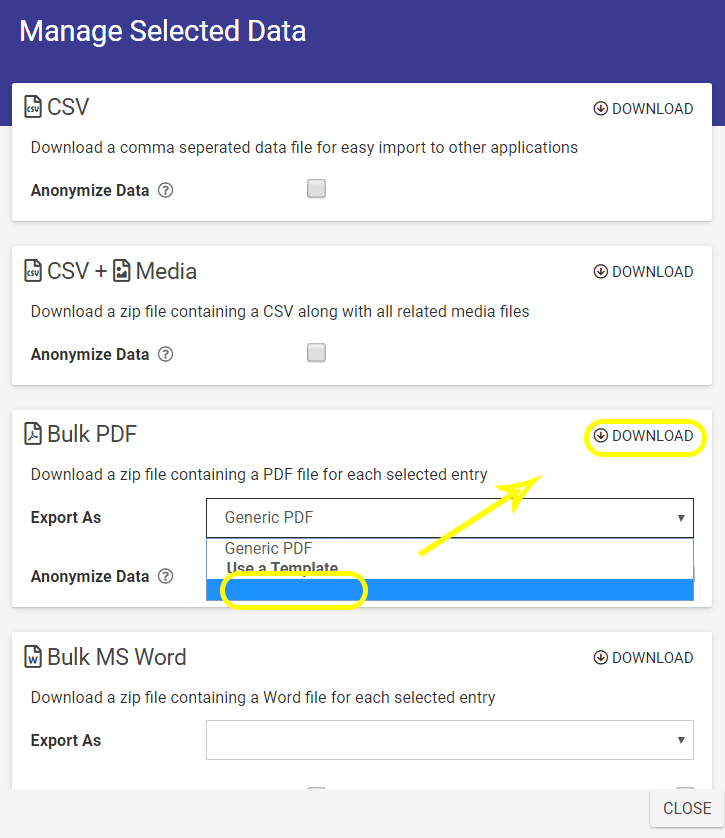
The resulting downloaded file will contain all the selected data submissions, output onto the format of the template chosen above. This can be performed as many times as desired with any template attached to the form.
See also:
Manually Downloading Data
Word Templates
Excel Templates
Related Articles
Manually Downloading Data
Our platform provides a number of ways for you to manually download your captured data. If you are looking for options to export Form data (e.g., via email etc.), you should check out our Data Entries area. To manually download Form entry data, ...FAQ- Form Connectors
Q: Why is my connector not applying to older versions of my form? A: Connectors are version-specific. The connector settings for one form version do not apply to other versions of the form. If you want to change the settings of a specific version of ...Form Settings
TABLE OF CONTENTS Version History Settings Customizing Titles of In-Progress Form Entries with Display Row Titles The Settings page is accessed from the “edit settings” link in the option bar of the Form Designer. You can also enter this page by ...ArcGIS Form Connector
After adding and authenticating an ArcGIS Connection, you can easily send form entry data to the ArcGIS API by configuring the ArcGIS form connector, as shown in this article. Adding an ArcGIS Connector Form Connectors can be added to push data to ...Google Drive - Form Connector
Form Connector – Google Drive automatically sends completed form files and data to Google Drive for secure storage, organization, and easy team access. After adding and authenticating a Google connection, your forms can push output files like PDF, ...