How do I change the date format for my users?
By default, the date format shown on the online platform and to app users in the American format, "MM-dd-yyyy." This can be changed by editing the contents of the "Date Format" region within Apps > App Setup.
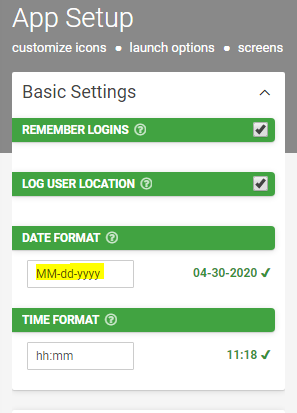
Simply enter the preferred date format in the highlighted area above (e.g., yyyy-MM-dd), and then click "Save" in the upper-right corner of the page.
Note that in this page, time format can also be changed in the "Time Format" field right below "Date Format."
Related Articles
Date/Time Field Type
TABLE OF CONTENTS Basic Properties Data Name Title Text Hint Text Date/Time Type Working with Date & Time values in formula and bound Data Source scenarios How to get Date & Time values stored in your local time zone Layout & Styling Field Layout ...Date and Time values in Form entries
Dates and times are captured as follows on form entries: Date only and Time only fields are captured in the local device time, but without any timezone information. As such, these are always displayed as the raw, local time values, without any time ...Calculating the difference between two date/time fields
To calculate the difference between two date/time fields, create hidden fields that convert the time/date values gathered by time/date fields into a specific format using FORMAT-DATE. Then create another hidden or visible field with a dynamic value ...How do I ensure that my users' data is up to date?
Submitting an old version of a Form can result in various issues from Connector errors to duplicate Auto-Numbers on the back end. To avoid these potential problems, consider checking the "Wait for Sync on Load" checkbox within the Advanced Options ...Provisioning Users and Single Sign On with Azure Active Directory
TABLE OF CONTENTS Features Prerequisites Configuring User Provisioning through Azure AD (via SCIM) Configuring Single Sign On (OIDC Identity Provider) Troubleshooting & Tips Required Values for Provisioning Assigning Website Access to Azure Active ...