Repeating Data
TABLE OF CONTENTS
- Using the Repeat Rows Approach
- Using the Repeating Sections Approach
- Nested Repeats
- Repeating Data within HTML
- Examples of Repeatable Templates
Many templates have a need to present repeating data. Often the precise number of repeated answers will vary from data entry to data entry. You can add repeatable sets of fields to a Form by using a Page Group with the Repeatable property ticked on.
There are two ways to output the answers for these repeatable fields in your template:
- Repeat rows in a Word table or Excel worksheet using the special {{!REPEATROW}} placeholder.
- Define the section of the template to output for each repeat. This uses the special {{!REPEATSTART}} and {{!REPEATEND}} placeholders.
These options give you the flexibility to handle repeating data the way you want. For downloadable examples of repeatable data templates, jump to the end of this article.
Please note that placing repeating tables inside repeating pages is not supported on output templates and not recommended within a form design. Please see "Nested Repeats" below.
Using the Repeat Rows Approach
Often it is useful to place repeating data in a Word table or Excel worksheet. You can create a repeatable listing by adding a special {{!REPEATROW}} placeholder into the very first cell of the row you want to repeat. The system will then repeat the enclosing row and will replace all placeholders found within the relevant data values.
For example, in a Word table:
FIRST NAME | LAST NAME | GENDER |
{{!REPEATROW}}{{firstname}} | {{lastname}} | {{gender}} |
An Excel worksheet may look like:
| LAST NAME | GENDER |
{{!REPEATROW}} | {{lastname}} | {{gender}} |
Remember that you must place the {{!REPEATROW}} placeholder as the very first item in the row!
REPEATROW rows outputting out of order
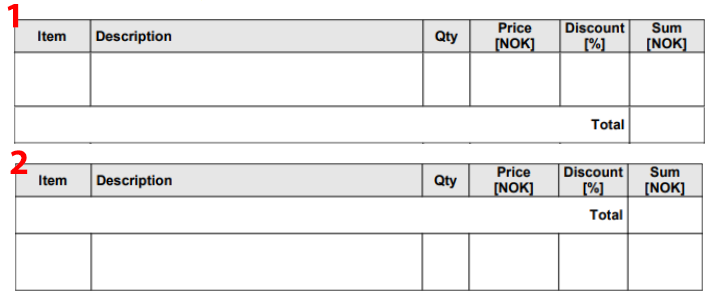
Repeating rows on an output may end up placed incorrectly. In the below example, the template has the repeating rows on top of the Total row at the bottom (1), though on the output the order is reversed with the repeating rows below the Total line (2). If this should happen, there are two recommended options for getting the rows to display as desired.
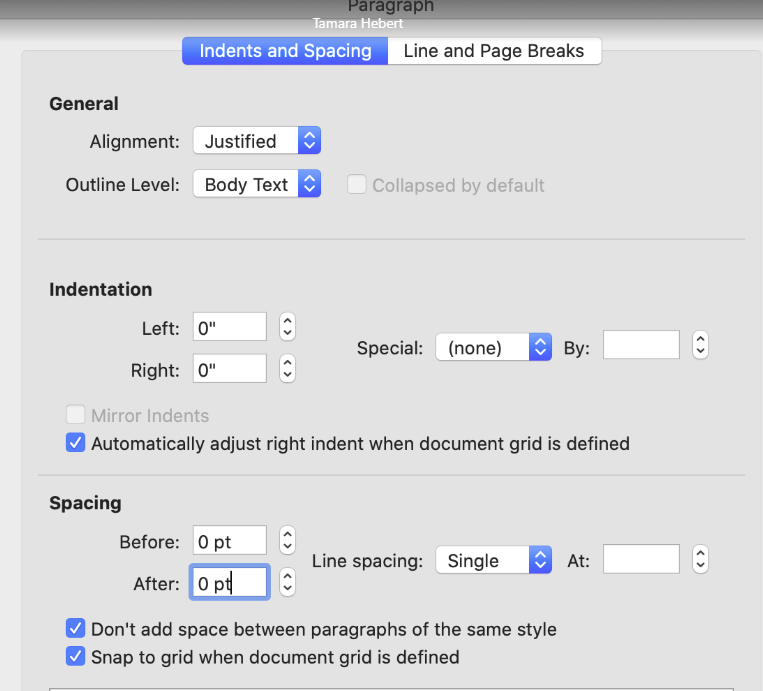
- Split the table between the REPEATROWs and the total to make two separate tables and reduce the font size on the row in-between them to 1. Also adjust paragraph settings per the screenshot below.
- Nest a table within the main table to hold the REPEATROWs. By adjusting border styles and row widths, it can be made to look like one single table.
Before, with the headers in the outer table: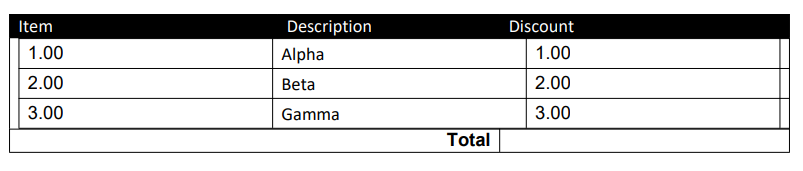
After, with the headers moved into the inner table and border styles and widths adjusted: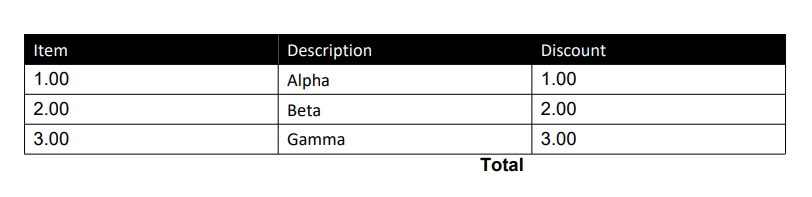
Advanced Use: Outputting multiple repeats per row
At times it may be useful to show repeat values side by side in the same row - for example if you have a gallery or repeating photo capture page, you might want to put the photos side by side in a 2 or 3 column configuration. This is possible by adding some special syntax to the {{!REPEATROW}} placeholder, specifically you must put a pipe character followed by the number of repeats to handle per row. So, for example, if you want to have 3 sets of repeated values side by side, then you would use:
{{!REPEATROW|3}}
Then in the repeated row part of your template, you must specify the desired repeat fields as many times as the number of sets to display. When generated, the answer value from each repeat will be inserted sequentially for each occurrence of the same data name in the row.
For example, in a Word table:
{{!REPEATROW|3}}{{photo}} | {{photo}} | {{photo}} |
An Excel worksheet may look like:
{{!REPEATROW|3}} | {{photo}} | {{photo}} | {{photo}} |
Using the Repeating Sections Approach
With this option you define the placeholders once for the desired fields in a repeatable page group, and enclose these within special {{!REPEATSTART}} and {{!REPEATEND}} placeholders.
For Excel, the system will repeat all rows found between the START and END placeholders. This tells the system to repeat everything found within the REPEAT placeholders, including formatting, bullet points, table rows, images, static text, etc.
When generating output, the system will make a copy of the area within the REPEATs and will replace all regular data name placeholders found within the area, for each repeat of the answers. For example, imagine we have a Form with a repeatable set of fields for capturing child elements:
- First Name (data name=”firstname”)
- Last Name (data name=”lastname”)
- Gender (data name=”gender”)
You could define a repeatable bullet listing as follows:
{{!REPEATSTART}}
Name: {{lastname}}, {{firstname}}
Gender: {{gender}}
{{!REPEATEND}}
Important Note: Both {{!REPEATSTART}} and {{!REPEATEND}} placeholders must exist on their own rows respectively.
Advanced Use: Outputting multiple repeats per section
At times it may be useful to show repeat values side by side in the same section - for example, if you have a gallery or repeating photo capture page, you might want to put the photos side by side in a 2 or 3 column configuration, with accompanying captions and other repeated data shown above or underneath each photo. This is possible by adding some special syntax to the {{!REPEATSTART}} placeholder. Specifically, you must put a pipe character followed by the number of repeats to handle per row. So, for example if you want to have 3 sets of repeated values side by side, then you would use:
{{!REPEATSTART|3}}
Then in the repeated section part of your template, you must specify the desired repeat fields as many times as the number of sets to display. When generated, the answer value from each repeat will be inserted sequentially for each occurrence of the same dataname in the section.
For example, in a Word document:
Photos
{{!REPEATSTART|3}}
Photo Name: {{photoName}} |
|
|
{{photo}} | {{photo}} | {{photo}} |
{{photoCaption}} | {{photoCaption}} | {{photoCaption}} |
{{!REPEATEND}}
An Excel worksheet may look like:
|
|
|
Photo Name: {{photoName}} |
|
|
{{photo}} | {{photo}} | {{photo}} |
{{photoCaption}} | {{photoCaption}} | {{photoCaption}} |
|
|
|
Nested Repeats
Unfortunately, we don't currently support nested repeats within the template engine. When nested repeats are required, the best option would be to collapse the sections to be repeated. As an example, assume you have a list of buildings that contain multiple rooms, and these rooms contain multiple items. You could have a repeating page, or a page within a table where the user can choose a building, then a room, and then an item, from three choice fields in the page. The form could use the PRIOR() formula to set the building and room values dynamically to save a user's time by carrying forward the values from one page to the following page.
Repeating Data within HTML
To show repeating data within the HTML body of an email connector, simply nest the content to be repeated within the REPEATSTART and REPEATEND placeholders. In the below example, {{textTable1}} and {{testTable2}} are repeating fields within a table:
<table>
{{!REPEATSTART}}
<tr>
<td>{{textTable1}}</td>
<td>{{textTable2}}</td>
</tr>
{{!REPEATEND}}
</table>
Examples of Repeatable Templates
Attached is a testing form design along with data output templates for Word and Excel that will you help understand how the above functionality works.
- Download these attachments and then create a new Form in your account.
- Go to the Designer page of your new Form and use the "Import Fields" button to import the Form xlsx file. This will import the testing form design. You should set the Form to Test mode after importing the fields.
- Then go to the Settings page of your new Form and upload the attached Template xlsx and docx files into the Excel and Word Default Template fields, respectively.
- Now open up the Form on your device and capture an entry. Make sure you capture more than one photo when prompted. Complete the entry and upload it from your app.
- Finally, go to the Data page of the secure website and find your entry. Mouse over the entry row and click the Export link, and then choose one of the Template files to see the output.
See also:
Related Articles
Nesting Repeatable Data - Nested Repeating Tables
Capturing repeatable data using a repeating Table field is amazing, However, sometimes, you need to group data within other data, like putting a smaller box inside a bigger box. In the app builder, you can do this by nesting one Table Field inside ...Making fields in a repeating table required
The following workaround can be used to enforce that a field within a repeating table be required for the user to complete, even if the table is not required. Add a hidden field inside the table field {{tally}} with the following Dynamic Value, with ...Concatenating Repeating Fields from a Table within the Form
Concatenating multiple values entered in a repeating table for use or display elsewhere in the form can be done with the following procedure. First create a hidden field inside the table - e.g., {{tally}} - that uses a simple IF statement like this ...Capturing Repeatable Data
There are 3 field types that enable you to capture data on a repeating basis: the Page field, the Table field and the Gallery field. You can use any of these 3 repeatable field types to enable your users to capture multiple data entries. Please note ...Creating, Updating, and Deleting Rows in a Data Source
TABLE OF CONTENTS Creating/Editing Rows in a Data Source Updating a Data Source with multiple rows from a repeating table Multiple Data Controls per Form Deleting Rows from a Data Source Hosted GET Considerations When Creating New Rows Often you may ...