Section Field Type
TABLE OF CONTENTS
The section field is a read-only field type that lets you display text and/or an image in the Form. The field can also be used as a separator between other fields.
Basic Properties
Data Name
This is the name of the field that should be referenced in any form logic or API calls. Users will not see this name on the form.
Data names cannot contain spaces or any special characters other than an underscore and must begin with a letter. They are case-sensitive and must be referred to precisely whenever they are referenced.
Title Text
This is the name of the field that will be displayed to users on the app. This property is completely optional; while a field must contain a data name, a field title is optional.
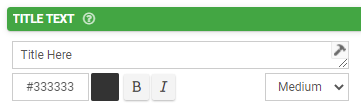
The text color may be chosen with a hex code. The text may be also formatted as Bold or Italic and given a relative size -- Small, Medium (the default) or Large.
Hint Text
This optional field can be used to show secondary information to the user in the app. Consider using this to provide instruction or clarification to the user as they fill out the field -- or in the case of a section field, perhaps to add supplemental information to what was already provided in the Title Text property.
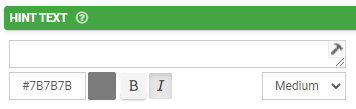
Formatting options for this property are the same as those given available for the Title Text property.
Static Image
This property allows the designer to choose a static image that will be displayed to the user on the app. This is useful for displaying read-only visuals such as diagrams, risk matrices, charts. Bear in mind that the chosen image must be in PNG or JPG/JPEG format and be smaller than 500 kilobytes in size.
Please note that static images chosen for section fields will be lost when the form is exported to Excel. The images will need to be manually re-selected after the Excel file has been imported into the same or a new form. As an alternative to this, consider using the Dynamic Image property instead (see below).
Dynamic Image
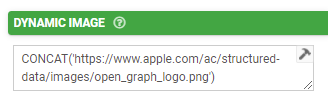
This property allows the designer to define a calculation/formula that will dynamically populate an image into this section for display to the user on the app. The reference may be to a hyperlink or a data source location. For example:
- Hyperlink, with a field reference:
CONCAT('https://myexamplesite.com/', {{myfield}}, '.jpg')
The above will display an image located at the address where the value collected from the user in the field {{myfield}} will be part of the URL string. Of course, a static URL here that does not include a field reference can also be used. - Data source reference:
{{mydsfield[2]}}
This will refer to the image stored in column 3 (zero-indexed) of the data source to which the field {{mydsfield}} is linked.
Layout & Styling
Background Color
The color chosen in the hex code field here will apply to the section field. The Transparent box can also be chosen instead for making this transparent instead of a solid color; this is a popular choice for displaying logos or other images.
Validation & Behavior
Visibility
The contents of this field will determine whether the field will be visible to the user. For more detail on visibility rules, please see this article.
Related Articles
Numeric Field Type
A numeric field may be used to capture and display numeric inputs in decimal or integer format. Basic Properties Data Name This is the name of the field that should be referenced in any form of logic or API calls. Users will not see this name on the ...Date/Time Field Type
TABLE OF CONTENTS Basic Properties Data Name Title Text Hint Text Date/Time Type Working with Date & Time values in formula and bound Data Source scenarios How to get Date & Time values stored in your local time zone Layout & Styling Field Layout ...Choices Field Type
Choices Field Type TABLE OF CONTENTS Basic Properties Data Name Title Text Hint Text Display Style Answer Choices Display/Value Columns Sort Order Filter Rows Allow Form Fields to Modify Data Source Option Colors Option Background Color Multiple ...OCR Field Type
Note, the OCR field requires an internet connection to return image text. The OCR (Optical Character Recognition) Field type lets you convert written or printed information into text via your device's camera. Setting up an OCR Field After creating a ...NFC Field Type
The NFC field allows you to build Form screens that can read/write NFC tags using Android or iOS devices. NOTE: Read only supported on iOS devices NFC on Android: Examples: A form can read data from an NFC tag and pre-populate additional field values ...