OCR Field Type
Note, the OCR field requires an internet connection to return image text.
The OCR (Optical Character Recognition) Field type lets you convert written or printed information into text via your device's camera.
Setting up an OCR Field
After creating a new Form screen, you will be taken to the Form Designer screen. The Form Designer screen provides a visual view of your Form and a drag-and-drop approach for creating your Form design. Along the left section of the Designer, you will find a column of Basic and Advanced Field types.
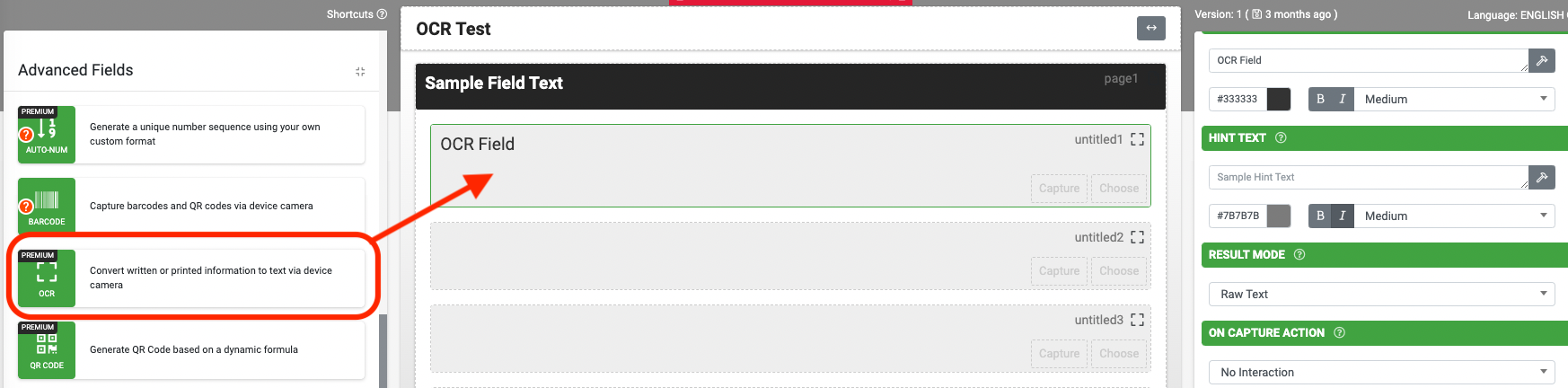
Two Unique properties specific to the OCR field are Result Mode and On Capture Action.
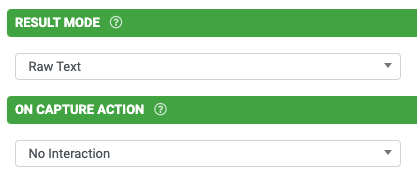
Result Mode
- Raw Text
When this option is chosen, the raw test result will be displayed (extracted from the image).
- JSON
When this option is chosen, the complete OCR JSON response will be available in other fields via the JSONVAL()formula.
On Capture Action
- Define an action each time a successful OCR result is returned.
When extracting specific information out of a JSON result, https://jsonpathfinder.com/ , might be of assistance.
Isolating Specific Text
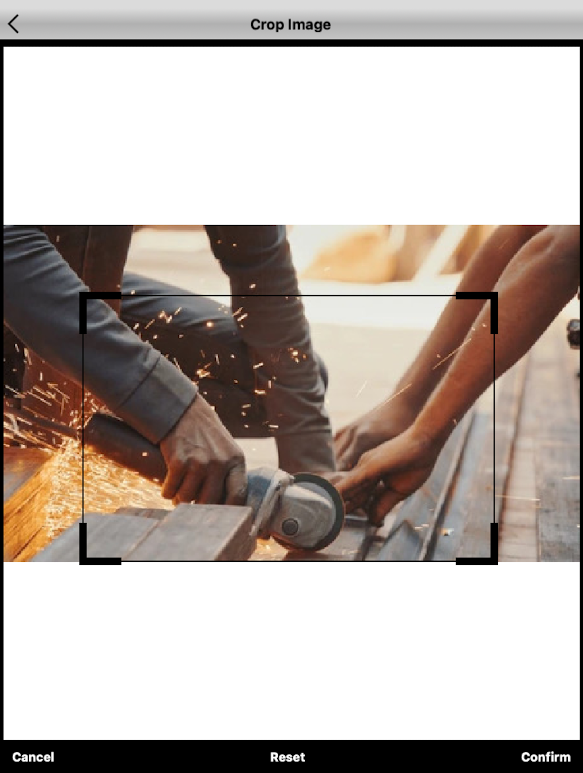
An Advanced Options property enables the selection of a specific area for text conversion of the captured or chosen image.
Result Examples
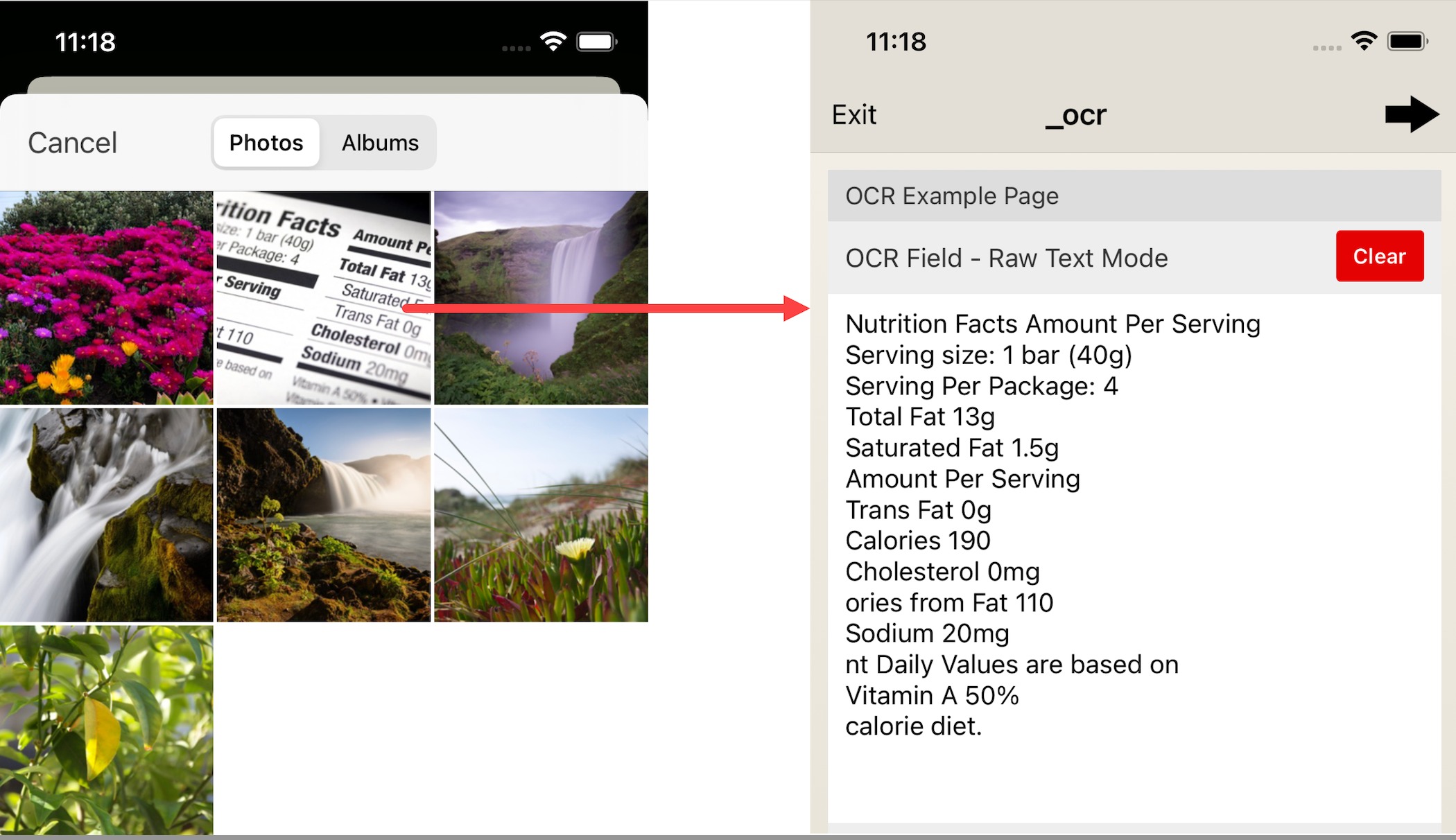
Raw Text
Images was uploaded from the device gallery.
Raw JSON
Image was uploaded from the device gallery.
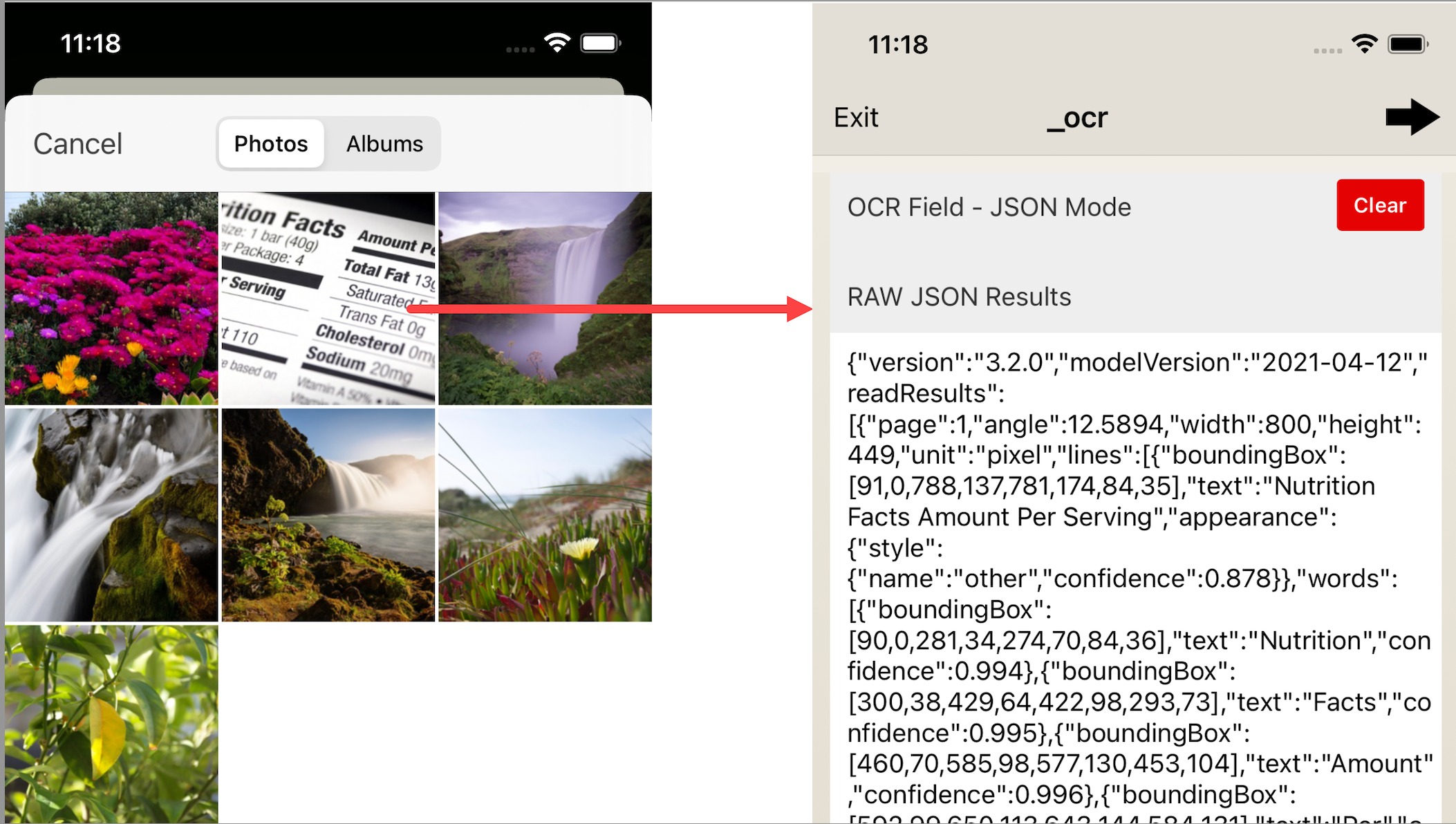
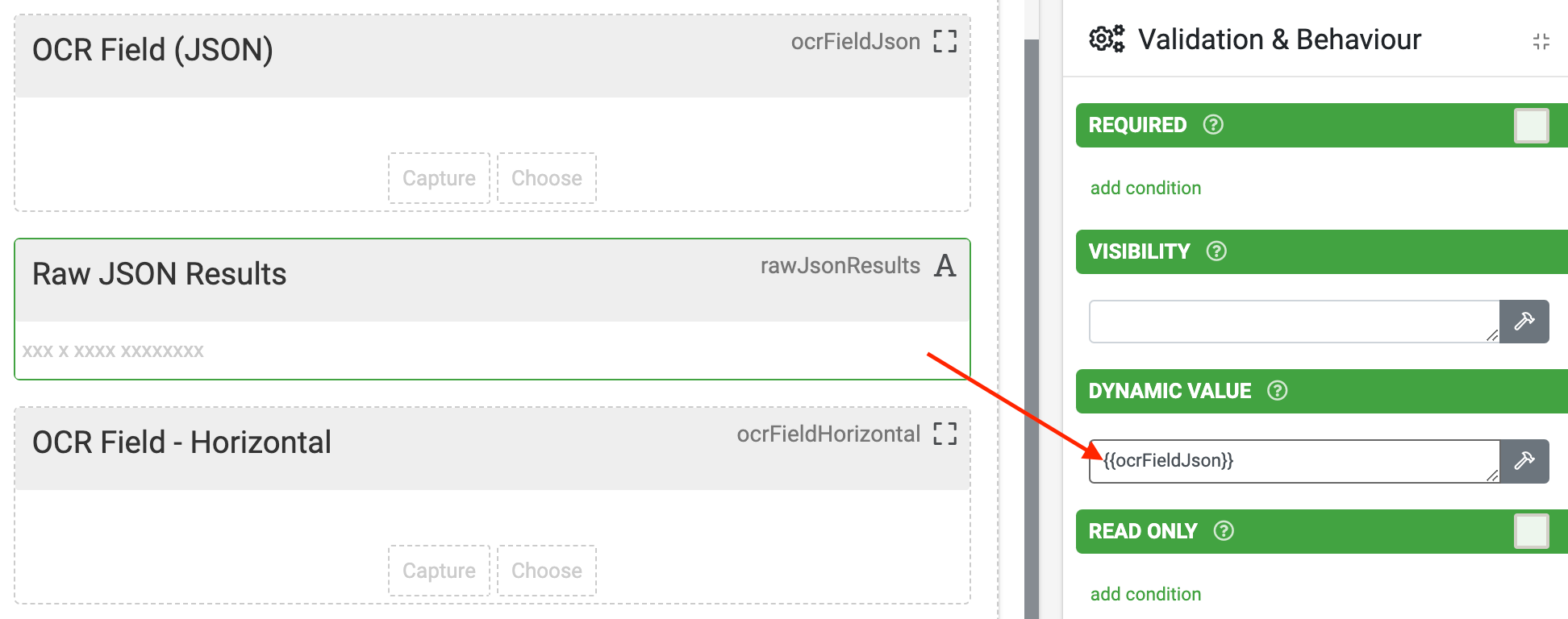
The above image depicts a RAW JSON result (text field) with its dynamic value property driven from the OCT Field-JSON Mode's (OCR Field) dataname.
Form Designer Build:
The JSON result can be processed using JSON Path Syntax.
JSON Result (full)
JSON Result (retrieve all words text)
Syntax:
$.readResults[0].lines[*].words[*].text
However, in a Text field's dynamic value, the above syntax would need to be used in junction with our JSON() function.
Formula:
SUBSTITUTE(STRING(JSONLIST({{myOCRfieldJSON}}, 'readResults[0].lines[*].words[*].text')) , '|' , '\n')
If there is a specific value you want to extract then replace the '*' with a numeric value. For example, to capture the 2nd line in an OCR Result: STRING(JSONLIST({{myOCRfieldJSON}}, 'readResults[0].lines[1].text'))
For more information on JSON formula, please review Formula Cheat Sheet - Data Interchange.
Related Articles
Sketch Field Type
A Sketch Field Type can be used to capture signatures, or to annotate images or drawings. Configuring the Sketch Field Type Simply drag and drop a Sketch Field from the left-hand tolbar onto your Form page and configure it using the right-hand ...Gallery Field Type
TABLE OF CONTENTS Layout & Styling Background Color Validation & Behavior Required Validation Behavior Gallery Item Limits Output Gallery Field Data in a Custom Word/Excel Template This is an advanced field type that allows a user to upload multiple ...Date/Time Field Type
TABLE OF CONTENTS Basic Properties Data Name Title Text Hint Text Date/Time Type Working with Date & Time values in formula and bound Data Source scenarios How to get Date & Time values stored in your local time zone Layout & Styling Field Layout ...Section Field Type
TABLE OF CONTENTS Basic Properties Data Name Title Text Hint Text Static Image Dynamic Image Layout & Styling Background Color Validation & Behavior Visibility The section field is a read-only field type that lets you display text and/or an image in ...Numeric Field Type
A numeric field may be used to capture and display numeric inputs in decimal or integer format. Basic Properties Data Name This is the name of the field that should be referenced in any form of logic or API calls. Users will not see this name on the ...