Signature Field
Use the signature field in order to capture the App users' signature.

Our signature field allows for the capturing of signatures on a device in one of two ways.
- Shared Device Signature Capture: Users can either share a device where the device can be handed to the person who is required to capture the signature.
- Contactless Signature Capture: By using the Contactless Signature capture feature which enables you to avoid the sharing of devices.
Example Scenario
The delivery of a package needs to be signed off on by a courier and a receiver.
- Shared Device Signature Capture
The courier fills out a digital form, adds their signature and hands the device to the receiver for them to capture their signature. The courier and receiver are in contact with the same device. Contact. - Contactless Signature Capture
The courier fills out a digital form, adds their signature and presents an in-app QR Code on their device for the receiver to scan using their own device. This launches the receiving device's native browser with a web-page allowing them to add their signature using their own device. The courier and receiver do not touch with the same device. Contactless!
Contactless Signature
This checkbox option allows signatures from other persons to be captured on their own devices through scanning a QR code that displays in this field. The signature is then downloaded by the app user during form entry.
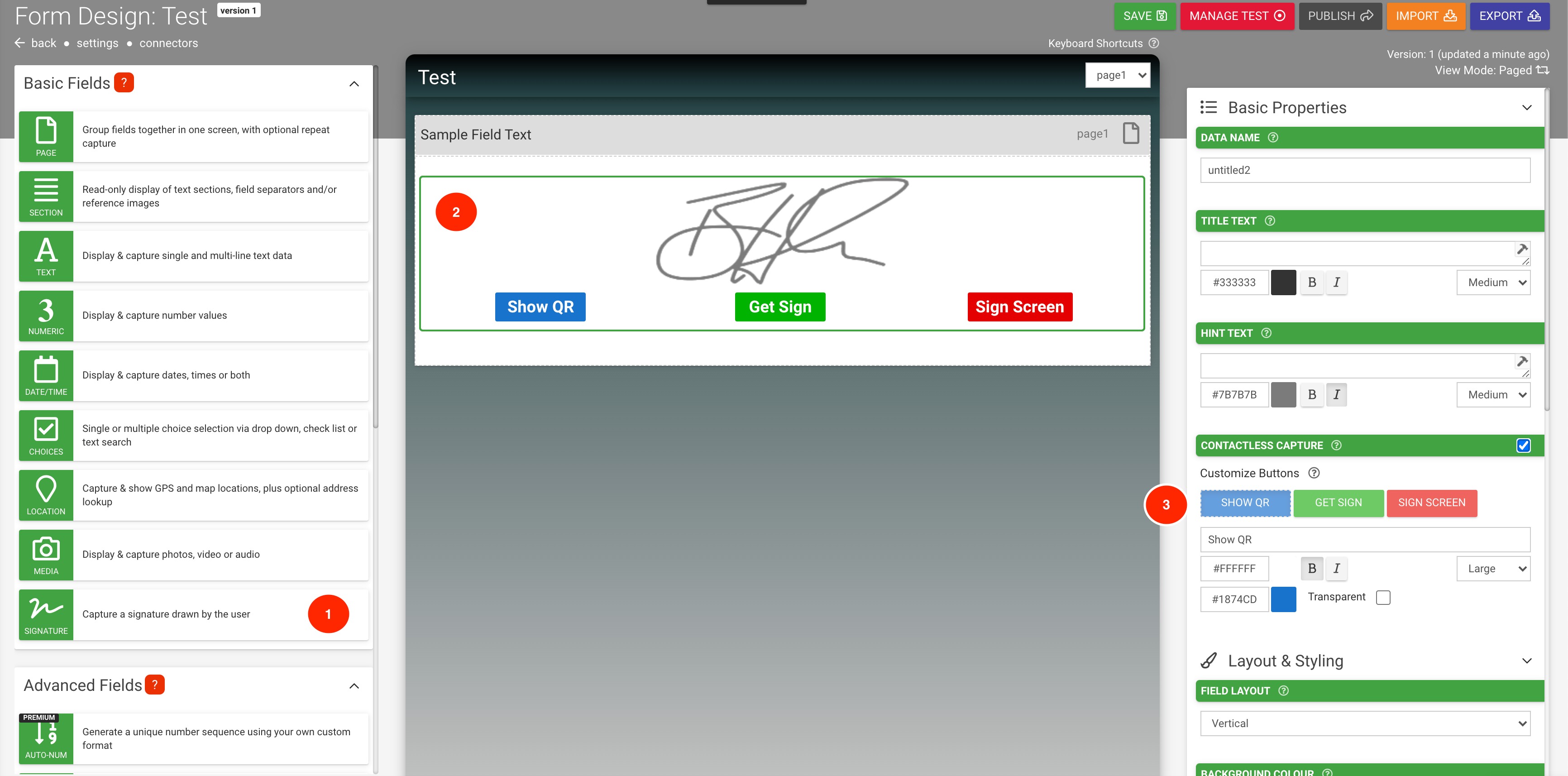
How to Use
Launch the mobile client app and the respective form with the Signature field added, and when ready to capture a Contactless signature, simply:
- Select “Show QR” on Device1
- Scan QR code with Device2
- Allow Device2 to sign and “Save Signature”
- Select “Get Sign” on Device1 to display Device2's signature
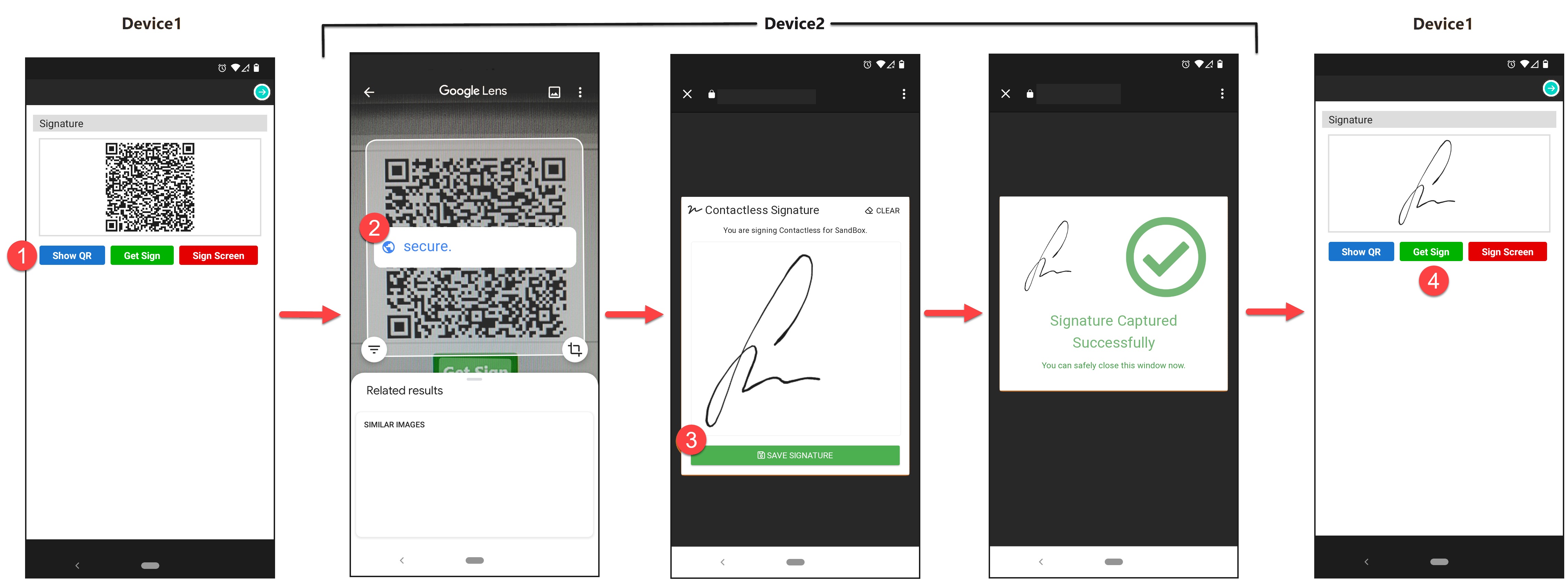
Yes, it's that simple! But, this one "simple" feature has the potential to prevent complications that could arise from multiple users being in contact with the same device, allowing you to go Contactless.
How to Customize
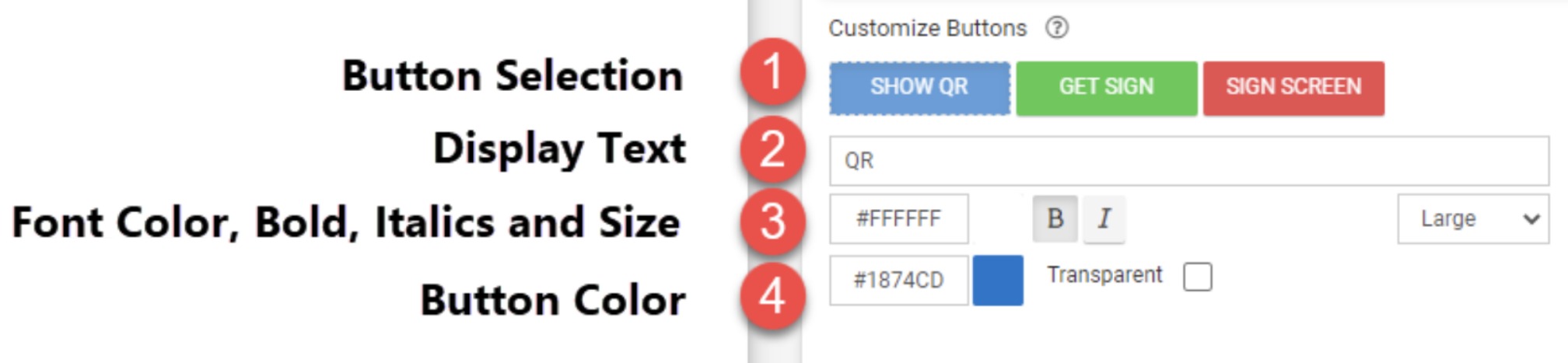
Button options available:
- Display text (Default: Show QR, Get Sign, Sign Screen)
Note: A button's text can't be blank. - Font color, bold, Italics and size (Small, Medium, Large)
- Button color
Layout & Styling
Field Layout
This drop-down determines how this field is shown on the screen.
- Vertical places the Title and Hint vertically above the entry field.
- Horizontal will stack the entry field to the right of the Title and Hint text.
- Horizontal (Tablets Only) will use Vertical layout for phones and Horizontal for tablets.
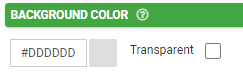
Background Color
The color chosen in the hex code field here will apply to the field. The Transparent box can also be chosen instead for making this transparent instead of a solid color.
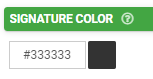
Signature Color
This is the color for the user's signature. By default, the color is black.
Validation & Behavior
Required
Checking this box will enforce validation against this field to make the field required, disallowing the user from progressing to the next page or submitting the form if it is left blank. If the user tries, they will be prompted with an error to return to the field and enter a value. When this validation occurs is determined by the "Validation Property" chosen on the page level; please see this article for more detail on this.

This property can also be made conditional based on a formula. To enable this, click "add condition" below the checkbox and enter a formula into the field that populates. The formula serves as the basic of the required-ness of this field.
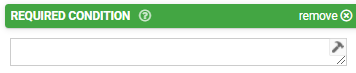
Please see this article for more information on conditionally-required fields.
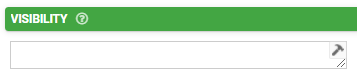
Visibility
The contents of this field will determine whether the field will be visible to the user. For more detail on visibility rules, please see this article.
Read Only
If this checkbox is checked, users will be able to see the contents of the field but will be unable to make edits.

Similar to the Required property, the Read Only property also includes the ability to define a conditional formula determining whether the read-only property is enabled. Click "add condition" to define such a formula.

Custom Validation
Add your own custom formula to this property for validating text entered into this field by users. The formula is only applied when the field has an answer. Enforcement will be done according to the "Validation Property" chosen on the page level; please see this article for more detail on this.
Validation Message
The contents of this property will serve as a custom message to display to the user if their input fails validation.
Advanced Options
Default Value
The value entered in this property serves as the initial value of the field prior to manual input.
Bind to Data Source Column
This property allows for the binding of the contents of the field to a data source that is linked to either a choices field or data field on the form. For details, please see the screenshot below:
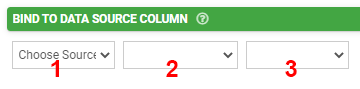
- The data source can be selected with this dropdown. More than one will be available if multiple data source control fields (choices fields or data fields) have been added to the form.
- The data source control field can be selected from this dropdown. More than one will be available if multiple data source control fields for the same data source have been added to the form.
- The column on the data source to be bound can be selected from this dropdown.
Data Source binding allows you to create forms that can load data from, and update data to, any given data source. This opens up amazing opportunities to have dynamic data that is updated on the move (e.g., adding contacts or clients). For more information, please see this article.
Bind to Global Value
Global Values are a local key/value store that is available to any Screen on the app. Use this property to allow the user to view and save defaults for use across the app (e.g., a default project or customer). Please see this article for more information.
How to Scan a QR Code
Most smartphones have the ability to identify a QR code using the device's default camera and prompt the user for what action to take. Alternatively, in respective app stores, there are numerous QR scanner apps to choose from which will do the job.
Android
A built-in QR code scanner on some Android devices is accessible by launching the default camera or Google Lens.
iOS
The iOS camera app is able to identify a QR code and prompt a user for what action to take.
Related Articles
Sketch Field Type
A Sketch Field Type can be used to capture signatures, or to annotate images or drawings. Configuring the Sketch Field Type Simply drag and drop a Sketch Field from the left-hand tolbar onto your Form page and configure it using the right-hand ...Attachment Field Type
The Attach field is an advanced field type that allows documents or files (up to 25MB) on a user's device to be added to a form as an attachment for output. Alternatively, a file can be downloaded from a specificed URL. Note: Attached PDFs can also ...Text Field
TABLE OF CONTENTS Basic Properties Data Name Title Text Hint Text Layout & Styling Field Layout Background Color Text Lines Placeholder Text Validation & Behavior Required Visibility Dynamic Value Read Only Custom Validation Validation Message Answer ...Location Field
TABLE OF CONTENTS Basic Properties Data Name Title Text Hint Text Desired Accuracy (Feet) Fast Capture Enable Address Lookup Hide Address Information Layout & Styling Field Layout Background Color Enable Selection from Map Display Map Type Validation ...Hidden Field
TABLE OF CONTENTS Basic Properties Data Name Description Validation & Behavior Dynamic Value Advanced Options Default Value Bind to Data Source Column Bind to Global Value Exclude from Export/Display Is Personal Data A hidden field stores default or ...