
Our platform enables you to quickly and easily connect your data sources to a Snowflake table.
This enables a one-way synchronization to occur - where any changes in the Snowflake table are downloaded into your data source on a regular basis.
Your data source will be automatically updated in this way until you remove the connector or an error occurs (such as losing authorization to access the database).
Note: You must ensure that you have a valid Snowflake Connection (Add Link) set up on your organization before adding a connector- Adding a Snowflake Data Source Connector (Add Link)
- Configuring a Snowflake Data Source Connector (Add link)
Adding a Snowflake Data Source Connector
Navigate to the Settings page of the data source you'd like to import rows into.
- Connected Data>Data Sources
- In the list of available data sources, hover your mouse over the listing of the data source you wish to connect.
A set of options will show, click on the Settings link. On the Settings page, after Basic and Advanced Options is the Connector option, click the Add Connector link.

- A new window with connectors to choose from will appear, click the Snowflake option.

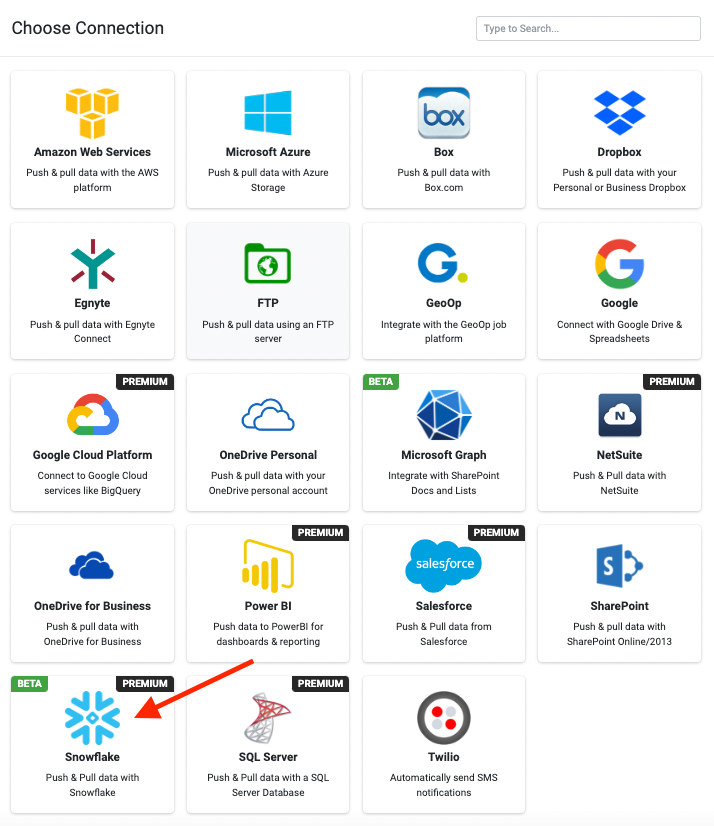 The page should refresh with your newly added connector to be configured.
Configuring a Snowflake Data Source Connector

Next, configure the following:
- Warehouse
The Snowflake Warehouse that you need to connect to. - Snowflake Database
The Snowflake Database that you need to connect to. - Schema
Add an optional Snowflake database schema where the table is stored. If kept empty, the default schema will be selected - Table Name
The SQL Server database table from which rows will be retrieved - Where Clause
Add an optional where clause to the query that will only return desired records. e.g.WHERE LastName = 'Good' - Ignore Internal Columns
If enabled, this connector will ignore all columns where the column name starts with an underscore e.g. _lastupdatedIf your table has a column named _identity and internal columns are not ignored, this column will always be the first column of the data source. Other internal columns are added to the end. - Refresh Frequency
The frequency that data is pulled by this connector.
When you save your changes, the connector will be fired for the first time and after that, it will run at the refresh frequency you specified in the connector settings.
Wait a minute or so and then check the Rows page of your data source.
If rows are not downloaded, then there may be an error with the connection to the Snowflake database.
You can check this by clicking on the View Logs link shown next to your connector on the Settings page.