Manually Rescheduling a Connector
Once a form has been submitted it will also be automatically sent via any data connectors that have been set up – email, Dropbox, Google Drive, etc. There may be times, however, that an admin wishes to resend the form via these connectors manually. Perhaps the data was lost in an email user’s inbox or online storage account, or perhaps someone simply wishes a fresh copy of the submitted form. Re-sending a form for these or any reasons is possible via the following method.
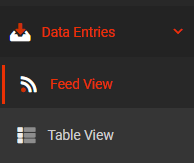
The admin will need to sign onto the web dashboard and navigate to either Feed View or Table View under Data Entries:
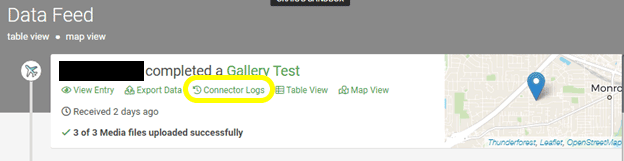
In the Data Feed view, identify the desired form submission and click Connector Logs as shown below:
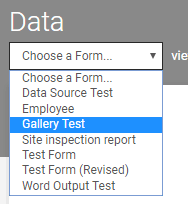
Alternatively, in the Table View, choose the desired form from the drop-down menu in the page navigation header at the top:
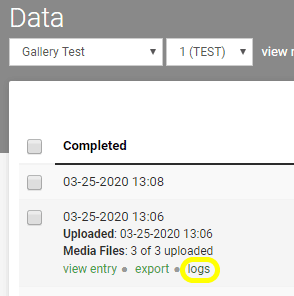
On the following page, hover the mouse over the desired submission and click “logs” below the entry details:
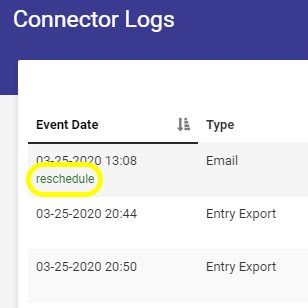
At this point the Connector Logs window will be displayed. From here, hover over the Event Date of the desired connector. The link “reschedule” will then be displayed. Clicking this will resend the submitted form over the associated connector to all parties/locations specified in said connector. In the example pictured below, this would be for the Email connector. Perform this same step for any other connectors as desired.
See also:
Form Connectors (category)
Related Articles
Using Force Sync to Manually Re-submit Unfinished Uploads
Sometimes a form will hang up uploading to the platform after the user submits it. This is often due to the user device’s network connection and the size of any media files included in the form (photos, a captured signature field, etc.). If this was ...Manually Downloading Data
Our platform provides a number of ways for you to manually download your captured data. If you are looking for options to export Form data (e.g., via email etc.), you should check out our Data Entries area. To manually download Form entry data, ...Box - Data Source Connector
Our platform enables you to quickly and easily connect your data sources to data from a file in Box. This enables a one-way synchronization to occur - where any changes in the Box file are downloaded into your data source on a regular basis. Your ...QuickBooks - Data Source Connector
Our platform allows for simple integration and rapid setup of a one-way synchronization with QuickBooks data for the screens you design. Once you have added and authenticated a QuickBooks Connection, you can include a QuickBooks Data Source Connector ...ArcGIS Data Source Connector
Our platform enables you to easily retrieve data from ArcGIS on a timed refresh. After adding and authenticating an ArcGIS connection, an ArcGIS Data Source Connector can be added to a data source to pull data in from ArcGIS on a regular basis. Your ...