TABLE OF CONTENTS
The REST field type enables you to issue a REST request in JSON or XML to an external web service and pull data from pretty much any API. The result of the request is stored in the REST field; you can then access the result’s values through our existing JSONVAL() and XMLVAL() formula functions.
Note: This field requires internet connectivity. You also need to ensure that the app user account being used is a Premium type, as the REST field is a Premium feature.
Simply drag and drop a REST field from the left-hand toolbar onto your Form page, then configure it using the right-hand properties panel.
Basic Properties
Data Name
This is the name of the field that should be referenced in any form logic or API calls. Users will not see this name on the form.
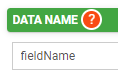
Data names cannot contain spaces or any special characters other than an underscore and must begin with a letter. They are case-sensitive and must be referred to precisely whenever they are referenced.
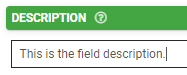
Description
This will serve as the description of the hidden field for visual aid in the design window. It will not be seen by the end user since the hidden field itself is invisible to the user on the form.

REST Request
Provide the details of the REST web service request that the app
Destination URL
This can be built up using our formula builder.
REST Verb
GET, POST, PUT or DELETE.
REST Format
REST services support JSON and XML formats for input and output data by default. The default format is JSON.
Request Body
Specify an optional payload in JSON or XML (depending on the format selected). Use our standard Data Template syntax to inject field values and formula results. e.g.,
{
'MyJsonProperty': '{{myfieldvalue}}'
}
Dialog Message
This displays a custom dialog message to the app user while the request is being executed.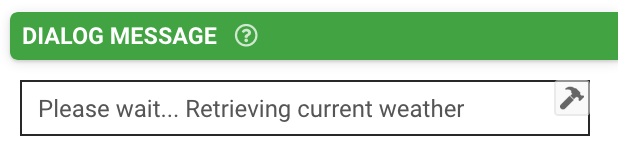
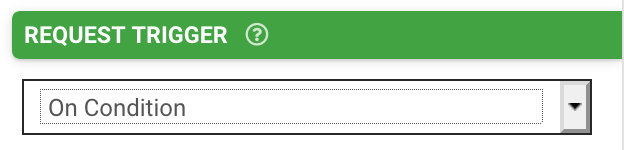
Request Trigger
Specify when the request should be executed:
On Form Load
Triggers the request to fire once the form has loaded successfully.
On Condition
Triggers the request once the specified condition evaluates to true.
Request Condition
Controls when to execute this request by evaluating a formula with a true/false result. e.g., NOTBLANK({{myActionField}}) will fire this request when myActionField's button is pressed.
Advanced Options
Exclude from Export/Display
By default, every field is displayed on Form entries in the Data area, and is included in non-templated exports (e.g., generic pdf, CSV, spreadsheet, database connectors). Use this property to prevent this field from showing on all such display and exports.

REST Weather Example App
To help you get acquainted with this field type, we've created an example app which we've published to our Form Templates catalog. Install this form and explore it in the designer window to see how it pulls data using the REST field and parses it for display!
This example utilizes a free account at APIXU to demonstrate how to connect to an API to pull current weather information. This account has limitations of 10,000 API calls per month.
To make user of this API in your own solutions:
- Step 1 - The request requires an API key that you can acquire by signing up for your own account. Get your own API Key at this like: https://www.apixu.com/signup.aspx
- Step 2 - Next, update the hidden field, apiKey with your key.
- Step 3 - Test or Publish the form.
- Step 4 - Open the Form on your mobile device and select a country from the drop-down.
Using a JSONVAL() formula to evaluate the response, the form populates fields with the current weather information.
Learn more about out data interchange formulas on our Formula Cheat Sheet.