Using Images in your Apps
Our platform has a number of different ways that you can include images in screens to improve display and usability.
Images in Data Sources
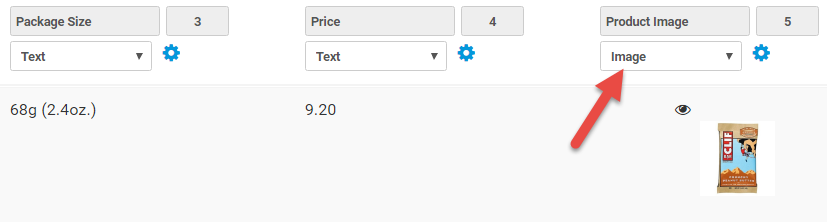
On the data source side, you can add columns to your data source that have a type of "Image"; this then allows you to upload images directly into the rows from the Rows page.
Alternatively, you can insert web links (URLs) into the column for publicly accessible images (e.g., https://img-aws.ehowcdn.com/877x500p/photos.demandstudios.com/getty/article/241/162/477744883.jpg)

If you are using a connector for your data source rows, then you must specify public URLs for the images.
Once you have images in your data source, you can set the image to display as a thumbnail whenever rows from the data source are displayed. This is done via the Settings page for your data source. On the Settings page, select your image column from the drop-down in the thumbnail area of the Default Row Display.
When a thumbnail is set on your Default Row Display, the thumbnail will appear when you use a Choices field in your form that has its Display Style property set to be List of Options.

In List of Data screens, you can also bind your image column to the thumbnail property using the list screen designer. And in Details screens, if you bind your image column to a detail field the app will display the image at full-screen width.
Images in Data Entry Form Screens
Another way to involve images in your app is by using the Section field type in your Form screens. This field type is a read-only display field that allows you to upload images that will appear inline in the app. Common uses for Sections include showing diagrams, lengthy formatted disclaimers and even navigation or section headings.
The Sketch field type also provides the option to upload a default background image. This comes in handy when you want to have a standard background image that you want your users to annotate - for example, circling injury areas on an outline of a human body or marking spots on a floor plan.
Finally, there is also an option to capture an image from a specified URL on Media field types. This proves helpful when you want the user to trigger the image capture and display - e.g., from an IP camera.
Related Articles
Key Concept: Docs
The Docs feature allows you to upload and manage any kind of file that you want to make available to app users in the field. Now you can replace paper documents carried around by your workers with digital versions that are always available to them. ...Pushing/Pulling Data To/From Other Systems
One of the key features of our platform is the ability to "push" and "pull" data between the platform and other systems and services. This enables you to build apps and functionality that feature live business data. Examples of this can be jobs, ...Email- Form Connector
One of the most common requirements is to be able to email a copy of the Form entry to various people. For example, if a building inspection is performed, you may want to email a Certificate of Inspection to the building owner. Or, if you are taking ...Flow Layout Field
The Flow Layout field lets you arrange fields side-by-side in a flexible column or grid layout. Essentially, it’s a container that holds multiple fields. Those fields are displayed side-by-side based on the device: up to 2 columns on mobile and up to ...Key Concept: Data Sources
Data Sources let you create and maintain logical data sets that can be used in Screens. A few examples are a list of choices, a product catalog, and a list of contacts. You can use Data Sources in Choices questions across any number of Forms. Data ...