Pushing/Pulling Data To/From Other Systems
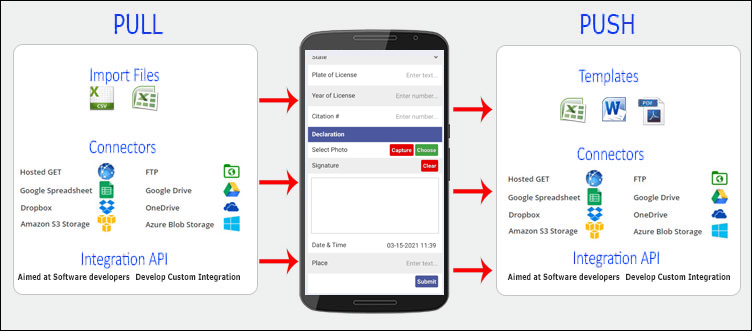
One of the key features of our platform is the ability to "push" and "pull" data between the platform and other systems and services. This enables you to build apps and functionality that feature live business data. Examples of this can be jobs, clients, products, projects, and contacts. Having access to this data in the field can make all the difference and empowers a dynamic line of business functions.
There are two key ways that you can integrate with other external systems/services:
- Use one of our built-in Connectors
- Create your own integration using our fully featured API
Connectors
These are essentially "baked-in" integrations that allow you to "push out" and "pull-in" data between our platform and others.
- Pushing Data
To "push" data that has been captured on the mobile app, you can set up Connectors on form screens. These can do everything from emailing PDFs, updating Google Spreadsheets - all the way through to sending SMS text messages. See the "connectors" page available on every Form screen.
- Pulling Data
"Pulling" data is achieved by adding a Connector to a data source. This will mean that your data source is refreshed regularly with changes made on the external system's data rows. You can connect to a variety of services such as Google Drive, One Drive, GeoOp, and more.
- Connections
Depending on the connector you want to use, you may need to set up a Connection first. The connection setup page is found under the "Your Account" menu on the secure website. Once on the Connections page, click on the "Add Connection" menu on the right-hand side. You can then choose the desired platform or service that you want to connect to. You may need to go through an authorization process to grant our platform access to your external account.
Integration API
Our integration API is aimed at software developers, so you will need to ensure you have access to such personnel. We also have a small services team that may be able to assist if you do not have such technical staff available. You can find full documentation on our API under the Integration section of our documentation website. The integration API allows you to put together a completely custom integration that does exactly what you want it to do. This opens up many different options that may not be possible using Connectors.
See also:
Related Articles
Key Concept: Data Sources
Data Sources let you create and maintain logical data sets that can be used in Screens. A few examples are a list of choices, a product catalog, and a list of contacts. You can use Data Sources in Choices questions across any number of Forms. Data ...Referring to column values of a selected Data Source row
The Form Designer allows you to link Choices fields to a Data Source that you have previously uploaded. Data Sources can have as many columns as you like, and you may want to refer to the values in these columns when creating a Form. To do so, you ...Key Concept: Screens
TABLE OF CONTENTS Form screen/Data Entry Form List of Data screen Details screen Board of Icons screen Map a Data Source screen Screens List Creating a new Screen Screens allow you to assemble your app in an extremely flexible and simple way. Almost ...Using Images in your Apps
Our platform has a number of different ways that you can include images in screens to improve display and usability. Images in Data Sources On the data source side, you can add columns to your data source that have a type of "Image"; this then allows ...Creating a Formula
Most advanced Form functions involve the use of a formula. As such it is critical that you understand how to create a formula to get the most out of our advanced features. Field Data Names First off you need to know how to address or refer to a field ...