Adding a Salesforce Connection
TABLE OF CONTENTS
- Configuring Salesforce
- Creating a New Connected App (Settings Required)
- Manage Connected App
- Configuring the Salesforce Connection

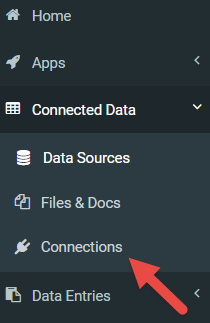
To add a Salesforce Connection, go to the Connections page which is accessed via Menu -> Connected Data -> Connections.
NOTE: Salesforce connections are only available on Premium accounts.
You must be an Administrator-level user to see this option.
- Click the ADD CONNECTION button on the top-right of the page to add a new connection. This will bring up a list of connections from which you can choose.

Configuring Salesforce
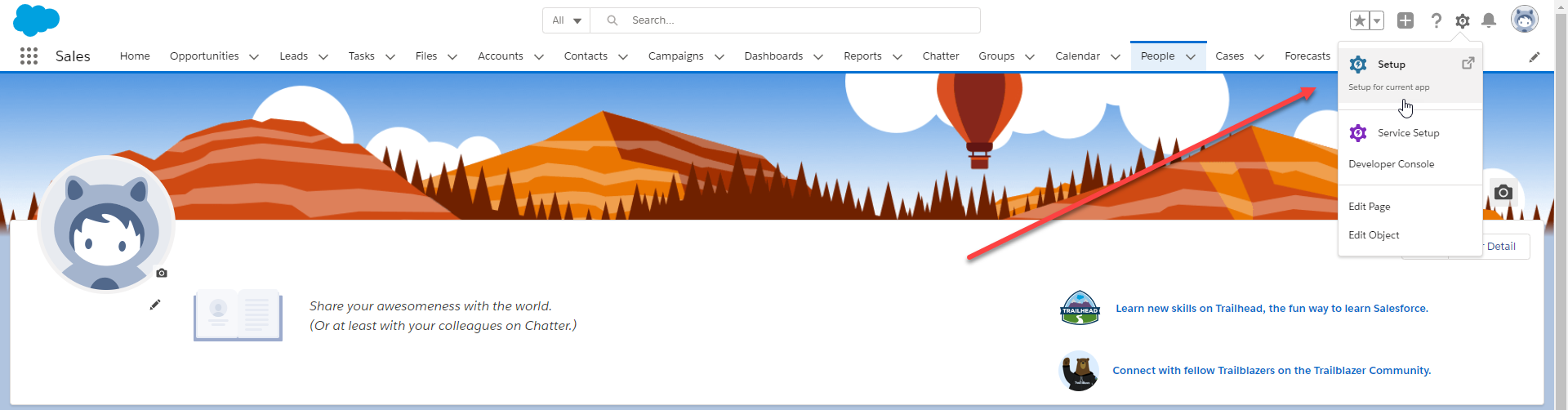
Log into your Salesforce account and navigate to Setup>Setup for current app (cog icon top right).
Next:
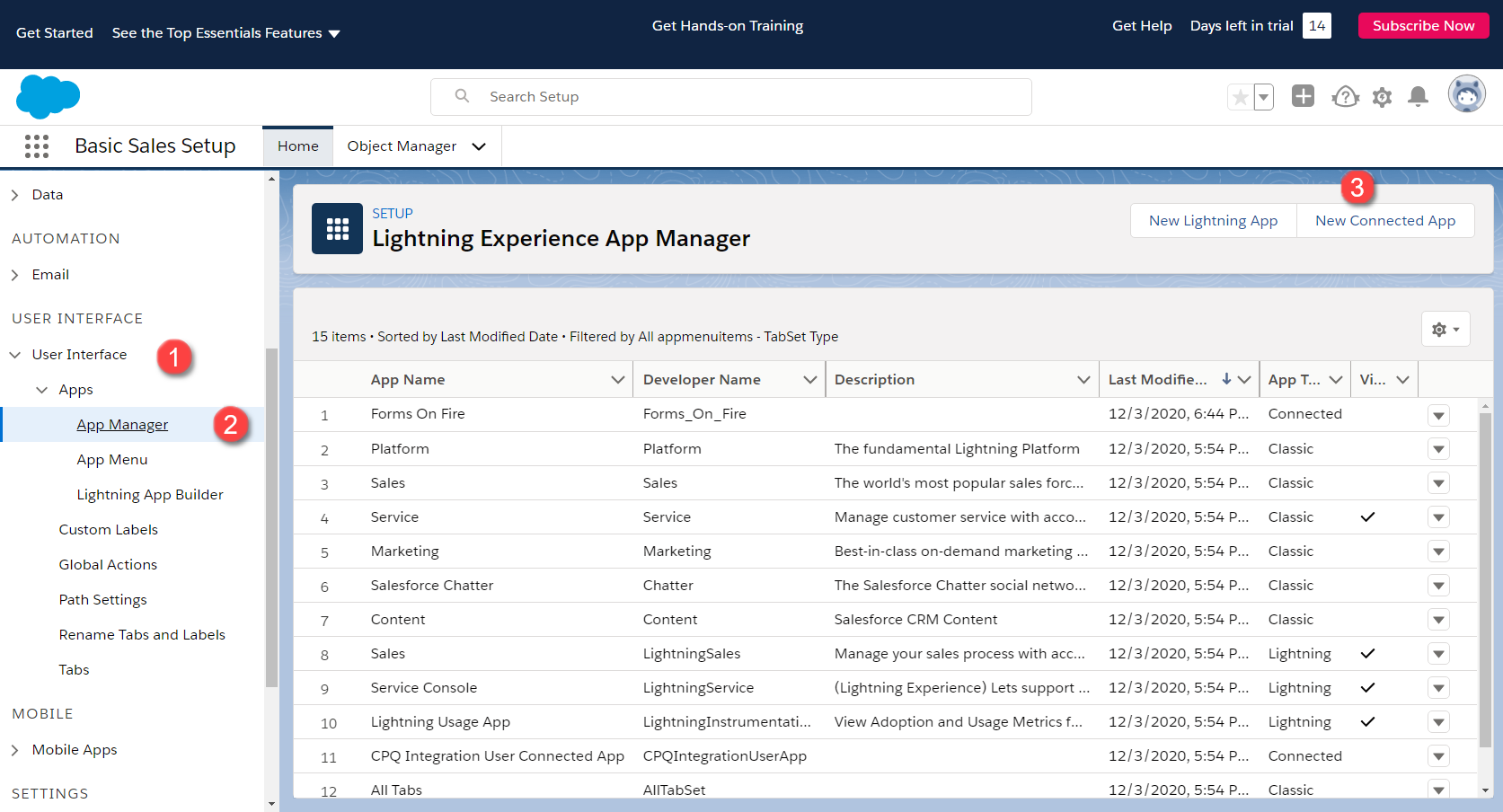
- On the left-hand menu, click on User Interface>Apps>App Manager
- Click on New Connected App on the top right-hand corner
Creating a New Connected App (Settings Required)
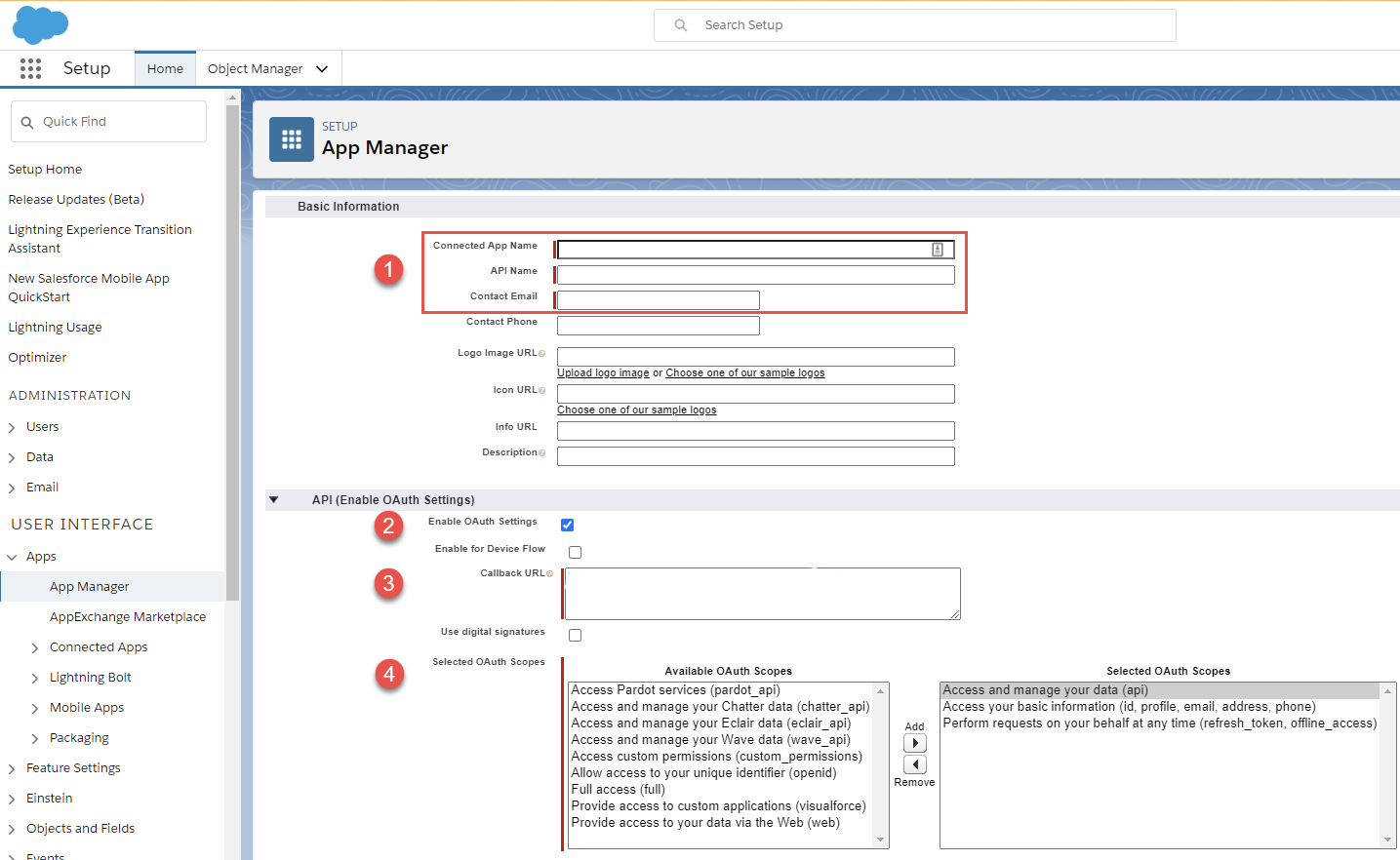
1) Basic Information
- Connected App Name
- API Name
- Contact Email
2) API (Enable OAuth Settings)
- Check the Enable OAuth Settings option
3) The Callback URL can be found on eForms Mobile Web portal after adding a SalesForce Connection
4) Selected OAuth Scopes - The following scopes need to be selected:
- Access and manage your data (api)
- Access your basic information (id, profile, email, address, phone)
- Perform requests on your behalf at any time (refresh_token, offline_access)
Manage Connected App
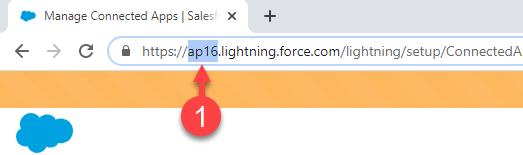
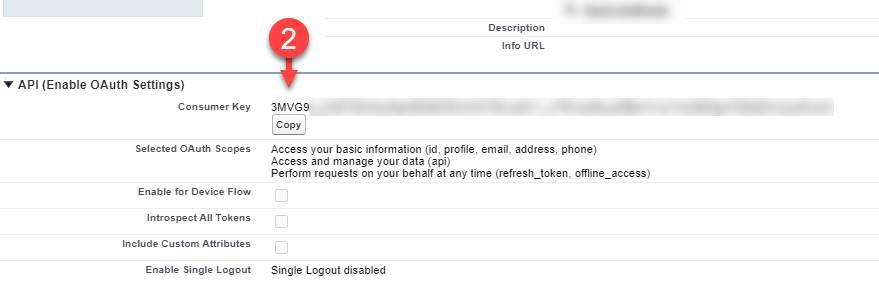
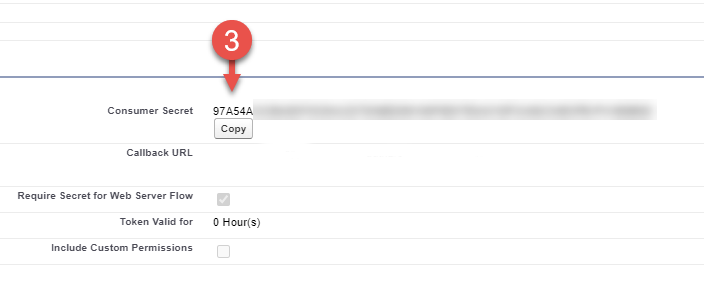
After the app is created, the following details are required for configuring your Salesforce Connection:
1) Company Domain
2) Consumer Key
3) Consumer Secret
Configuring the Salesforce Connection
Add your Company Domain, Consumer Key and Consumer secret to your Salesforce Connection.
In addition, if your account is a Sandbox Account, check the Sandbox Account option.
On the top-right of the page, hit the “Save”button.

For the final step, hit “Authorize” on the SalesForce Connection to authenticate using your SalesForce login details.
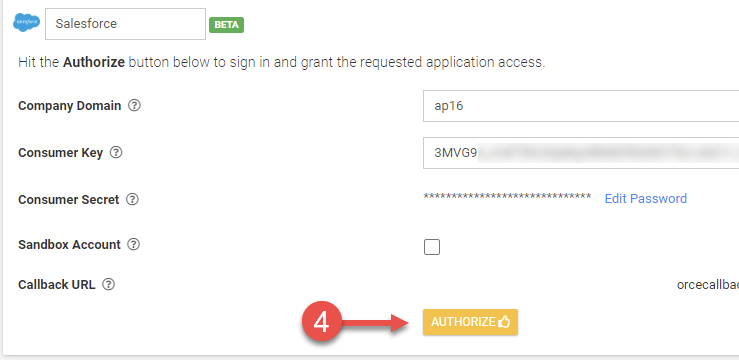
Once the connection has been authenticated successfully, the platform will indicate this via a green connected tick.

For more information on pushing and pulling data to/from Salesforce, the following articles might be of interest:
- Salesforce Form Connector
- Salesforce Data Source Connector
Related Articles
Salesforce
TABLE OF CONTENTS Adding a Salesforce Connector to your Form Configure your Salesforce Connector A Premium connector for direct connection to Salesforce. Our platform enables you to quickly and easily connect to objects on your Salesforce account. ...Salesforce
Our platform enables you to quickly and easily connect your data sources to Salesforce Objects. This enables a one-way synchronization to occur - where any changes in the Salesforce Objects are downloaded into your data source on a regular basis. ...Adding a PostgreSQL Connection
Authenticating a connection to PostgreSQL enables communication between the two platforms. This must be successfully added before Form Connectors can push or Data Source Connectors can pull data. TABLE OF CONTENTS Adding Authenticating Additional ...Adding a Box Connection
Box is a Secure Cloud Storage Platform designed specifically for the purpose of securely storing your data files. This versatile platform allows users to easily share their files with others, functioning similarly to other popular cloud file storage ...Adding MySQL Connection
MySQL is an open-source Relational Database Management System that uses SQL to create and manage databases. As a relational database, MySQL stores data in tables of rows and columns, organized into schemas. Our MySQL Connectors allow you to push and ...