How can I control the quality / size / megapixels of images & photos in Forms?
Images that are captured via Media fields in your Form will be automatically resized to a maximum height/width of 800 pixels. This default ensures that captured images do not consume large amounts of the user's mobile data during uploads and maintain reasonable quality for printing and PDF outputs. If you wish to change this default behavior, you can do so at the individual Form level via the "RESIZE IMAGES TO" designer setting. In the web portal, browse to your Form design and click on the title bar of your Form preview to access this option.
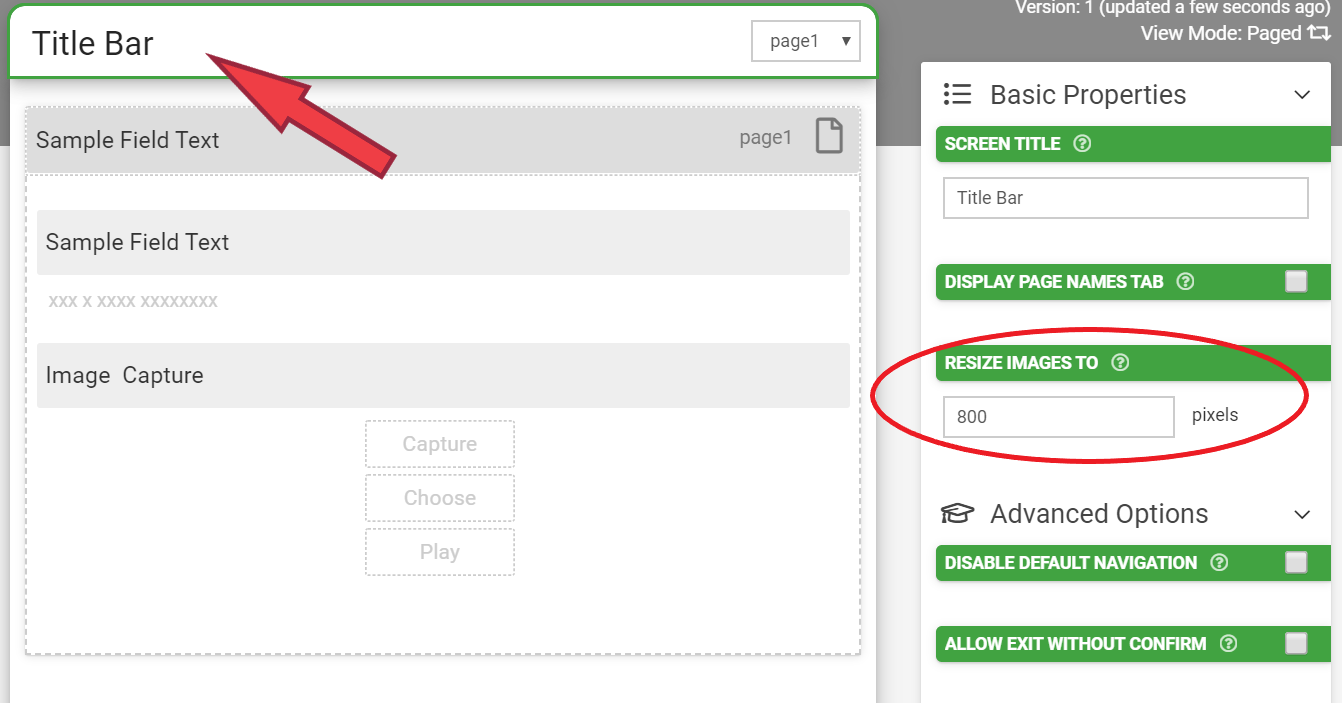
Change the RESIZE IMAGES TO option as desired. Remember that every 1000 pixels increases image file size by a factor of 4. After setting the desired resize pixels, be sure to save your changes!
IMPORTANT NOTE:
Resizing to over 2000 pixels has been known to cause device/app stability issues, especially with some Android devices due to the very large file size of images of this higher quality.
Increasing image quality in PDF and other outputs
When exporting a Form entry (through our Data Entries area on the web portal), you will notice we provide a "High Resolutions Images" checkbox. Selecting this option will increase the image sizes in the PDF from our default of 96ppi to 150ppi (pixels per inch).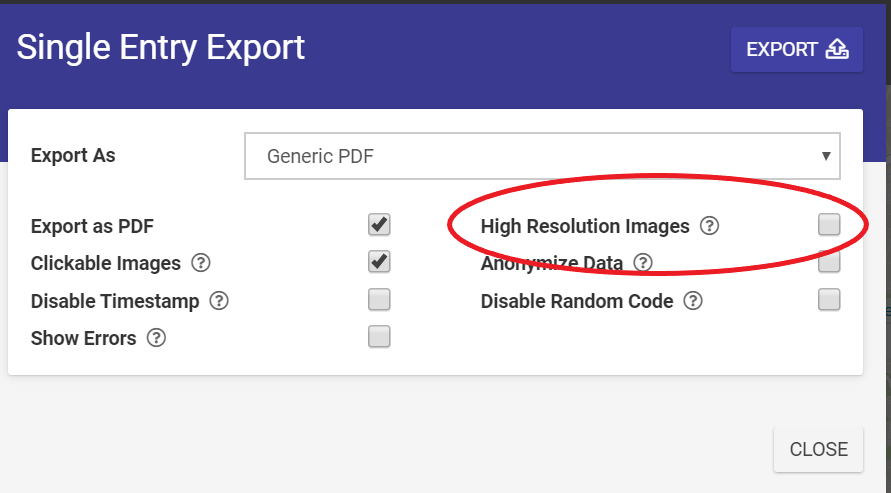
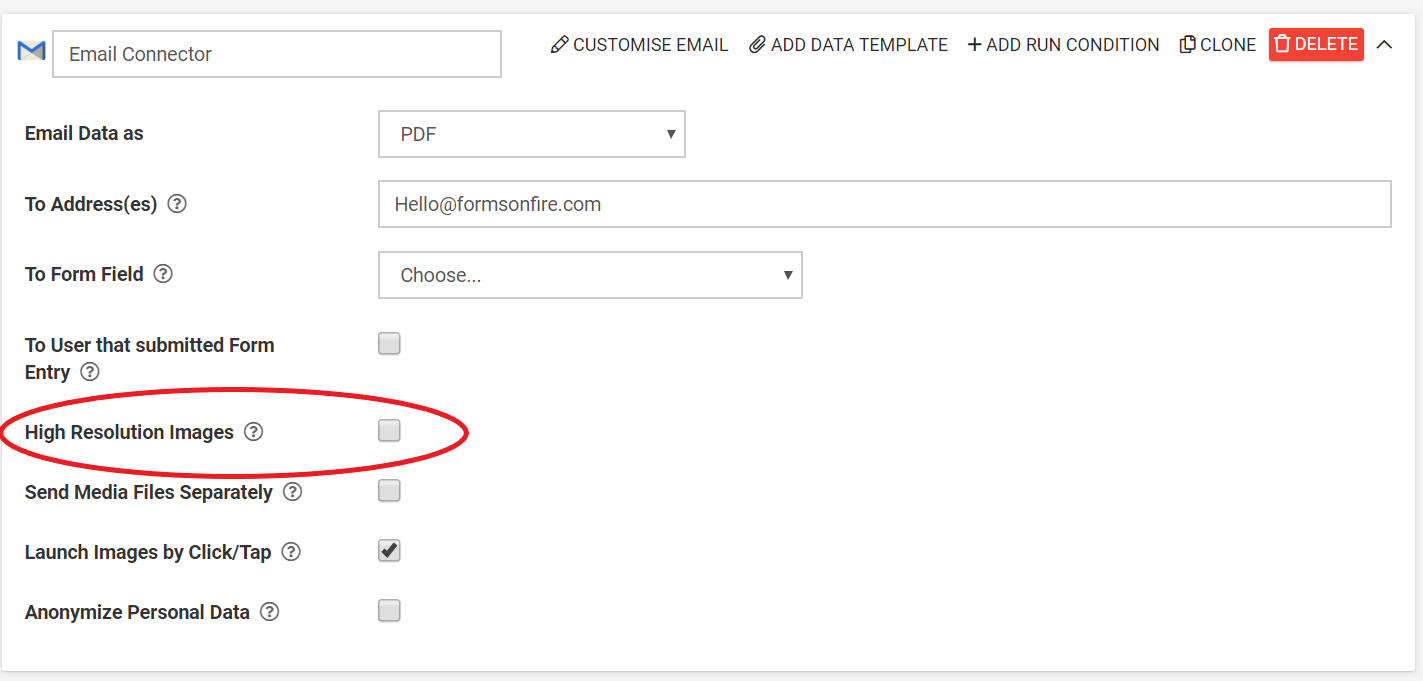
This same "High Resolution Images" option is available on Form connectors:
Related Articles
Capture Google Maps Images in eForms Mobile
Using Google’s Open API, forms designed in eForms Mobile can easily display map images from Google Maps right on the screen for users to reference and annotate! In short, the eForms Mobile Media field allows any image to be captured from a URL. The ...Creating Forms with AI
Instead of building from scratch, Generate Forms by describing what you need – using text or voice – and our AI will create a robust starting point. This reduces your setup time and delivers a working solution faster. Then, using Conversational AI ...Dynamically Displaying Images from Data Source, Web or Map sources
TABLE OF CONTENTS Data Source-hosted Images Displaying an Image in a Media Field via a Choices Field Displaying an Image within a Section Field Web-hosted Images Location-based images The "Dynamic Image" property allows you to load images dynamically ...Using Images in your Apps
Our platform has a number of different ways that you can include images in screens to improve display and usability. Images in Data Sources On the data source side, you can add columns to your data source that have a type of "Image"; this then allows ...Sizing images to fit a device screen dimension
If you can precisely measure the width of your screen or know the screen's exact dimension in pixels, you can calculate the pixels needed to mirror the physical size of the screen on a printed-out copy of the image. Here's how: Determine the width or ...