Key Concept: Screens
TABLE OF CONTENTS
- Form screen/Data Entry Form
- List of Data screen
- Details screen
- Board of Icons screen
- Map a Data Source screen
- Screens List
- Creating a new Screen
Screens allow you to assemble your app in an extremely flexible and simple way. Almost every screen your app users see in the app can be designed and configured by you. This allows for full control over the user experience.
There are several Screen types to choose from. Each type provides the template for a specific user experience. The types available currently are:
Data Entry Form
This allows you to build data capture screens by using a drag-and-drop designer to create the pages for your Form. On each page, you can add various data capture field types. Examples of field types are text, number, GPS, photo, signature, checklist, and more.
List of Data screen
Provides a list display of rows from a specified Data Source. This is useful when you want to provide your users with quick lists. Lists can be of products, contacts, tickets, and pretty much anything else you can think of. Data Sources can be connected to external systems so you can feature rows from other systems in your app. See this article for more information.
Details screen
One of the most flexible options. This Screen type allows you to display the specifics of a selected row from a Listing screen. Or, you can display a static set of information such as a menu.
Board of Icons screen
This screen type allows you to create your own custom icon layouts as a replacement start screen of your app, or as drill-down screens that provide the icons for a specific module or function of your app.
Please note that due to certain limitations, changing the default start screen with a custom icon board is not recommended unless used as a last resort. The workaround to get the custom icon board to show is to completely uninstall and reinstall the app; this should be done only when the app is in a completely stable environment, with no changes being made to forms. As an alternative to replacing the start screen, please consider using groups and folders to determine app visibility for users. See this article for more information.
Map a Data Source screen
This screen type provides you with the ability to display data as map pins on a full-screen map.
Screens List
When you go to Design Tools -> Forms/Screens on the side navigation menu, you will enter the Screens list page.
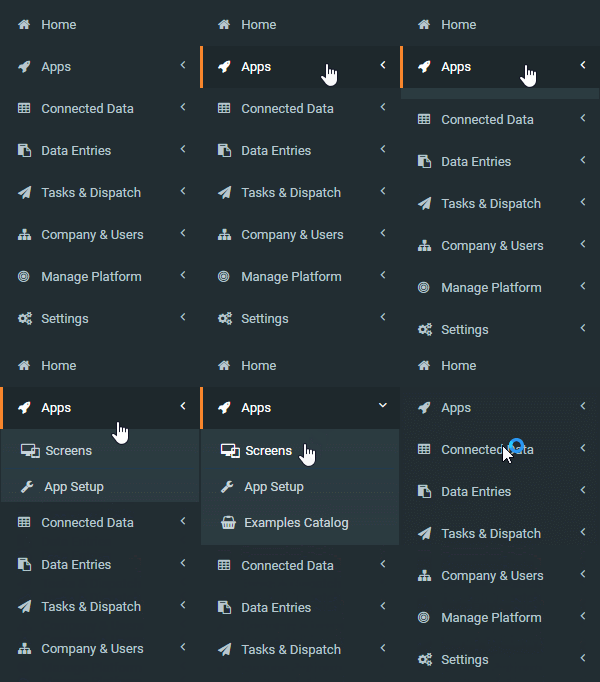
This shows all Screens that are currently active. Filter by screen type using the drop-down provided or by name when using the Search box. By default, any Archived Screens will not show; however, you can display these by checking the Show Archived box.
To create a new Screen, use the “add new” option available in the options bar.
Creating a new Screen
Creating a Screen is easy:
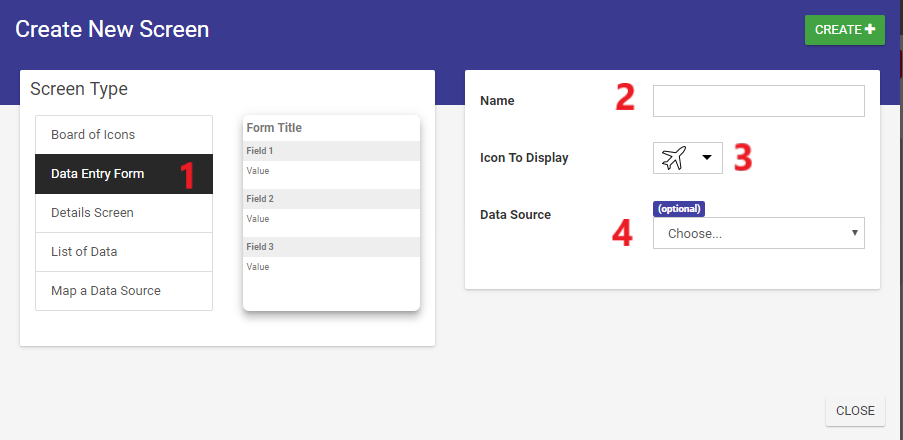
- Choose your Screen type.
- If this is your first time using the system, we suggest you start with a Data Entry Form.
- Enter a name for the Screen.
- This is the default name that will be shown to app users.
- Choose an icon to display to app users.
- This helps with quickly identifying your Screen to your users in the field.
- Bind to a Data Source (can be optional)
- Binding to a Data Source will automatically generate fields for you based on the columns found, giving you a quick way to get started with a new Screen.
- Some Screens require that you bind to a Data Source - for example, List of Data screens must be bound to a Data Source in order to display rows.
Related Articles
Key Concept: Data Sources
Data Sources let you create and maintain logical data sets that can be used in Screens. A few examples are a list of choices, a product catalog, and a list of contacts. You can use Data Sources in Choices questions across any number of Forms. Data ...Key Concept: Docs
The Docs feature allows you to upload and manage any kind of file that you want to make available to app users in the field. Now you can replace paper documents carried around by your workers with digital versions that are always available to them. ...Key Concept: Tasks (Job Dispatch)
Tasks allow you to assign Forms, Docs, and free text Instructions to specific app users in the field. You specify a date and time for completing the Task. Additionally, you can specify an optional location and even require that the user complete the ...Flow Layout Field
The Flow Layout field lets you arrange fields side-by-side in a flexible column or grid layout. Essentially, it’s a container that holds multiple fields. Those fields are displayed side-by-side based on the device: up to 2 columns on mobile and up to ...Pushing/Pulling Data To/From Other Systems
One of the key features of our platform is the ability to "push" and "pull" data between the platform and other systems and services. This enables you to build apps and functionality that feature live business data. Examples of this can be jobs, ...