Media Field Type
Adding a Media field to your Form design enables your app users to capture photos, audio or video as part of their Form submission. Simply drag and drop a Media field from the left-hand toolbar onto your Form page and then configure it using the right-hand properties panel. By default, the Media field will have its Media Type property set to Image. This allows the user to capture a photo or select an existing image from their device galley. Change the Media Type property as desired to capture audio or video instead.
File Name Property
The file name property on the Media field allows you to specify a custom file name that will be used for a media file that is output from a connector with the "Send Media Files Separately" checkbox enabled. This property can be static, dynamic or a combination of both, using static text and data names from the form -- e.g., Photo-{{UserCaption}}. A data entry field like a text field can be used for the user to enter a caption in this way. Consider also using metadata fields to add further specificity to file names.
Video Capture
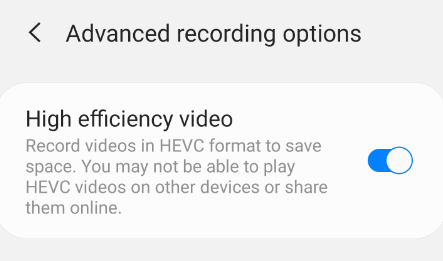
Video capture is limited to 10MB file sizes. This is to save on data upload bandwidth since videos can be very large - easily 10 times bigger than a photo. On iOS devices, this usually allows for 30 seconds of footage due to iOS's ability to automatically lower the video resolution to fit this size limit. Android users, however, will need to manually lower the video resolution of their camera to record as much footage as possible. It is also recommended that Android users enable High efficiency video (HVEC) within Advanced Recording Options for the same reason.
Adding GPS data to your Image
When capturing images, you also have the option to capture the user's GPS location and heading information. This can be useful for several reasons. E.g., if your user is completing a land survey, you can use their position information to plot each image on a map. Select the "Include GPS Information" property to enable this functionality on your Media field.
Dynamic Image Watermarking

This feature allows you to apply dynamically generated text as a watermark onto images that are captured or chosen via a Media field during Form entry. You can define the desired text output via the "Apply Watermark Text" property on your Media field. The text stamped on the image is driven by a formula of your creation, with options to customize the color of the text and the position it appears in the image. And yes, multi-line watermarks are supported!
Audio Capture on Android
To capture audio with the media field on Android devices, a manufacturer-released recording app will need to be installed on the device. For example, a Samsung phone will need to have an audio-recording app installed that was released by Samsung. Many Android devices do not come with such an app pre-installed on the phone; in these cases, the user will need to install such an app through the Play Store.
Related Articles
Sketch Field Type
A Sketch Field Type can be used to capture signatures, or to annotate images or drawings. Configuring the Sketch Field Type Simply drag and drop a Sketch Field from the left-hand tolbar onto your Form page and configure it using the right-hand ...Gallery Field Type
This is an advanced field type that allows a user to upload multiple images into a form from a device's gallery and capture images using the device's camera, displaying al. The form displays all images as thumbnails. Other field types can be added to ...Attachment Field Type
The Attach field is an advanced field type that allows documents or files (up to 25MB) on a user's device to be added to a form as an attachment for output. Alternatively, a file can be downloaded from a specificed URL. Note: Attached PDFs can also ...Table Field Type
Table fields provide an inline tabular display of repeating data, along with the ability to add & edit rows in the Table via a dedicated row page. Users add rows via a dedicated "Add New Row" button and can edit existing rows by tapping on the ...REST Field Type
The REST field type enables you to issue a REST request in JSON or XML to an external web service and pull data from pretty much any API. The result of the request is stored in the REST field; you can then access the result’s values through our ...