Referring to column values of a selected Data Source row
The Form Designer allows you to link Choices fields to a Data Source that you have previously uploaded. Data Sources can have as many columns as you like, and you may want to refer to the values in these columns when creating a Form. To do so, you will need to use a formula to refer to the desired column.
By default the first column in a Data Source (also known as the Value column) is always used as a field's answer. If you want to refer to any other column's value, you need to use an index syntax. Specifically, you need to add square brackets around the column's index number - e.g., {{product[index]}}.
Data Source column indexes always start at zero - i.e., the first column has index of 0, the second column has index 1, third column is index 2, and so on.
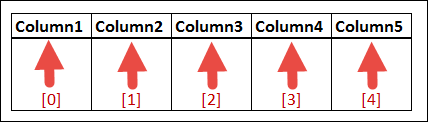
Let's look at an example:
Imagine you have a Data Source called "Products" that contains your product list, with rows such as:

You create a Form named "Sales Order" which you will use to capture orders for your products. The Form has the following fields:
- product_choice : A Choices field that is linked to the Products Data Source.
- quantity : A Number field that captures the quantity of product ordered.
- total : A Number field that will calculate the total amount by multiplying the product's price by quantity.
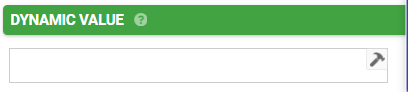
On the "total" field, you would define a Dynamic Value formula as follows: {{product_choice[2]}} * {{quantity}}
Related Articles
Creating a Formula
Most advanced Form functions involve the use of a formula. As such it is critical that you understand how to create a formula to get the most out of our advanced features. Field Data Names First off you need to know how to address or refer to a field ...Key Concept: Data Sources
Data Sources let you create and maintain logical data sets that can be used in Screens. A few examples are a list of choices, a product catalog, and a list of contacts. You can use Data Sources in Choices questions across any number of Forms. Data ...Pushing/Pulling Data To/From Other Systems
One of the key features of our platform is the ability to "push" and "pull" data between the platform and other systems and services. This enables you to build apps and functionality that feature live business data. Examples of this can be jobs, ...Using Images in your Apps
Our platform has a number of different ways that you can include images in screens to improve display and usability. Images in Data Sources On the data source side, you can add columns to your data source that have a type of "Image"; this then allows ...Key Concept: Screens
TABLE OF CONTENTS Form screen/Data Entry Form List of Data screen Details screen Board of Icons screen Map a Data Source screen Screens List Creating a new Screen Screens allow you to assemble your app in an extremely flexible and simple way. Almost ...